How to recover data from a non-functioning Time Capsule and how to restore a Time Machine snapshot
-
Author:
Vladimir Artiukh

-
Editor:
Oleg Afonin



In this article we will examine how to recover data from a corrupted Time Machine backup and how to retrieve information from a non-working Time Capsule. We will cover what to do if your Time Capsule has stopped functioning and you need to extract files directly from the hard drive.
- STEP 1. Diagnostics and initial steps
- STEP 2. Attempt recovery using the standard method
- STEP 3. Use Disk Utility to check and repair the disk
- STEP 4. Manual file extraction (for advanced users)
- STEP 5. Process of removing the disk from the Time Capsule
- STEP 6. Recovery using Hetman RAID Recovery
- STEP 7. Working with the .sparsebundle format
- Conclusion
- Frequently Asked Questions
- Comments
Time Capsule from Apple has long been considered one of the most convenient solutions for backing up a Mac via Time Machine. The device automatically saved system snapshots, documents, photos and other important data, allowing quick restoration after a failure. However, over time Time Capsule owners increasingly encounter problems: the drive stops being detected on the network, the device does not power on, the disk becomes damaged, or Time Machine backups become inaccessible.
But even if the Time Capsule no longer works, this does not necessarily mean permanent data loss. In many cases it is possible to recover files, extract Time Machine backups and restore a macOS system snapshot. The main thing is to correctly determine the cause of the malfunction and use appropriate recovery methods.
In this article we will review how to recover data from a non-working Time Capsule, what to do when a Time Machine backup is corrupted, how to access system snapshots and which tools can help recover files from an Apple Time Capsule disk.

Data Recovery from RAID 0, 5, and 6 Created on Infortrend ESDS 1012 RC
STEP 1. Diagnostics and initial steps
Before proceeding to complex operations, start with basic system checks. First, restart your Mac and the Time Capsule. Sometimes simple software glitches can be resolved by rebooting the devices.

Then check physical connections: ensure that your Time Machine drive or network station is properly connected and visible in the Finder or the AirPort utility. If this is an external hard drive, check the cable and port for faults.

Next, review the Time Machine log. Open System Preferences, the Time Machine section. Check whether there are warnings or specific errors indicating backup corruption.

STEP 2. Attempt recovery using the standard method
If Time Machine reports an error during recovery but still “sees” existing backups:
-
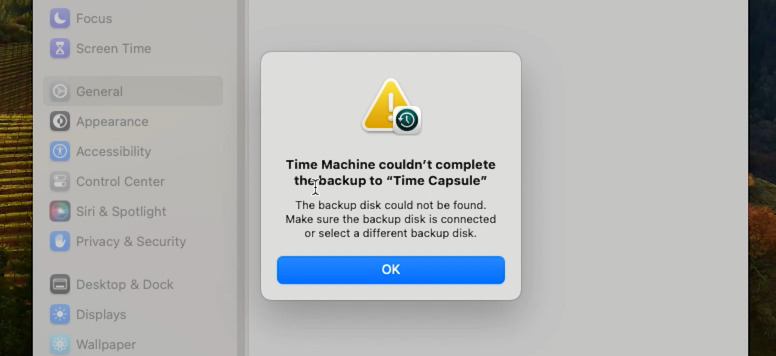
Try restoring individual files. Enter the Time Machine interface directly from Finder and attempt to restore a single file from different dates. If some snapshots for certain dates work and others do not, this may indicate partial data corruption.
-
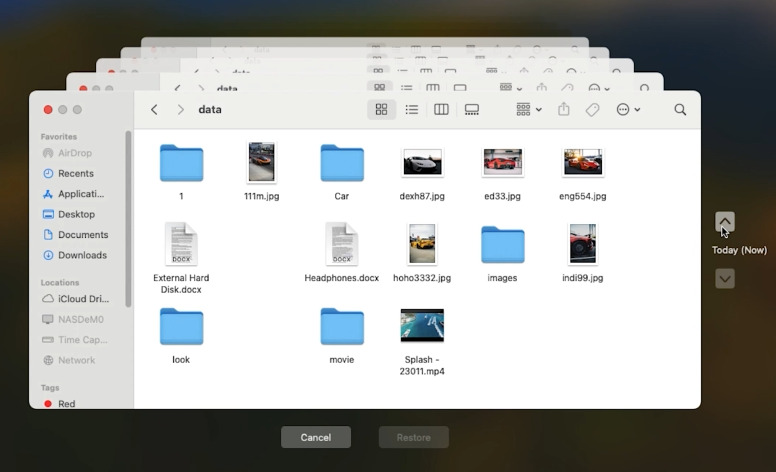
Try restoring the system. If you have access to another Mac or plan to reinstall macOS, try restoring the entire system via Recovery Mode. Sometimes this method is more resilient to minor system errors.


STEP 3. Use Disk Utility to check and repair the disk
Another effective method is to use Disk Utility to check and repair the Time Machine disk. This is a critical step if you suspect physical or logical damage to the backup storage. Connect the drive directly.
If you are using a Time Capsule, consider attempting to connect its hard drive directly to your Mac. This requires disassembling the device and converting the internal drive into a standard external drive (we will cover this process in detail below). If you are using a typical external drive for Time Machine, simply connect it.
Open Disk Utility via Applications – Utilities. In the left sidebar select the physical disk itself, not an individual partition.

Click the First Aid button and then Run. The utility will attempt to locate and repair file system errors. Note that this may take a long time.

IMPORTANT: if First Aid finds too many errors and is unable to fix them, this is a negative diagnostic sign.
STEP 4. Manual file extraction (for advanced users)
A Time Machine backup is stored in a special hierarchical structure. If automatic recovery fails, you can attempt to access files directly.
The Time Machine archive is a folder named Backups.sparsebundle on the disk.
Inside that directory are folders named by the date and time of each backup, and then folders with the network name of your Mac. You can open this folder via Finder and attempt to manually locate the needed items.

Time Machine uses a “hard links” technique to save space, so files that have not changed are not duplicated but reference a previous version. If one link is corrupted, the actual file may still be intact in an earlier backup. Try copying the required data to another location on your Mac. If the copy succeeds, the specific file is not damaged.

STEP 5. Process of removing the disk from the Time Capsule
Now let us go through the procedure in detail on how to recover files from a non-working Time Capsule, how to extract its disk and retrieve the required data.
Removing the drive from the enclosure is a complex procedure that VOIDs THE WARRANTY (if still valid), requires specific tools and careful handling. Apple did not intend users to open the device, therefore do this only as a last resort if other software recovery methods have failed and you are prepared to risk the device’s integrity.
So, what you will need for disassembly:
- A thin plastic pry tool or guitar pick (for safely releasing plastic clips).
- A Phillips screwdriver.

Step-by-step process for models A1302, A1355, A1409 (the “square” generations):
- Disconnect the Time Capsule from power. MANDATORY! Unplug the cord from the outlet and disconnect all cables. Allow the device to cool down.
Remove the rubber base. Turn the device over. You will see a rubber base that should be carefully pried up at the edges with a plastic tool or guitar pick. The rubber is glued, so act gently to avoid tearing it.
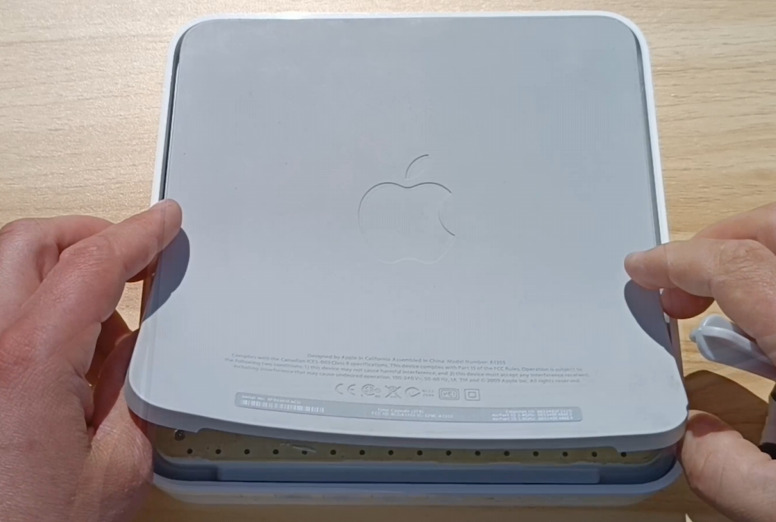
Unscrew the screws. After removing the screws the bottom panel should come off easily; slight wiggling may be required.
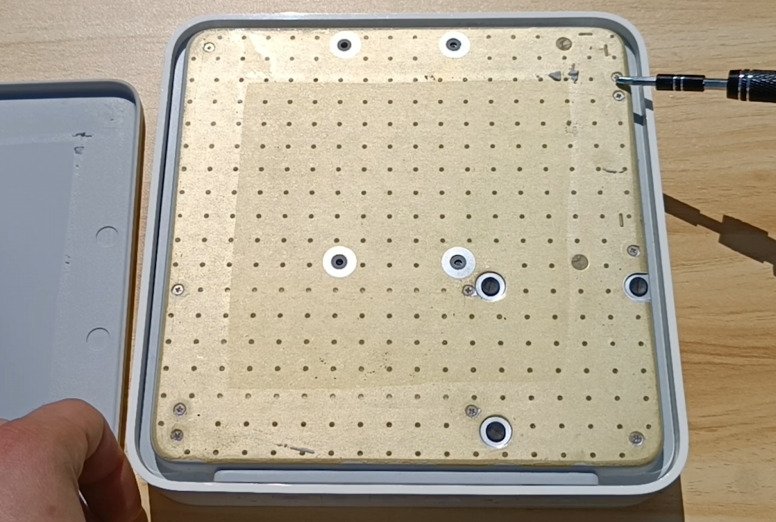
Extract the drive. The hard drive is usually located inside a metal frame or secured in plastic guides. It may also be held by additional screws on the sides or top that need to be removed.
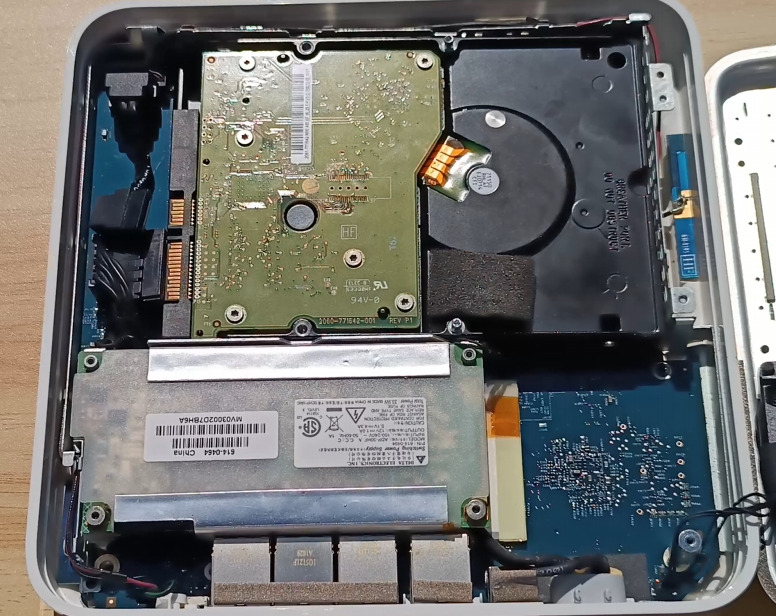
Disconnect the cables. The drive connects to the motherboard with two connectors: SATA power and SATA data. Disconnect them carefully, do not pull abruptly to avoid damaging the motherboard connectors.
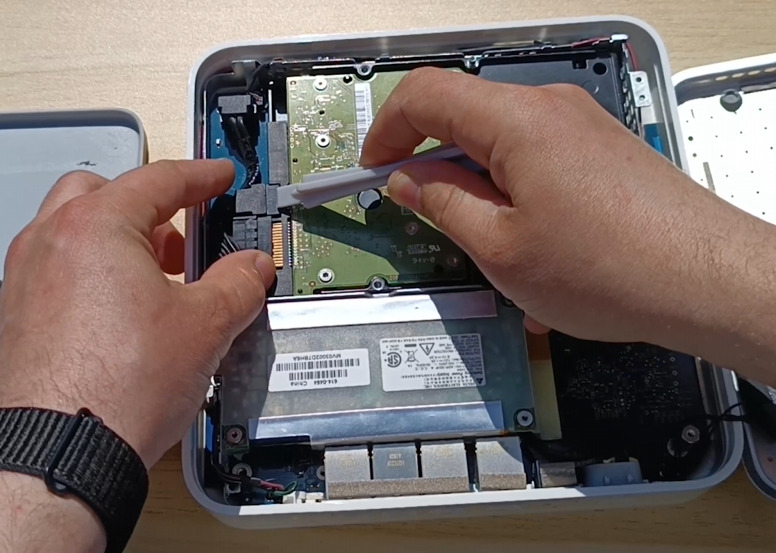
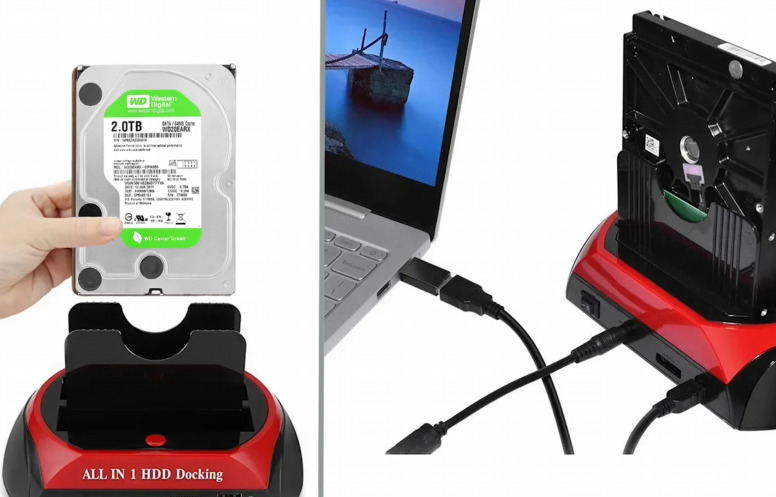
Connect to a computer. Now simply connect the drive to a computer. You can use an external enclosure with USB connection or a docking station. Connect it to your Mac or a Windows PC.


STEP 6. Recovery using Hetman RAID Recovery
Let us review the recovery process using the Hetman RAID Recovery software. It supports all popular file system formats and can help restore data in cases of deletion, formatting, software errors or hardware failures.
Download the application. Choose the version for the macOS operating system.
Next, install it by clicking the downloaded file and following the instructions, dragging the application icon to the Applications folder.

For correct operation the utility requires full disk access. Go to Security settings and grant access to the drive, entering the user password.

After that open Launchpad and start the application. You will also need to enter the user password to launch it. In the main window you will see all connected drives. To recover, right-click the target disk and choose Open.

Then select the analysis type: initially it is recommended to perform a Quick Scan — this takes less time and will recover files in most standard situations.

As a result the program will rapidly scan the device and display all found files. Open the folder where the data you need was stored.

The program preserves the folder structure, so locating the required items is straightforward. A name search function is also provided for convenience.
Use the preview function to ensure that the found files are not corrupted and are the files you expect (this works for most document, image, video and audio types).
To restore files, select the required items and click the Recover button.

Then specify the path where to save them: choose another physical disk and folder, then click Recover again.
VERY IMPORTANT: always choose a different physical drive for saving. Never write recovered data back to the same Time Machine disk you are recovering from, as this can cause overwriting and permanent data loss.
After the process completes, open the selected folder and verify that all files are accessible and open correctly. By default they will be saved under: the Documents folder — Recovered Files.

If the virtual disk was severely damaged and the program could not find the required data using Quick Scan, run a Full analysis. Return to the main menu, right-click the disk and select Analyze again — Full analysis.

Specify the disk file system and click Next. This process will take longer because a more advanced search algorithm is used.
The program will display all found data. This way you can even recover previously deleted files — they will be marked with a special red cross icon.

Next, simply select them and restore. Thanks to the native macOS version, Hetman RAID Recovery is an effective tool for recovering data from corrupted backups. In some cases the program may not display files if the disk is password-protected — the utility may not show encrypted data; in that situation you can recover only the files visible in Finder.
Sometimes the backup is so badly damaged that recovery is impossible. If you have extracted everything possible, reformat the old Time Machine disk and start backups anew. This ensures you will not continue using a corrupted file system.
When working with a faulty disk, always try to create a disk image first to avoid further damage during access attempts. Hetman RAID Recovery can save an image of the target drive. To do this, select it in the application and click Save disk at the top, then specify the save location.

You can load that image into the program at any time and attempt to recover files from it.
STEP 7. Working with the .sparsebundle format
In macOS, after recovering a .sparsebundle file you can mount it directly in the system and extract the required data.

In Windows, after saving the file you cannot extract information directly because it will appear as a folder. In this case you need to mount it within the application: open Hetman RAID Recovery, click Mount disk at the top. Select the type Apple Sparse Bundle and specify the path to the folder.

Now it will appear in the main window as a separate drive. Open it and scan it by choosing Quick Scan.
After completion, navigate to the directory where your files were stored, select the required items and restore them.

Thus we have recovered data from a faulty Time Capsule.
Conclusion
Even if the Time Capsule has stopped working and Time Machine backups are inaccessible, in many cases the data can still be recovered. File system damage, drive failure, network errors or device malfunction do not always lead to complete data loss. The key is not to write new data to the disk and to begin diagnostics and recovery as soon as possible.
Using specialized data recovery tools makes it possible to access Time Machine backups, extract required files or fully restore a macOS snapshot. In more complex scenarios it may be necessary to connect the drive directly to a computer or recover a RAID structure if one was used in the device configuration.
To minimize the risk of data loss in the future, it is recommended to regularly check the health of storage devices, create additional backups and store important data in multiple locations. This helps protect information even if the Time Capsule or other storage devices fail.