Data recovery from RAID 0, 5, and 6 arrays created on the Infortrend ESDS 1012 RC
-
Author:
Vladimir Artiukh

-
Editor:
Oleg Afonin



In this article we will examine how to recover data from RAID 5, RAID 6, and RAID 0 on an Infortrend ESDS 1012 RC server using Hetman Software tools. The recovery procedure is demonstrated on Windows 10; however, the software also supports macOS and Linux.
- Causes of Data Loss on Infortrend ESDS 1012 RC
- Specifications of Infortrend ESDS 1012 RC
- Recovering Data from a Functioning RAID
- Recovering a Damaged RAID
- Conclusion
- Frequently Asked Questions
- Comments
RAID-based storage systems are widely used in enterprise environments due to their high performance, scalability, and improved fault tolerance. One such solution is the Infortrend ESDS 1012 RC — a professional storage system that supports various RAID configurations and ensures continuous access to critical data.
However, even modern RAID arrays do not guarantee absolute protection against data loss. Failures can be caused by hard drive malfunctions, controller errors, incorrect array configuration, filesystem corruption, or accidental file deletion. In such cases, proper and safe data recovery is required.
In this article we will review the process of recovering data from RAID 0, RAID 5, and RAID 6 created on an Infortrend ESDS 1012 RC. You will learn the main differences between these RAID types, which disks are required for recovery, and what specifics to consider during array reconstruction and searching for lost files.
We will also demonstrate a practical example of recovery using specialized software that can automatically detect RAID parameters and provide access to data even after severe storage system failures.

How to recover data from BTRFS RAID 0, RAID 5 and RAID 6 created on Rockstor
Causes of Data Loss on Infortrend ESDS 1012 RC
The reasons users contact us vary. Most often these are hardware issues: the device stops powering on or fails. Sometimes after a firmware update the controller no longer recognizes the array configuration. Occasionally a failure occurs during RAID rebuild and the array simply stops being detected by the system.
A separate case is when an iSCSI disk no longer appears in “My Computer”, although everything is physically connected correctly. User actions also lead to loss of access to files: accidental file deletion or partition formatting. In such cases the data physically remains on the drives, but the filesystem no longer displays it.
Additionally, consider the failure of one or more drives. This is especially critical for RAID 0, since failure of even a single drive makes the entire array inaccessible.
| Cause of data loss | Problem description |
|---|---|
| Hard disk failure | One or more disks of the RAID array may stop working due to wear, mechanical damage, or read errors. |
| Simultaneous failure of multiple disks | Particularly critical for RAID 5 when two disks fail or for RAID 6 when more than two drives are lost. |
| RAID controller failure | A controller malfunction can make the array inaccessible even if the disks are intact. |
| Accidental file deletion | Unintentional deletion of important data by a user or system administrator. |
| Incorrect RAID rebuild | Errors during rebuild can lead to loss of the array structure or data corruption. |
| Disk order change | Incorrect reconnection of disks after maintenance or system relocation. |
| Array formatting | Accidental or incorrect formatting of the RAID array or individual disks. |
| Filesystem corruption | Failures of NTFS, EXT, ReFS or other filesystems due to power loss or write errors. |
| Virus attacks and malware | Ransomware, viruses or other malicious software may damage or encrypt files. |
| Power outages | Sudden power loss can cause corruption of RAID metadata. |
| Firmware errors | Failed firmware updates of the controller or disk drives. |
| Equipment overheating | Insufficient cooling can cause unstable operation of disks and the controller. |
| Human factor | Incorrect RAID configuration, administrator errors, or accidental deletion of the array configuration. |
| Damage to RAID metadata | Loss or corruption of array metadata that prevents the system from correctly assembling the RAID. |
Specifications of Infortrend ESDS 1012 RC
Infortrend EonStor DS 1012RC is a rackmount storage controller that supports SAN and DAS modes and is equipped with 12 drive bays.
The device includes two redundant power supplies and dual controllers for high availability. Each controller is equipped with 4 GB of cache, and this configuration also provides four 10-gigabit and eight 1-gigabit ports for high-speed connectivity.
The device supports creating RAID 0, 1, 5, 6, 10, 50, and 60 arrays. Device management is performed via the SANWatch web interface, through which arrays are configured and drive status is monitored.
| Specification | Infortrend ESDS 1012 RC |
|---|---|
| Device type | RAID / SAN storage system |
| Form factor | 2U Rackmount |
| Drive bays | 12 |
| Supported drives | SAS / SATA HDD and SSD |
| Connection interface | Fibre Channel / iSCSI / SAS (depending on configuration) |
| Disk order change | Incorrect reconnection of disks after maintenance or system relocation. |
| RAID support | RAID 0, 1, 5, 6, 10, 50, 60 |
| Hot-swap support | Yes |
| Hot Spare support | Yes |
| Controller cache | Depends on configuration |
| Dual controller | Supported |
| Maximum capacity | Depends on installed drives and expansion modules |
| Expansion support | Yes |
| File systems | NTFS, ReFS, EXT, HFS+, APFS and others (via the OS) |
| Supported OS | Windows, Linux, macOS |
| Power | Dual redundant power supply |
| Purpose | Enterprise storage and data protection |
| Features | High availability, RAID 6 support, scalability |
Recovering Data from a Functioning RAID
Consider the case where the device is functioning normally but files were accidentally deleted using the Shift + Delete key combination, a partition was formatted, or partition manipulations were performed.
In this scenario we use Hetman Partition Recovery — a tool that allows you to restore deleted files, data after formatting, or lost partitions.
Connecting to the Device via iSCSI Initiator
Connect to the controller over the network using the iSCSI Initiator.

Open the application on the computer, enter the device IP address, and connect to it.

After successful connection the disks will appear in Disk Management and in the This PC folder.

Scanning and Data Recovery
Open Hetman Partition Recovery — it will display the connected disks.

Select the required disk and the scan type depending on the situation.

If files were simply deleted, a fast scan is sufficient. If formatting was performed or partitions were lost, run a full scan.
After the scan completes the program will display all found files. Previously deleted files are marked in red. Select the required files and click Recover.

It is important to save recovered files to a folder on another disk — not to the disk from which recovery was performed. This prevents overwriting data that may still be recoverable.

Recovering a Damaged RAID
In cases where the controller is damaged or unavailable, RAID metadata is lost, or a failure occurred during array rebuild, use Hetman RAID Recovery. This tool allows manual assembly of the array and data recovery even if the original controller is no longer operational.
Connecting Disks to the Computer
It is recommended to connect the controller’s drives directly to the motherboard via SATA ports or, if necessary, via a SAS adapter. If direct connection is not possible, USB‑SATA adapters may be used, although they can affect stability.

For recovery it is important to connect the minimum required number of drives to assemble the array:
- For RAID 0 you must connect all disks that were part of the array.
- For RAID 5 it is preferable to have all disks, but the absence of one disk is tolerated.
- For RAID 6 recovery is possible even with two missing disks.

This article demonstrates the process using pre-created disk images in Hetman RAID Recovery, but the steps are identical for physically connected drives. After connecting the drives or loading images, the program will automatically detect them and display them in the main window.
We previously created images of our drives. A disk image is an exact bit‑by‑bit copy of a storage device that allows working with data without risking the original. This is especially important during recovery because any additional access to a damaged drive may lead to irreversible data loss.
To create an image, launch Hetman RAID Recovery or Hetman Partition Recovery. In the disk list find the physical disk, right‑click it and select Save Disk.

Specify the destination for the image file (must be on another physical disk). Then choose to create a full image and wait for the process to complete.

You can now safely work with the created images and continue data recovery without any risk to the original drives.
Assembling RAID Manually
We will demonstrate three scenarios: recovery from RAID 0, RAID 5, and RAID 6. Although all three arrays are processed similarly, there are important differences in parameters and steps that we will address separately.
In the video we assemble the array manually by specifying the necessary parameters:
- For RAID 0 with two disks set the disk order and block size. These parameters can be adjusted manually or based on the controller’s standard values.
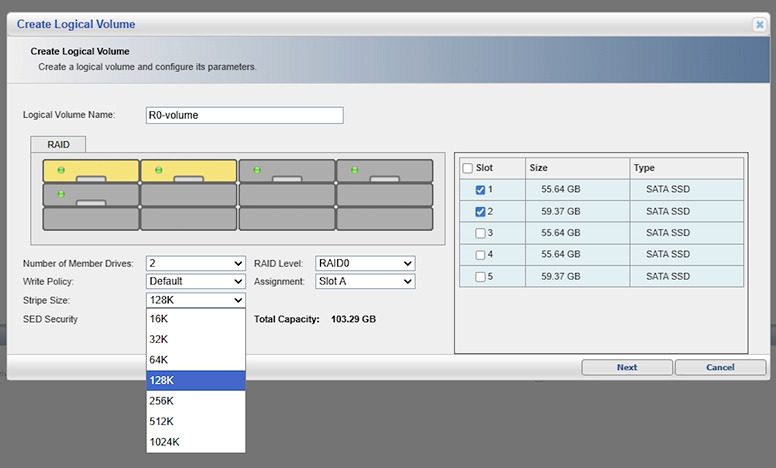
- For RAID 5 and RAID 6 additionally specify the parity scheme and striping order.
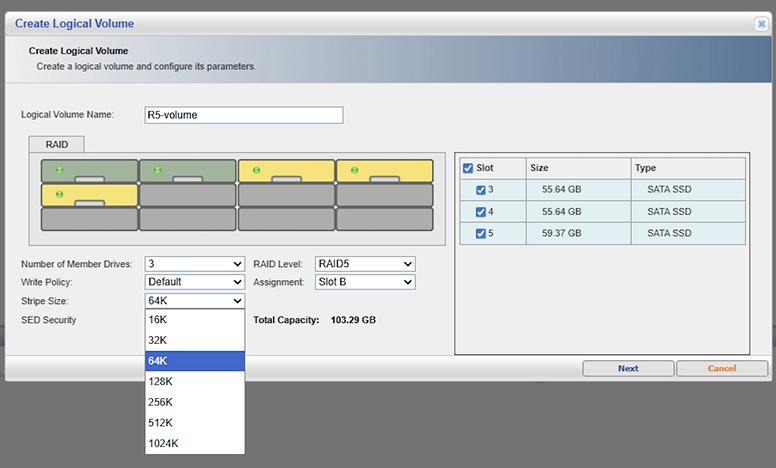
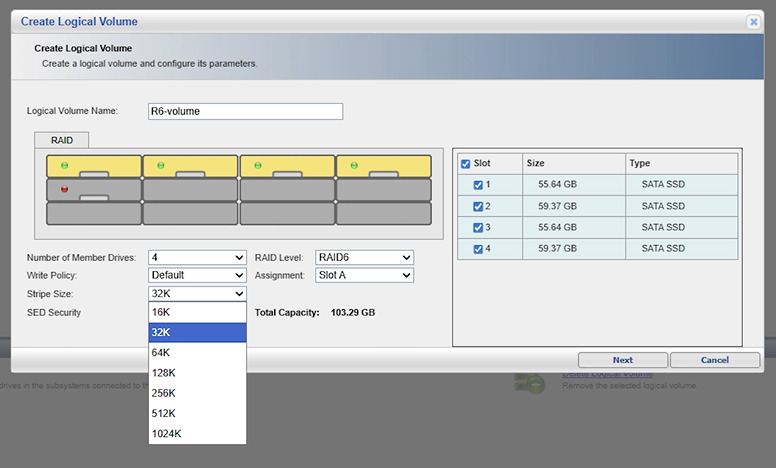
Acceptable values for this device are shown in the image. Review them before starting.


Recovering Data from RAID 0
We start with a RAID 0 array. In our case there are two disk images — one image per array disk.
Open Hetman RAID Recovery and mount the images using the Mount Disk function. Choose the Raw Image format and navigate to the folder where the image files are stored.

After mounting, both images will appear in the program and will be ready for use.

Go to the RAID Constructor function. In the opened window select manual mode and click Next.

On the next step specify the array parameters:
- array type — RAID 0,
- block order — Right Asynchronous,
- block size — 128 kilobytes.

In the window with available disks use the arrows to move the images into the correct order — the same order the drives had in the server.
Ensure the option Use the specified disk order is enabled and click Add.

Because data in a RAID 0 array is striped across multiple disks, it is recommended to run a Full Analysis for best results.

After the analysis completes, review the found files, select the required ones and click Recover.

Recovering Data from RAID 5
Now that we have covered RAID 0 recovery, proceed to RAID 5. The procedure remains similar, but an additional step — partition search — is required and the array parameters differ.
For RAID 5 we are working with three disk images — one image per array disk.
As in the previous case, open Hetman RAID Recovery and mount the images via Mount Disk. Choose the Raw Image format and navigate to the image folder.

After mounting, all three images will appear in the program and be ready for use. Go to the RAID Constructor, select manual mode, and click Next.
This time specify the following array parameters:
- array type — RAID 5,
- block order — Right Asynchronous,
- block size — 64 kilobytes.
Move the images into the correct order, enable Use the specified disk order, and click Add.

Unlike RAID 0, with RAID 5 you can use the partition search function.
To do this, right‑click the assembled array and select Find Partitions.

In the opened window specify the filesystem used on the server and click Find.

When the program finds the partition — click Cancel to close the search window.

The found partition will be displayed in the program and will be ready for further scanning.

Start scanning the partition. After the scan completes, review the found files, select the required ones and click Recover.
Recovering Data from RAID 6
We conclude the article with RAID 6 — the most reliable of the three arrays.
Unlike the previous variants, RAID 6 uses dual parity, allowing it to tolerate simultaneous failure of two disks.
The recovery process is similar to RAID 5, but in this case we work with four images.
As before, open Hetman RAID Recovery and mount the images via Mount Disk. Choose the Raw Image format and navigate to the image folder.
After mounting, all four images will appear in the program and will be ready for use.

Go to the RAID Constructor, select manual mode, and click Next.
Specify the array parameters:
- array type — RAID 6,
- block order — Right Asynchronous,
- block size — 32 kilobytes.
Move the images into the correct order — the same order the drives had in the server. Enable Use the specified disk order and click Add.

As with RAID 5, perform a partition search. Right‑click the assembled array and select Find Partitions. Specify the filesystem previously used on the server and click Find.

When the program finds the partition — click Cancel to close the search window.
The found partition will be displayed in the program and will be ready for scanning.

Start scanning the partition. After the scan completes, review the found files, select the required ones and click Recover.
Conclusion
The Infortrend ESDS 1012 RC storage systems provide high performance and reliability thanks to support for various RAID levels. However, even these solutions are not immune to hardware failures, accidental data deletion, filesystem corruption, or simultaneous failure of multiple drives.
In this article we reviewed the specifics of recovering data from RAID 0, RAID 5, and RAID 6, and the main differences between these array types. For successful recovery it is important to correctly connect the drives, preserve their original order, and take into account array parameters such as block size, disk order, and RAID type.
RAID 0 requires all array drives to be present, while RAID 5 allows the loss of one drive, and RAID 6 — up to two drives. For this reason, RAID 5 and RAID 6 provide higher fault tolerance but have a more complex recovery structure.
Using specialized RAID recovery software makes it possible to automatically determine array parameters and significantly simplify the data restoration process. The key rules are: do not write new data to the drives after a failure and perform all actions with maximum caution to avoid permanent file loss.