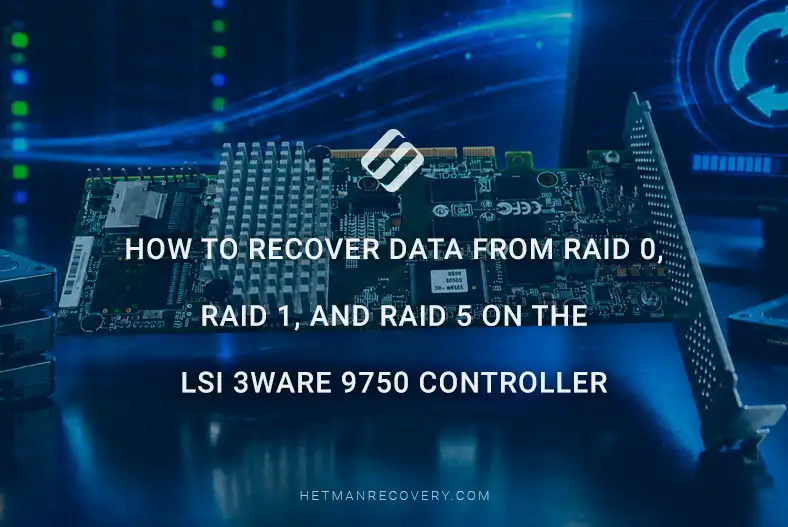
How to Recover Data from RAID 0, RAID 1, and RAID 5 on the LSI 3ware 9750 Controller
-
Author:
Vladimir Artiukh

-
Editor:
Oleg Afonin



In this article we will review how to recover data from RAID arrays levels 0, 1, 5 and 10 created on the LSI 3ware 9750 controller. You will learn what to do if the RAID is no longer detected, an error occurred during array rebuild, the controller failed, or one or more drives are damaged.
- Technical specifications of LSI 3ware 9750
- STEP 1. How to recover files from a working RAID
- STEP 2. Connecting the drives
- STEP 3. How to create a disk image
- STEP 4. How to use the image
- STEP 5. Automatic RAID recovery
- STEP 6. Manual RAID array reconstruction
- Conclusion
- Frequently Asked Questions
- Comments
RAID arrays are widely used to improve performance, reliability and fault tolerance of storage systems. The LSI 3ware 9750 controller supports creation of RAID 0, RAID 1 and RAID 5 arrays, providing efficient operation for servers and network storages. However, even these systems are not immune to failures: failure of one or more drives, corruption of RAID configuration, controller errors or accidental file deletion can lead to loss of important data.
The demonstration is performed in a Windows environment; however, the recovery process is analogous for Linux and macOS.

How to Recover Data from RAID 0, 1, and 5 on an LSI 3ware 9750 Controller
Technical specifications of LSI 3ware 9750
LSI 3ware 9750 is a hardware RAID controller that connects via PCIe 2.0 x8 and is equipped with Mini‑SAS SFF‑8087 ports. It supports speeds up to 6 Gbit/s per port and works with SAS and SATA drives (HDD and SSD). Compatible with RAID 0, 1, 5 and 10 levels. It is an optimal basic solution for building RAID arrays and stable data access.

Before starting recovery, prepare a separate storage medium to save the recovered files. Do not write any data to the drives from which information was lost until the recovery process is complete.
| Specification | LSI 3ware 9750 |
|---|---|
| Manufacturer | LSI Corporation (3ware) |
| Series | 3ware 9750 SAS/SATA RAID Controller |
| Interface | PCI Express 2.0 x8 |
| RAID Processor | LSISAS2108 RAID-on-Chip (ROC) |
| Processor Clock Speed | 800 MHz |
| Cache Memory | 512 MB DDR2 SDRAM |
| Disk Interface Speed | SAS/SATA 6 Gbit/s |
| Supported RAID Levels | RAID 0, 1, 5, 6, 10, 50, Single Disk |
| Maximum Number of Drives | Up to 127 SAS/SATA Devices |
| Cache Protection | BBU (Battery Backup Unit) Support |
| SSD Support | Yes |
| Online Capacity Expansion (OCE) | Yes |
| RAID Level Migration (RLM) | Yes |
| Hot Spare | Yes |
| Management Interface | BIOS Manager, 3DM2, CLI |
| Supported Operating Systems | Windows, Linux, FreeBSD, VMware ESXi, macOS |
| Intended Use | Servers and SMB-Class Storage Systems |
STEP 1. How to recover files from a working RAID
If you accidentally deleted files using Shift + Delete, emptied the Recycle Bin, formatted a disk, or modified RAID partitions but the array itself remains operational — use Hetman Partition Recovery. The program will detect the volume and allow recovery if it is visible in My Computer.
Launch the program and select the required RAID disk.

Next, choose the type of analysis:
- Quick scan — suitable for recovering files deleted via Shift + Delete or from the Recycle Bin.
- Full scan — use this after formatting, changing the file system or performing partition operations.

After the scan completes click Done and the program will display the found files.

Navigate to the required folder, select the necessary items and click Recover.

For convenience, preview, search and filters are available to help quickly find the required data.
STEP 2. Connecting the drives
Before starting RAID recovery, you must disconnect the drives from the RAID controller and connect them directly to the motherboard.

Be sure to number the drives to preserve their original order. This is critical because the controller writes and reads data in a defined sequence. Changing the order when connecting to another system may make correct reconstruction of the RAID structure and file system impossible.
For RAID 5 recovery, the absence of one drive is permissible (for example, two of three are sufficient). In the case of RAID 0, all drives are required without exception.
It is recommended to use direct connection via the motherboard SATA ports. If this is not possible, USB–SATA adapters are acceptable, but they may affect stability.

If a drive shows signs of instability, physical errors, or there are not enough ports for connection, be sure to create an image of the drive before starting analysis.
STEP 3. How to create a disk image
To create a disk image use Hetman RAID Recovery or Hetman Partition Recovery.
In the program select the required disk, right‑click it and choose Save disk.

Then select the option to create an image of the entire disk and click Next.

In the next window choose saving to a hard drive and click Next again.

After that specify the location to save the image and click Save.

Always save the image to a separate storage device different from the one you are recovering data from.
STEP 4. How to use the image
To start working with an image, it must be mounted — only after that the program can detect it as a separate volume and perform analysis.
In the program click Mount Disk, select Raw disk images and click Next.

In the window that opens, navigate to the folder with the image, select the file and click Open.

After that the image will appear in the disk list as a separate device and will be available for further work. Working with the image is fully equivalent to working with a physical disk, so you can choose any convenient option.

STEP 5. Automatic RAID recovery
Hetman RAID Recovery automatically detects RAID structure even in cases of controller failure, multiple drive failures, firmware errors or interrupted rebuild processes. The program automatically restores parameters for correct data reading and quick access to lost information.
This article demonstrates an example of RAID 5, but the program also correctly recognizes RAID 0, 1 and 10 arrays.
To recover, download and run the utility — it will immediately scan all connected drives after startup. In the main window select the automatically recognized RAID array, which will be displayed as a single logical device thanks to the read service information.

Then run a Quick scan to quickly display folders and files, and in case of file system damage — a Full scan.

After the scan completes review the found files, select the required ones and click Recover, specifying another drive to save them.

STEP 6. Manual RAID array reconstruction
Manual reconstruction in Hetman RAID Recovery is used in cases when automatic parameter detection is impossible — for example due to critical metadata corruption or deletion of the configuration in BIOS (after changing the RAID type or a system failure). In such situations the user manually reproduces the array structure by specifying the necessary parameters in the constructor.
Launch RAID Constructor.

For successful reconstruction in manual mode you must specify the key array parameters: type (for example, RAID 0 or RAID 5), disk order and block size.

If the creation parameters are unknown, use typical values. For the LSI 3ware 9750 controller a common stripe order is Right Asynchronous, and standard block sizes are 16, 64 or 256 KB.
Add the disks that were part of the RAID array.
After selecting the drives, their sequence in the constructor table must be specified correctly.
If the original order is unknown, you may try different variants: change the disk positions and click Update until the preview window shows a correct file system structure.

After determining the correct configuration click Add — the reconstructed array will appear in the main window and will be ready for further work.

The final stage is analysis and saving data: it is recommended to perform a Quick scan first to quickly find files, and in case of damaged folder structure — a Full scan.

After the scan completes, mark the required items and click Recover to save them.
Conclusion
The LSI 3ware 9750 controller provides reliable operation of RAID arrays of various levels, however even the most stable storage systems can encounter failures due to drive failures, configuration errors, controller malfunction or accidental deletion of information. In such situations it is important not to perform actions that may overwrite data and to start the recovery procedure as soon as possible.
In practice, it is possible to recover data from RAID 0, RAID 1 and RAID 5 arrays created on the LSI 3ware 9750 controller even after serious array damage. Specialized data recovery software can automatically determine RAID parameters, reconstruct its structure and provide access to lost files. The main points are to connect the drives correctly, analyze the array and save recovered data to a different medium.
We hope this guide helped you successfully recover information and better understand the principles of RAID arrays based on the LSI 3ware 9750 controller. If you have any questions or have encountered similar situations, share your experience in the comments.