RAID Assistant on macOS: How to Safely Recover Data from RAID 0/1
-
Author:
Vladimir Artiukh

-
Editor:
Oleg Afonin



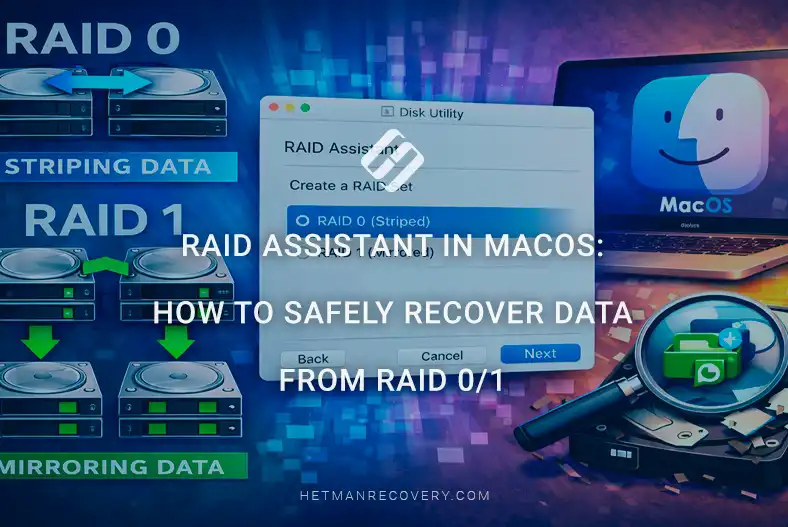
In this article we will review how to recover data from RAID 0 and RAID 1 created with Disk Utility (RAID Assistant) in macOS, the common causes of data loss, what to do first after a failure, and which tools and methods allow successful retrieval of information from such RAID arrays.
- About the differences between RAID 0 and RAID 1
- How to create RAID 0 and RAID 1 on macOS using RAID Assistant
- Diagnosing RAID in Disk Utility
- Diagnosing RAID via Terminal
- Data recovery from RAID
- Conclusion
- Frequently Asked Questions
- Comments
Disk Utility (RAID Assistant) in macOS is a built-in Apple system tool designed to manage disks, volumes and RAID arrays on Mac computers. It allows users to create, configure and maintain software RAID arrays without third-party software.
RAID arrays created with Disk Utility (RAID Assistant) in macOS are often used to increase storage subsystem performance (RAID 0) or to protect data by mirroring it (RAID 1). These solutions are popular among professionals who work with large volumes of data, as well as among typical users seeking to optimize their Mac’s performance or reliability.
However, even RAID arrays are not immune to failures. Failure of one drive, file system errors, macOS crashes, accidental deletion of an array or hardware issues can result in loss of access to important files. In such situations it is important to act correctly to avoid worsening the state of the data and to preserve the highest possible chances of recovery.

How to Recover Data from RAID 0/1 Created with Disk Utility – RAID Assistant on macOS
What should you do if you accidentally deleted files, formatted, recreated partitions on a RAID disk, or changed the file system from HFS+ to APFS?
It is possible to successfully recover data from a RAID in the above cases using Hetman RAID Recovery. The software will automatically recover data from a damaged RAID on macOS, Windows, or Linux.
This solution allows you to address problems when a drive in a RAID has failed or the RAID does not operate on your device: Mac mini, MacBook, iMac or Mac Pro.
It also helps in situations where data was lost due to RAID deletion or as a result of an error during array reconstruction.

About the differences between RAID 0 and RAID 1
RAID 0 combines two or more drives into a single logical disk where data is striped across all members of the array. For example, the first block of a file is written to disk A, the second to disk B, the third again to A, and so on. This increases read and write throughput because multiple drives operate in parallel.

RAID 1 creates an exact copy of all data simultaneously on two drives. If one drive fails, the other retains a full copy of the information and the system continues to operate without data loss. This is ideal for users who prioritize stability and data safety.
| Characteristic | RAID 0 | RAID 1 |
|---|---|---|
| Array type | Data striping (Striping) | Mirroring (Mirroring) |
| Minimum number of drives | 2 | 2 |
| Protection against data loss | ❌ Absent | ✅ Present |
| Performance | Very high read and write speeds | High read speed, standard write speed |
| Disk space utilization | 100% (all capacity available) | 50% (half of capacity used for the copy) |
| Tolerance to drive failure | Failure of one drive leads to loss of all data | Data is retained if one drive fails |
| Difficulty of data recovery | High | Low |
| Typical use cases | Video editing, working with large files, maximum throughput | Storing important data, redundancy |
| Risk of data loss | High | Low |
| Recommendations | Use only with regular backups | Suitable for critical data |
| Support in Disk Utility (macOS) | Yes | Yes |
How to create RAID 0 and RAID 1 on macOS using RAID Assistant
To create RAID 0 or RAID 1 on macOS using RAID Assistant, first connect two identical SSDs or HDDs to the Mac mini via USB 3.0, Thunderbolt, or other high-speed interfaces.

It is recommended that both drives have the same capacity (for example, 1 TB each) and be in good condition.
Open Disk Utility via Launchpad, the Applications folder, or Spotlight. In the top menu choose View > Show All Devices to see physical media together with their volumes.

Now open RAID Assistant. From the top of the screen select File > RAID Assistant.

After launching, the array creation wizard appears. In the first step choose the array type: Striped (RAID 0) or Mirrored (RAID 1).

The system will then display all available disks. Select both drives that will be part of the RAID and click Next.

On the next screen provide a name for the array (for example, MacMini_RAID0). Choose the file system format between APFS or Mac OS Extended. Leave the RAID block size at the default value unless you have specific requirements. For SSDs and most tasks, 32 KB is optimal.

After verifying the settings click Create.

macOS will create the RAID and combine the selected drives into a single logical volume that appears in Disk Utility and Finder as one disk.
The process may take several minutes depending on the drives’ capacity and interface speed.
When the RAID Assistant wizard completes, open Finder to confirm the system recognizes the new disk.
In the left sidebar under Locations or Devices a new logical drive with the name you specified will appear. It behaves like a standard external drive, although it is composed of two physical devices combined into one array.

Diagnosing RAID in Disk Utility
To view technical parameters of the new array, open Disk Utility.
In the left pane under RAID Sets the created set will be shown, along with its type (RAID 0 or RAID 1), total capacity, file system and the list of disks included in the configuration.

If you select the RAID array in the list, detailed information appears in the right-hand pane:
- status Online or Degraded;
- available capacity;
- RAID version;
- list of active members.
For a RAID 1 array the utility also shows synchronization status, allowing you to determine whether both drives are fully identical and whether the system is performing a rebuild after a failure.
In this window you can monitor the array state, individual disk connections, and perform basic operations — mounting, verifying or unmounting volumes. This is useful if you want to control how the RAID operates in real time.

Diagnosing RAID via Terminal
To obtain full technical information about a created RAID array you can use Terminal — macOS’s standard tool for system commands. It displays array parameters that are not always available in the Disk Utility GUI.
Open Terminal via Launchpad or Spotlight and enter the command:
diskutil appleRAID list

After running this command the system prints a list of all RAID arrays created in macOS. The output includes key parameters:
- Name — the name of your RAID array. This is the name you specified during creation.
- Unique ID — a unique identifier by which macOS recognizes the specific array.
- Type — configuration type: Striped (RAID 0) or Mirrored (RAID 1).
- Status — the current array state (if everything works correctly it will show Online).
- Size — the total capacity of the combined disk.
- Slices — the list of physical drives that are part of the RAID.
For each drive the output will show its name, identifier, status (Active, Spare or Degraded) and share of the total capacity. For RAID 1 the command also shows synchronization status. If one of the drives was temporarily disconnected or damaged, macOS will mark it as Rebuilding or Degraded.
If the output shows Online, the array is functioning stably and all drives are working in sync.

If you see Degraded, one of the drives requires inspection or replacement.
After creating a RAID array it is advisable to periodically check its state in Disk Utility or via Terminal to ensure all drives operate correctly.
If a drive’s status is shown as Missing or Degraded, this indicates a problem:
- in the first case the drive is temporarily absent — it has been disconnected or the system cannot detect it;
- in the second case the drive is present but has read or write errors or is lagging behind in synchronization with the other array member.

Even with correct RAID configuration, failures can occur. In such cases remain calm and act carefully. First and foremost — never write new files to the disk or array from which data has disappeared. Any new write may overwrite deleted fragments, making recovery impossible.
Before any actions, close all applications that access these drives and disable automatic backups. If the RAID no longer mounts, do not attempt to format or initialize the drives. Leave them connected in the state the system currently sees.
Data recovery from RAID
To recover data you can use Hetman RAID Recovery. The software can restore information even in complex cases — when the RAID no longer mounts, one or more drives have partially unreadable sectors, or a crash occurred during operation.
How to recover data from RAID 1
In case of damage to one drive, recreation of the array, or accidental deletion of data on RAID 1, connect any one of the drives to another computer. Preferably connect it directly via a SATA port rather than via USB.
Launch Hetman RAID Recovery. The program will automatically detect all connected drives and attempt to reconstruct the RAID structure. The main window will display the discovered drives and reconstructed arrays.
Select the required drive or RAID volume and double-click it. Alternatively, right-click the desired drive and choose Open.

Start with a Quick scan.

After the analysis, the program will show found partitions, folders and files. In the preview pane you can view their contents to ensure the required data is readable without errors.

Select the folders or files you need and click Recover.

Choose any other disk or external drive to save the selected files and folders.
Do not write recovered files to the same drive from which you are recovering them.

How to recover data from RAID 0
To recover data from a RAID 0 array, you must connect all drives simultaneously and recover the entire array, because the software cannot read individual RAID 0 drives — it recognizes only the assembled array as a whole.
Ensure that both drives (or all drives, depending on the original configuration) of the RAID 0 array are physically connected to the computer or to a specialized device (for example, a dock or HBA controller) where the recovery will be performed.
If such connection is not possible for any reason, it is recommended to create an image of one drive, then deploy it on a PC where the other physical drive is connected, and continue recovery using Hetman RAID Recovery.

After connecting both drives, launch Hetman RAID Recovery. In the main window the program will detect and display your drives.
Select the drive that was part of the RAID and note the First sector value shown in the bottom-left area of the main screen. This value will be required in the next recovery stage.

In our example this number is 409640.
Start by launching the RAID Constructor option in the upper-left corner of the main menu.

In the next window click Next, then choose Manual Mode and click Next.

On the next page of the RAID Constructor we will specify all known parameters. Start by selecting the RAID type in the upper-left field — RAID 0 (Stripe).
Set the required Block size — in our case 32 KB.
Leave the other values in the top part of the selection menu unchanged, including Bytes per sector — 512 and Byte order — Standard.

Then, from Available disks on the right side of the screen select the physical drives and move them with the arrow to Selected disks on the left side of the window.
At this stage the order of the drives in RAID 0 is critical so the program can correctly read all necessary information.

In Selected disks choose the first drive of the array and click Change disk offset/size.
In the Raid disk options window set our First sector to 409640, change Bytes to Sectors and click OK.
The program automatically converts the value to bytes. Repeat the same procedure for the second drive in the array.

To verify our configuration, under Selected disks click Update.
Below in the The resulting RAID array window we will see the directory tree of our RAID 0.

Next, click Add.
The program has reconstructed the array structure correctly for subsequent data recovery. After that, on the program’s main screen we will see the RAID 0 which can now be scanned and recovered.
Double-click or right-click the reconstructed RAID 0 and choose Open.

In the next window choose Fast Scan and click Next.
After the program completes array analysis, click Finish.
Now we can see the information that was originally on our RAID 0 and which we can now recover.

Optionally use Preview to view the content of each file in the right-hand pane.
Then select the directories and files to recover and click Recovery in the top menu.

Next, choose the destination where the recovered data will be saved and click Recovery.
That’s it — the program has successfully recovered data from our RAID 0.

Conclusion
Recovering data from RAID 0 and RAID 1 created with Disk Utility (RAID Assistant) in macOS is entirely possible even in the event of serious failures, but the success of the procedure depends directly on the user’s correct actions. It is important to remember that RAID 0 provides no protection against drive failure, while RAID 1 provides basic redundancy; however, neither RAID type guarantees complete data safety.
In case of loss of access to a RAID array the first step should be to stop any write operations and preserve the current state of the drives. Using specialized RAID recovery software that supports structures created in macOS allows automatic reconstruction of the array configuration and recovery of most files without loss of integrity.
In summary, RAID 0 and RAID 1 created via Disk Utility are a convenient tool for improving performance or system reliability, but they do not replace comprehensive backups. Regular backups, careful array management and timely response to failures are key factors that minimize the risk of data loss and greatly simplify the recovery process in macOS.