How to Recover Data from an Encrypted BitLocker Drive
-
Author:
Vladimir Artiukh

-
Editor:
Oleg Afonin



Read about data recovery from drives protected by BitLocker technology. Reliable encryption effectively hides information from unauthorized parties, but it does not protect against hardware failures or human error. Accidental deletion of documents bypassing the Recycle Bin, incorrect partition formatting, or file system corruption are typical situations in which access to a drive suddenly disappears.
- BitLocker encryption features
- Connecting encrypted drives to a PC
- METHOD 1. Recovering a system drive
- METHOD 2. Recovering data from a connected HDD
- METHOD 3. Recovering an encrypted USB flash drive
- Conclusion
- Frequently Asked Questions
- Comments
In such cases, the presence of cryptographic protection only complicates the situation, but it by no means means the permanent loss of your data. Below, we will step through how to effectively recover files from encrypted system drives, additional hard drives, and portable flash drives using Hetman Partition Recovery. What is especially convenient and critically important is that this tool allows you to safely unlock and recover encrypted drives directly in your usual working environment, whether it is Windows 11, macOS Sonoma, or Ubuntu Linux.

How to Encrypt a USB Disk with BitLocker, Unlocking with Password or Recovery Key 🔐💻⚕️
BitLocker encryption features
To remove cryptographic protection from any storage device, the first step is to use the standard password that you created at the start of the encryption process.
If it is lost or does not work, the key role is played by your 48-digit recovery key, officially called the Recovery key. In most cases, this code is automatically saved in your Microsoft account or stored on your drive as a plain text .txt file.

When searching for the required key, be sure to pay attention to the Key ID. The program will display this unique code in the unlock window, so all you need to do is compare it with the data in your account or in the saved text document to select the correct combination for your problematic drive.

Another key format can also be used for unlocking — a special hidden system file with the .bek extension.
This is why, for successful file search with Hetman Partition Recovery, the encrypted volume must be unlocked in advance.
If you start scanning without using a password or key, the search algorithms will see only a continuous set of unreadable data. Only after correct unlocking does the utility gain full access to the file system, deeply analyzes the damaged directory structure, and becomes capable of effectively recovering lost information even after serious logical failures.
| Characteristic | BitLocker |
|---|---|
| Developer | Microsoft |
| Primary purpose | Full disk encryption to protect data from unauthorized access |
| Supported operating systems | Windows 10, Windows 11 (Pro, Enterprise, Education), Windows Server |
| Encryption type | Full volume encryption |
| Encryption algorithms | XTS-AES 128-bit, XTS-AES 256-bit, AES 128-bit, AES 256-bit (depending on the Windows version and settings) |
| TPM usage | TPM 1.2 and TPM 2.0 are supported, but it can also work without TPM |
| Boot authentication | TPM, PIN, password, USB key, or a combination of these |
| Recovery key | 48-digit BitLocker Recovery Key |
| External drive support | Yes, using BitLocker To Go |
| System drive encryption | Yes |
| Non-system volume encryption | Yes |
| Performance impact | Minimal due to hardware AES acceleration (AES-NI) on modern processors |
| Compatible file systems | NTFS (system and internal drives), FAT32, exFAT, NTFS (BitLocker To Go for removable media) |
| Recovery key storage | Microsoft account, Active Directory, Azure AD (Microsoft Entra ID), USB drive, file, or printed copy |
| Data recovery capability | Only if a password, recovery key, or other valid encryption keys are available |
| Typical use cases | Protecting laptops, workstations, servers, corporate PCs, and external drives from unauthorized access |
Connecting encrypted drives to a PC
Before starting the actual recovery process, the problematic encrypted drive must be connected to the working computer.
The best and most reliable method is a direct connection to the motherboard via SATA ports. This approach provides the maximum data reading speed and ensures stable operation during analysis.
As an alternative, you can use external drive enclosures or docking stations via USB connection.
However, keep in mind that USB port bandwidth is significantly lower. This may substantially increase the total scanning and decryption time for your files.

METHOD 1. Recovering a system drive
Let us consider data recovery from an encrypted system drive running Windows 11.
Loss of access to information is often caused not only by accidental deletion of files bypassing the Recycle Bin, but also by a sudden system lockout triggered by the TPM security module.
It is important to understand that any hardware change, such as replacing RAM, a processor, or connecting an additional drive, may be treated by the system as a potential security threat. Updating the BIOS version, which many modern laptops install automatically, often leads to the same result.
As a result of such changes, the TPM module completely blocks operating system boot. The computer refuses to start past the initial screen, which requests an unlock key.

For safe data recovery, such a system drive is removed from the problematic device and connected to another working PC, where it appears logically as a fully locked BitLocker volume.

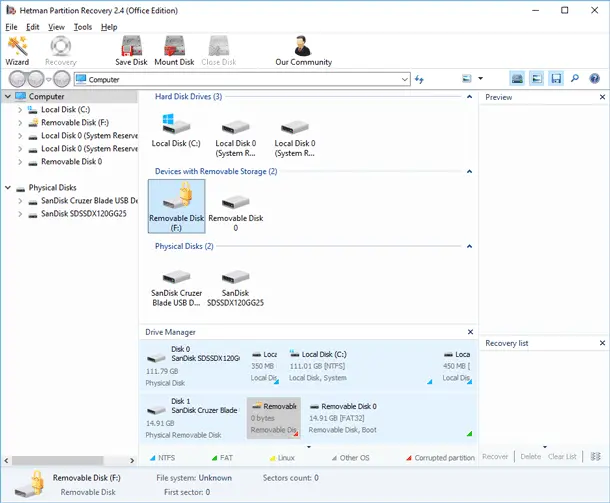
The main advantage of using Hetman Partition Recovery is that the program can work with this technology directly. You do not need to unlock the drive in advance using the operating system tools. It is enough to find the encrypted system volume in the list of connected drives and click it.

The program will automatically open an internal window offering you to enter your Recovery key or specify the path to the saved key file.

At the same time, the utility will automatically detect the unique identifier — the Key ID — and display it directly in this window. This will allow you to quickly compare the data and accurately determine which key from your Microsoft account is required to unlock this specific drive.
As soon as the correct key is entered, the utility will decrypt the file system on the fly, and the unlocked partition will appear on the main screen.
Next, the Fast scan mode is well suited for searching for lost documents. This algorithm will promptly analyze the drive contents, find traces of deleted entries, and successfully reconstruct the lost directory tree.

After the analysis is complete, proceed to browse the contents of the analyzed drive. Find the main directories and use the preview function to verify the integrity of documents or photos. After selecting the required folders, start the saving process using the Recovery button.

The key rule here is to save the recovered files only to another storage device — an external hard drive or a network share, but never to the same system drive from which you are currently recovering data.

METHOD 2. Recovering data from a connected HDD
Now let us move on to the scenario with an additional physical hard drive. Data loss on such drives most often occurs due to accidental partition formatting during operating system reinstallation, a partition table failure, or logical errors that cause the file system to receive the RAW status and become inaccessible. The specific aspect of working with such drives is that they may contain multiple encrypted BitLocker volumes at once, but for searching lost files we only need to focus on the specific problematic partition.
In our case, we will demonstrate the process of removing protection and recovering information from one selected volume. Since in the previous section we used a Recovery key, this time we will use another method.

Click the locked partition in the Hetman Partition Recovery interface and specify the path to the saved key file with the .bek extension.

As soon as the program processes the key, the volume will be unlocked and will appear in the list of available devices.

To search for data, start Fast scan for the unlocked partition. This algorithm quickly and efficiently reads intact records in the file table, carefully recreating the original directory structure and file names.
After the analysis is complete, you can freely navigate through the folders and search for the required documents.

The built-in preview function will allow you to immediately verify the integrity of the found spreadsheets, text files, or media content before saving them.
Select all required files and click the Recovery button, making sure to specify another physical storage device as the save location to ensure the complete safety of the recovered information.
METHOD 3. Recovering an encrypted USB flash drive
Users often encounter file loss on portable USB drives protected with BitLocker To Go. This can be caused by accidental deletion of working documents bypassing the Recycle Bin or by a logical failure that causes the volume to receive the RAW status.
In addition, when the problematic flash drive is connected, Windows may prompt you to format the unrecognized disk.

Here it is important to consider a technical nuance. When configuring protection, the system offers a compatibility mode for older operating systems or the new XTS-AES algorithm for modern Windows versions.
The Hetman Partition Recovery program automatically recognizes both formats, so you do not need to worry about which system was used to create the protection. The connected flash drive will immediately appear in the utility interface, where it can be quickly unlocked by entering the password.


After successful unlocking and gaining access to the logical structure of the drive, start Fast scan to promptly search for lost data.
After the analysis is complete, proceed to browse the flash drive contents. The program makes it easy to verify the integrity of found photos or documents through a convenient preview tool. Then all that remains is to select the required files and save them using the Recovery function to a safe storage device — the local hard drive of your computer.

Conclusion
BitLocker encryption is one of the most reliable ways to protect information on Windows computers. However, accidental file deletion, partition formatting, file system corruption, or drive failure can result in loss of access to important data even on an encrypted drive.
In most cases, data recovery is possible if you have a BitLocker password or Recovery Key. After unlocking the drive, specialized software can scan the file system and recover lost files. If the drive has been physically damaged or the file system structure has been destroyed, you must first gain access to the encrypted volume and only then perform data recovery.
To maximize the chances of successful recovery, after data loss you should immediately stop any writing to the drive, not reinstall the operating system, and not create new files on the encrypted partition. The fewer changes made to the drive, the higher the probability of recovering the information without loss.
The best way to avoid irreversible data loss is still regular backups and secure storage of the BitLocker recovery key. The combination of backups, the Recovery Key, and professional data recovery software will allow you to successfully handle most situations related to data loss on encrypted drives.