Restoring files encrypted by EFS on an NTFS drive
-
Author:
Vladimir Artiukh

-
Editor:
Oleg Afonin



In this article, we will examine a situation where files were encrypted using Windows EFS and then disappeared: they were accidentally deleted, formatted, or the partition was deleted, the NTFS file system became damaged, or access to the files was lost after reinstalling Windows. We will demonstrate how to work with the EFS certificate and private key on Windows, and how to work with encrypted files on macOS.
- What is Windows EFS?
- EFS certificate and private key
- Recovering deleted encrypted files
- Conclusion
- Frequently Asked Questions
- Comments
EFS (Encrypting File System) is a built-in Windows technology for encrypting files on NTFS volumes. It protects sensitive data, but deleting an encrypted file can significantly complicate its recovery. This is especially relevant if new data continues to be written to the drive after deletion.
If an EFS file was accidentally deleted, this does not necessarily mean its contents are lost immediately. In some cases, the physical data remains on the drive until it is overwritten. However, to access a recovered file, it is important to consider EFS-specific requirements: the presence of the encryption certificate and the corresponding private key.
In this article, we will cover how to recover deleted EFS files from an NTFS drive, what conditions are required to access their contents, what role the EFS certificate and PFX key play, and what to do if a file has been deleted or corrupted. We will also separately review scenarios where the certificate and private key are available, as well as cases where no backup exists.

How to Recover EFS Encrypted Files in Windows | Restore EFS Key (.PFX) & Data
What is Windows EFS?
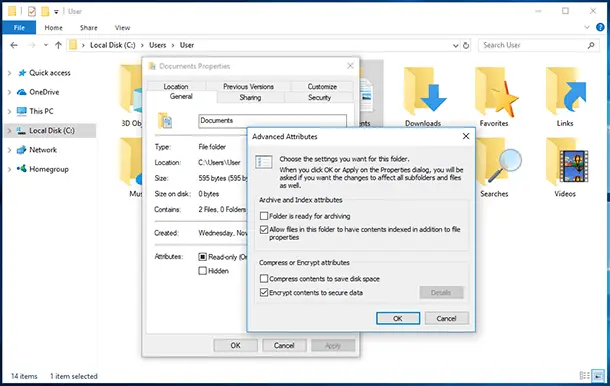
Windows EFS, or Encrypting File System, is a technology for encrypting individual files and folders in the NTFS file system.
After encryption, the file remains visible in Windows, but only the user whose profile contains the corresponding EFS certificate and private key can open it. These data confirm the right to access the encrypted file. If such a file is copied to another computer or Windows is reinstalled without preserving the key, access to it may be lost.

Important: EFS works specifically with NTFS. If the drive is formatted as FAT32 or exFAT, this feature is not available.
| Characteristic | Description |
|---|---|
| Name | EFS (Encrypting File System) is a built-in Windows technology for encrypting individual files and folders. |
| File system | EFS works with the NTFS file system. |
| Purpose | Protecting sensitive files from unauthorized access. |
| Encryption level | Individual files and folders are encrypted, not the entire drive. |
| Working principle | A symmetric key is used to encrypt the file, and this key is additionally protected by the user’s cryptographic keys. |
| EFS certificate | The certificate identifies the user who is allowed to decrypt EFS files. |
| Private key | Required to decrypt EFS files. Its loss may result in loss of access to the data. |
| Key backup | The EFS certificate and private key can be exported to a PFX/P12 file and protected with a password. |
| File access | An authorized user can open and use EFS files almost the same way as regular files. |
| File deletion | A deleted EFS file can sometimes be recovered if its data has not yet been overwritten. |
| Decryption after recovery | Access to the contents of a recovered file requires the corresponding EFS private key. |
| Backup | It is recommended to regularly back up the EFS certificate and private key, as their loss can make the data inaccessible. |
What is the difference between BitLocker and EFS?
BitLocker and EFS share a common goal: to protect information from unauthorized access, but they are applied at different levels and in different scenarios.
- BitLocker encrypts an entire drive or a specific partition. Its primary purpose is to keep the contents inaccessible if a laptop, HDD, or SSD is stolen. If such a drive is connected to another computer, it cannot be read without the recovery key, the corresponding TPM, or a password.
- EFS works with individual files in the NTFS file system. This technology is better suited for multi-user computers where several accounts have access to the same storage device. The owner can open their documents normally, while other users cannot view them without the appropriate certificate and private key.
The recovery mechanism is also different:
- For BitLocker, a 48-digit recovery key, TPM, or recovery password is typically used.
- For EFS, a certificate with a private key is required, which can be exported to a .pfx file.
After BitLocker is unlocked, it works transparently: the operating system and applications see the files as ordinary files. EFS also does not interfere with the owner’s work with documents, but for other accounts, the files remain inaccessible.
These solutions can be combined: BitLocker protects the entire volume, while EFS additionally restricts access to selected files at the user level.
| Characteristic | BitLocker | EFS |
|---|---|---|
| Purpose | Protects an entire drive or partition from unauthorized access. | Encrypts individual files and folders. |
| Encryption level | Encrypts the entire volume, including the file system and its data. | Encrypts only selected files and folders. |
| File system | Primarily used with NTFS, but protects the volume regardless of individual files. | Works with the NTFS file system. |
| Primary use case | Protecting data if a computer or storage device is lost or stolen. | Protecting individual sensitive files from other users of the system. |
| Keys and authentication | May use TPM, PIN, password, recovery key, and other mechanisms depending on the configuration. | Uses an EFS certificate and the corresponding user’s private key. |
| Operation after signing in to Windows | After the drive is unlocked, the user gains access to the data according to file system permissions. | An authorized user can open encrypted files without manual decryption. |
| Protection from another Windows user | By itself, it is not intended to distinguish access between users after the drive is unlocked. | Allows protecting files from other users who do not have the corresponding EFS key. |
| Protection with physical access to the drive | High: without the unlock key, data on the encrypted volume is inaccessible. | Protects individual files, but not the entire contents of the drive. |
| Key backup | It is important to store the BitLocker recovery key. | It is critical to back up the EFS certificate and private key. |
| Backup format | The recovery key can be saved as a 48-digit code and in other ways depending on the configuration. | The certificate and private key can be exported to a PFX/P12 file. |
| Recovering deleted files | Deleted files belong to the encrypted volume; to work with them, you must have access to the unlocked volume. | After recovering a deleted file, you must also have the corresponding EFS private key to access its contents. |
| Performance impact | Depends on hardware acceleration and system configuration, usually small on modern hardware. | Usually has a minor impact because only individual files are encrypted. |
| What it protects | Data on the entire encrypted volume. | The contents of specific encrypted files. |
| When to use | For protecting a laptop, system drive, SSD, HDD, or external storage device. | For protecting individual documents, folders, and other sensitive files. |
EFS certificate and private key
When a user encrypts files with EFS, Windows creates or uses the current user’s EFS certificate. It is stored in the Windows certificate store.
To view the current user’s certificates, press Win + R, enter the command certmgr.msc, and press Enter.

In the opened Certificate Manager, go to Current User – Personal – Certificates. The certificate associated with Encrypting File System is usually stored here.

Important to understand: access to EFS files requires not only the Windows account password, but also the corresponding EFS certificate and private key. If the private key is lost, it will not be possible to decrypt the files using standard Windows tools.
How do I export the EFS key to a *.PFX file?
After files are encrypted, Windows may display a notification offering to back up the key. This step should not be skipped, because this backup allows access to EFS files to be restored after reinstalling the system or transferring data to another computer.

To export the key manually, press Win + R, enter the command certmgr.msc, and press Enter.
In the Certificate Manager window, go to Personal – Certificates, find the certificate with the purpose Encrypting File System, right-click it, and select All Tasks – Export.

In the Certificate Export Wizard, be sure to select Yes, export the private key, then specify the format Personal Information Exchange – PKCS #12 (.PFX).

Then set a password to protect the .pfx file and save it to another storage device, such as a USB flash drive or an external drive.
The .pfx file contains the private key, so it must be stored in a secure location. If it falls into the hands of an unauthorized person together with the password, they will be able to access your encrypted EFS files.
Capabilities and limitations of the EFS key
The EFS key is required to access files encrypted with Encrypting File System. It can be used to open encrypted data, transfer access to another computer, create a certificate backup, or remove encryption from files.
Important to understand: without the private key, it is impossible to simply find out the password to an EFS file, brute-force it, or open the file using only the Windows account password.

If Windows was reinstalled, the user profile was lost, and there is no backup of the key in .pfx format, access to the EFS files may be lost forever.
A data recovery program may find the encrypted files themselves or help recover lost key backups. However, it cannot break EFS encryption without the correct private key.
Recovering deleted encrypted files
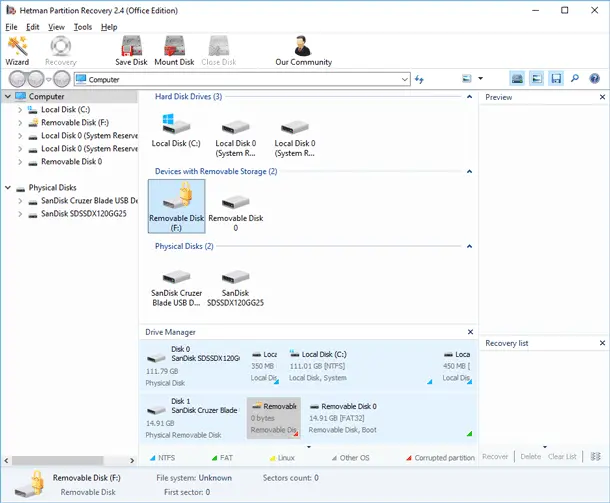
Launch Hetman Partition Recovery. In the main window, the program will display all available connected storage devices that can be scanned.

To view the contents of the storage device and find lost data, start the analysis. In most cases, it is recommended to begin with Fast Analysis, especially if the file system has not been damaged.

After scanning is complete, the program will display current and deleted files, marking deleted items with a special icon. The original folder structure will also be preserved, which greatly simplifies finding the required data. Among the found files, there may also be encrypted items. Their preview will not be available until you add the corresponding access key. In that case, the program will prompt you to specify the key required to decrypt the files.

You can add the key to encrypted files in two ways: to add decryption data, click Add Decryption Data in the preview window.

You can also select the required file, open the Tools menu, and choose Add Decryption Data.

After that, a dialog box will open. In it, you need to specify the encryption type, select the key file, and enter the password corresponding to that key.

After adding the correct decryption data, the program will gain access to the contents of the encrypted files and display them for preview. Select the required items and click Recovery. Then specify the location to save them.

Important: recovered data must be saved to another physical storage device. Do not save the files to the same drive or partition from which the scan was performed, as this may overwrite data and make further recovery more difficult or impossible.
Conclusion
Recovering deleted EFS files from an NTFS drive has its own specifics, because it is not enough to simply restore the file from the drive — it is also necessary to ensure that it can be decrypted. After deletion, data may remain on the storage device until it is overwritten, so the most important step is to stop writing new information to the drive and begin recovery as soon as possible.
For successful access to the contents of an EFS file, the EFS certificate and the corresponding private key are critical. If they were saved in a backup or exported to a PFX file, the recovered file can be decrypted after it is restored to an NTFS drive. If the private key is lost or damaged, simply recovering the encrypted file itself does not guarantee that its contents can be read.
Therefore, the best strategy is to combine recovery of deleted data from the NTFS drive with a saved backup of the EFS keys. Regularly backing up the certificate and private key in PFX format can significantly reduce the risk of irreversible loss of access to encrypted files.