How to recover data from an Areca ARC-1260 RAID 6 array
-
Author:
Vladimir Artiukh

-
Editor:
Oleg Afonin



Read about how to recover data from a RAID array after accidental file or partition deletion, as well as after disk formatting. We will review how to access data if the RAID controller or one or more drives have failed, if the array configuration was accidentally deleted or recreated, and the array no longer appears in the file manager.
- Areca ARC-1260 Controller Capabilities
- What to Do After Accidental Data Deletion or RAID Array Formatting
- How to Create RAID 6 with Areca ARC-1260
- Data Loss from a RAID Array
- RAID 6 Array Recovery
- Conclusion
- Frequently Asked Questions
- Comments
RAID 6 based on the hardware controller Areca ARC-1260 is widely used in server systems and storage solutions due to its high reliability and the ability to tolerate the simultaneous failure of two drives. However, even this configuration does not guarantee complete protection against data loss. Controller failures, errors during array rebuild, multiple drive faults or incorrect administrator actions can lead to a situation where access to data becomes impossible.
In this article we will examine how to recover data from RAID 6 created with the Areca ARC-1260 controller without worsening the array state and without losing valuable information. You will learn which initial steps to take after a failure, why you should not immediately launch a Rebuild, how to correctly read RAID parameters and which tools are appropriate for safe data recovery from Areca arrays.

How to Recover Data from RAID 6 Created Using the Areca ARC-1260 Controller
Areca ARC-1260 Controller Capabilities
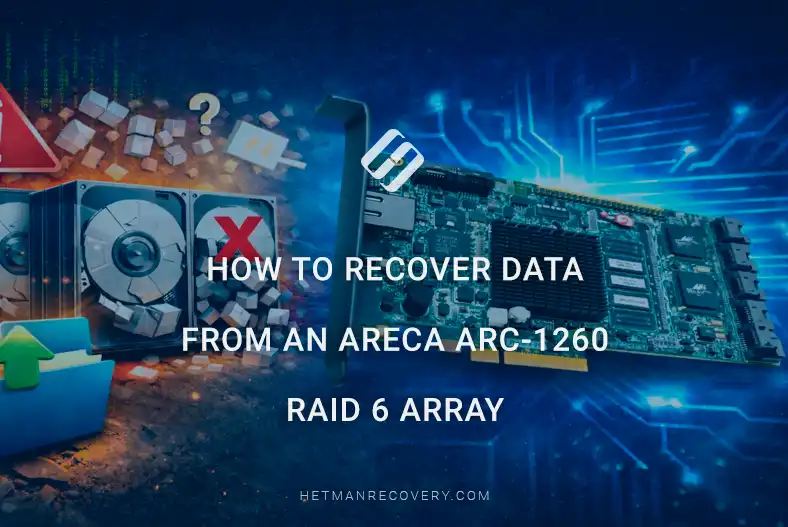
The Areca ARC-1260 allows creation and management of RAID arrays of types Stripe, Mirror, 3, 5, 6 and JBOD and supports connection of up to 16 SATA drives. The controller supports online volume expansion, RAID level migration, automatic drive recovery and reconstruction, which significantly increases storage reliability. It is compatible with Windows, Linux, FreeBSD and Solaris, supports large volumes over 2 TB and includes a BIOS boot module to improve system resiliency.
The built-in web interface enables remote monitoring of drive and RAID array status, receiving error notifications and managing array configurations. This controller is suitable for servers, workstations and enterprise storage where high performance, reliability and flexibility in configuring disk arrays are important.
| Specification | Description |
|---|---|
| Device type | RAID controller / expansion card |
| Bus interface | PCIe x8 (version 2.0) |
| Drive interface | SATA III / SAS (6 Gb/s) |
| Maximum port speed | Up to 6 Gbit/s per port |
| Cache memory | ~1 GB DDR3 SDRAM (ECC) |
| Supported RAID levels | RAID 0, 1, 3, 5, 6, 10, 30, 50, 60, JBOD and other combined |
| Drive connectors | Internal SATA/SAS |
| Maximum number of drives | Up to ~12–16 (depends on ARC-126x model) |
| RAID processing | Hardware RAID engine on the controller |
| OS support | Windows, Linux, macOS, VMware, FreeBSD, Solaris (broad support) |
| Additional features | Online RAID expansion, RAID level migration, rebuild, hot spare support, monitoring |
| Form factor | Low-profile PCIe |
| Operating temperature | ~0 °C — 60 °C |
| Humidity | 10% — 85% (non-condensing) |
| Power consumption | Consumption depends on configuration, typically moderate |
| Management | Web interface McRAID Storage Manager, CLI, BIOS utilities |

What to Do After Accidental Data Deletion or RAID Array Formatting
To recover deleted information you can use the Hetman Partition Recovery application.
After starting the application, the main screen will display the RAID array, its file system, size and available partitions. Select the entire array or an individual partition with the left mouse button, then start a scan by double-clicking or via the context menu by selecting Open.

In case of accidental deletion of files or folders on the RAID array choose Fast Scan. The tool will scan the entire array and help restore deleted items.

If the RAID was formatted, use Full Analysis. The application will perform a deep scan of the array and recover all data that was stored on it.
So, select Full Analysis, specify the file system type and click Next to continue.

Wait for the scan to complete and click Finish.
The next dialog will display the data on the RAID available for recovery. Select the required folders and files and click the Recover button located in the upper-left part of the main menu.

In the window that opens, choose the location to save recovered data, then click Recover.

After recovery and saving the required information complete the process by clicking Finish. Your RAID array data is now available for use again.

How to Create RAID 6 with Areca ARC-1260
When powering on the computer with the RAID controller and drives connected, a service message will be displayed on the screen. It will be visible for approximately 5 seconds.

To open the configuration menu press the Tab or F6 key.
Next, a BIOS window with a selection menu will open showing the list of controllers connected to the motherboard. Using the up and down arrow keys, select the required adapter and press Enter to enter the main configuration menu.

For quick RAID setup select the first menu item Quick Volume/Raid setup and press Enter.

In the list select the RAID type and press Enter to continue.

Next, specify the volume size, then the stripe block size and create the partition. To confirm press Yes and Enter.

After that choose the initialization type: standard, foreground (synchronous) or no initialization, and press Enter.

RAID array creation is now complete. To exit and reboot the system press Tab several times. During the next boot skip controller setup by pressing Esc and wait for the operating system to start.

After that open the disk management utility Disk Management and confirm disk initialization.

Create a new volume and place data on it.

Additionally, the RAID array can be created using the controller’s web interface.
Data Loss from a RAID Array
RAID 6 provides a high level of data reliability, but even it does not guarantee complete protection against data loss. Any drive or controller can fail at any time.
When the controller fails, without replacing it access to data on the drives becomes impossible. If replacing the faulty controller does not help, you can use specialized RAID data recovery software — Hetman RAID Recovery.
The application supports most popular file systems and RAID types. It reads full information about the controller used to create the disk array and is capable of reconstructing a damaged RAID system.
RAID 6 Array Recovery
In case of Areca ARC-1260 controller failure you must disconnect all drives from it and connect them directly to the PC motherboard via SATA cables and then launch the application.
Be sure to record the exact disk order in the array. Each drive in a RAID plays a specific role in storing data and parity, therefore rearranging them can cause file loss, corruption of the array structure and complicate the recovery process. It is recommended to document the disk order in advance for safe recovery.

Creating and Using Disk Images of Array Drives
If it is not possible to connect all drives physically, an alternative method can be used: create an image of one or more drives that cannot be connected and mount them.
The next steps will show how to create a disk image and combine it with other connected drives in the application. For this, run the application. Select the drive to image and click the Save disk button.

In the dialog that appears click Next, then click Save to hard disk. Specify the folder to store the image.

After that the image is ready and you can connect all drives for further work with the application.
In the main window of Hetman RAID Recovery click the Mount disk button at the top of the application.

In the window that opens select Raw disk images and specify the previously created image.

Now this image is mounted together with the three other drives of your RAID 6.

Using the RAID Constructor
If the program could not automatically recognize your disk array, you can use the RAID Constructor.
RAID Constructor is a built-in wizard/tool in Hetman RAID Recovery that helps manually or automatically reconstruct a damaged RAID array for subsequent data recovery. It is especially useful when the array does not assemble automatically at startup — for example, due to corrupted service information or missing parts of metadata.

To work in this mode you need to know the parameters of the disk array. In this type of controller RAID arrays are organized such that the start of the file system does not coincide with the start of the disk, and due to partial data deletion the program could not automatically determine the offset.
Use the HEX editor to find this value. Launch it by right-clicking the drive and selecting HEX editor from the menu or by pressing the key combination Ctrl + H.

Click the search icon, enter the value EFI PART in the field and click Find.

Use the found value minus one sector (for example, if 521 is found use 520), since the start of the file system is located at the second sector from the beginning for GUID partitions.

RAID Constructor Manual Mode
In the main menu of the application select Raid Constructor in the upper-left corner. In the next window click Next, select Manual Mode and click Next again.

On the next page select RAID type Raid 6 (Dual Parity) and block size (in our case 64 KB). In the Block Order field choose the Areca option located at the bottom of the list, since it best fits our controller.

If the properties are specified correctly, at least one partition will appear in the The resulting RAID array field. Enter the partition and verify that the required folders and files are present. If the volume is not displayed but the properties are entered correctly, you need to manually set the offset that points to the start of the file system on the drives.
Double-click the drive or click the Change disk offset/size icon. In the new window enter the found offset in the Offset field, change units from Bytes to Sectors and click OK.

The program will automatically convert the value to bytes. Repeat this procedure for all other RAID drives. After all values are entered click Update under the Selected disks area.
The directory tree of your RAID will appear in the The resulting RAID array window. Click the Add button.

Automatic Parameter Detection
If some RAID parameters are unknown you can try different options available in the program. For example, you can change Block size (32 KB, 64 KB, 128 KB) or the disk order (Left Synchronous, Left Asynchronous) to find the correct configuration.
You can also use the Detect automatically option. In this mode the program will sequentially try various probable parameter values from the possible range, which allows finding the correct RAID configuration even if exact parameters are unknown. However, this process may take longer than manually entering known values.

After that the RAID ready for scanning and data recovery will appear on the main screen of the application. Double-click or right-click your RAID and select Open.

In the next window choose Fast Scan. After the analysis of the RAID is complete click Finish. The information that was stored on your RAID 6 is now available and can be recovered.
The Preview feature can be used to view file contents in the right pane. Then select the directories and files to recover and click Recovery in the top menu.

Then choose the location to save recovered data and click Recovery again. The program successfully recovered data from your RAID.

Conclusion
Data recovery from RAID 6 created with the Areca ARC-1260 controller is a complex but entirely feasible process given the correct approach. The main rule in such situations is not to rush into rebuilding the array and not to perform actions that can irreversibly destroy remaining data. Any mistake during rebuild or drive replacement without analysis of the RAID state can significantly complicate further recovery.
In this article we reviewed the key steps for safe recovery: correct drive removal, determining Areca array parameters, drive ordering, working with RAID 6 parity and using specialized software to reconstruct the array. Following these recommendations makes it possible to restore file access even after severe controller failures or simultaneous failure of multiple drives.
In summary, RAID 6 on Areca ARC-1260 provides a high level of reliability but is not a complete safeguard against data loss. Regular backups, careful administration and timely diagnostics of the array remain the best way to protect information. In case of a failure — a measured and technically competent recovery approach greatly increases the chances of successful data return.