How to restore RAID 0, RAID 1, and RAID 10 after an ST‑Lab A‑520 controller failure
-
Author:
Vladimir Artiukh

-
Editor:
Oleg Afonin



Read about how to recover data from a RAID array of level one (Mirror) or level zero (Stripe) when the ST-Lab A-520 controller fails. You will learn how to extract files from disks if access to the RAID array is lost.
- What causes controller failure?
- How RAID works and the array creation process
- How to recover data from an ST-Lab A-520 controller
- Conclusion
- Frequently Asked Questions
- Comments
Failure of the ST-Lab A-520 RAID controller can lead to loss of access to critical data and compromise array integrity. Such failures often occur due to hardware faults, firmware corruption, power surges or configuration errors. As a result, the system stops recognizing the RAID array, and the drives appear as individual devices or are not detected at all.
However, even when the ST-Lab A-520 controller is completely non-functional, data recovery is possible. In this article we review common causes of controller failure, diagnostic methods and effective approaches to recover a RAID array using specialized software and manual reconstruction of array parameters.
If the server is silent on startup or you see errors when attempting to access the disk array, your data is at risk. Below we describe several data loss scenarios: failure of the ST-Lab A-520 controller and failure of the drives themselves.

How to Recover Data from RAID 6 Created Using the Areca ARC-1260 Controller
What causes controller failure?
There can be several reasons for controller failure:
- overheating due to inadequate cooling;
- power surges in the mains;
- normal component wear;
- manufacturing defect.
Regardless of the cause, the result is the same — loss of access to files.
| Parameter | Specification |
|---|---|
| Model | ST-Lab A-520 |
| Device type | SATA RAID controller |
| Interface | PCI-Express x2 (compatible with x4 / x8 / x16) |
| Chipset | Marvell 88SE9230 |
| SATA standard | SATA 3.0 (6 Gbit/s) |
| Ports | 4 × SATA (internal), 2 × eSATA (external) |
| Supported RAID levels | RAID 0, RAID 1, RAID 10, HyperDuo |
| NCQ support | Yes |
| Hot Plug / Hot Swap | Yes |
| Port Multiplier support | FIS-based / Command-based |
| Operating systems | Windows XP–10, Server 2008 R2/2016, Linux 2.6+ |
What not to do in case of controller failure?
To avoid permanent data loss on the drives, it is strictly prohibited to:
- Attempt to initialize or recreate the array via BIOS or the controller utility. This will overwrite metadata and make recovery virtually impossible.
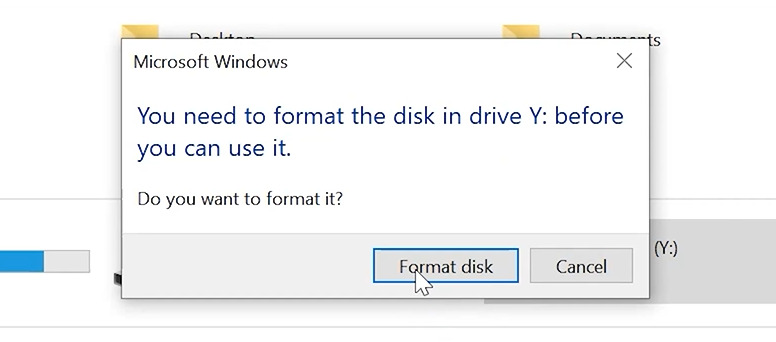
Connect drives individually to other computers and attempt to read them. The operating system will prompt to initialize them, which will also result in data loss.

How RAID works and the array creation process
A RAID array is not just a set of disks. The controller unifies them into a single logical space, distributing data according to specific algorithms. When the controller fails, that logic is lost and the operating system sees only separate, unpartitioned drives.
The process of creating a RAID 1 on the ST-Lab A-520 controller is as follows:
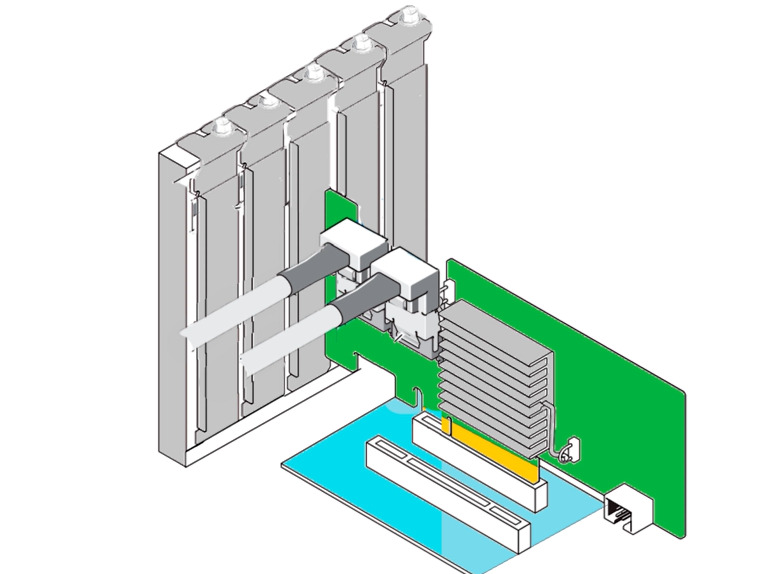
Install the controller into a free PCI-E slot on the motherboard.
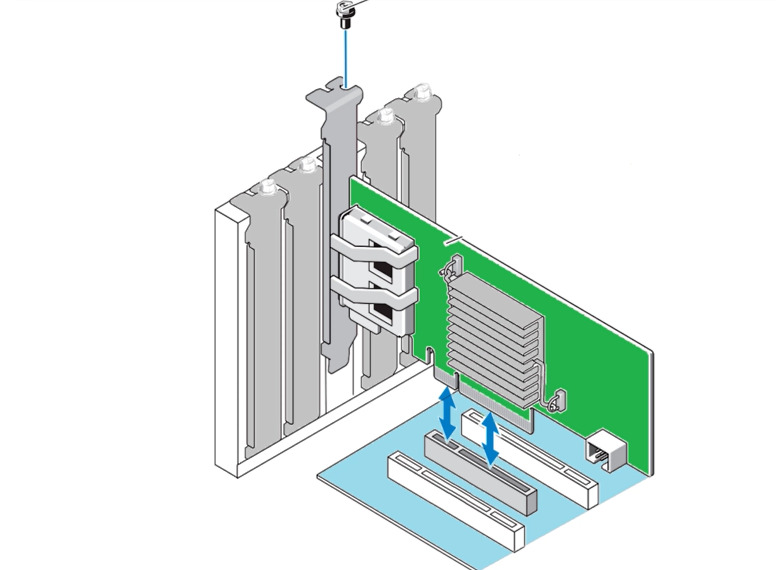
Connect the drives to the controller’s SATA ports (it is recommended to use drives of the same model and capacity).
Turn on the computer.
To create the RAID in Windows, use Marvell Storage Utility — the standard utility for this model.
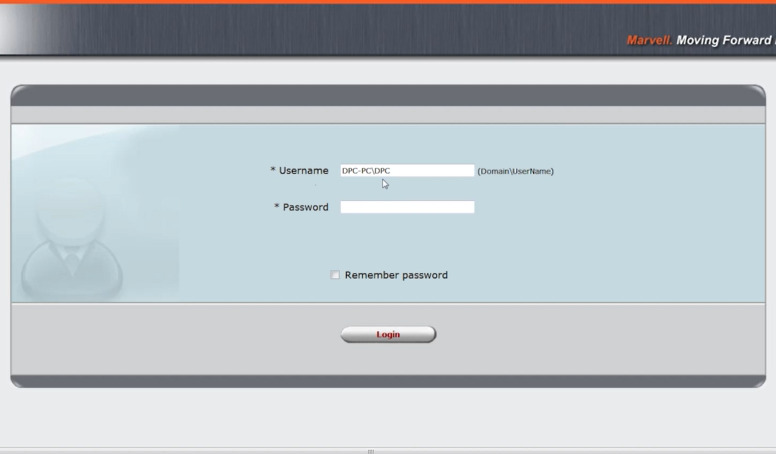
Download and install the appropriate driver from the official website (the utility installs together with it).
After launch, an icon appears on the desktop. Double-click the icon to load the web interface (admin panel). Enter the login (domain plus PC username) and then the password to sign in.
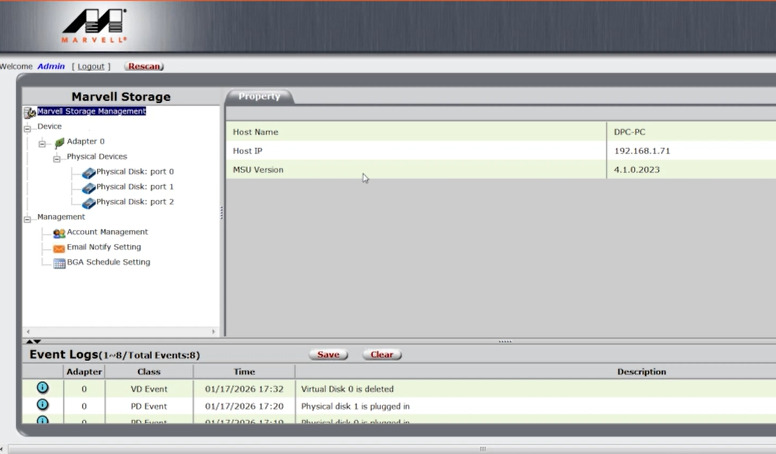
In the array manager you will see information about the controller and the drives.
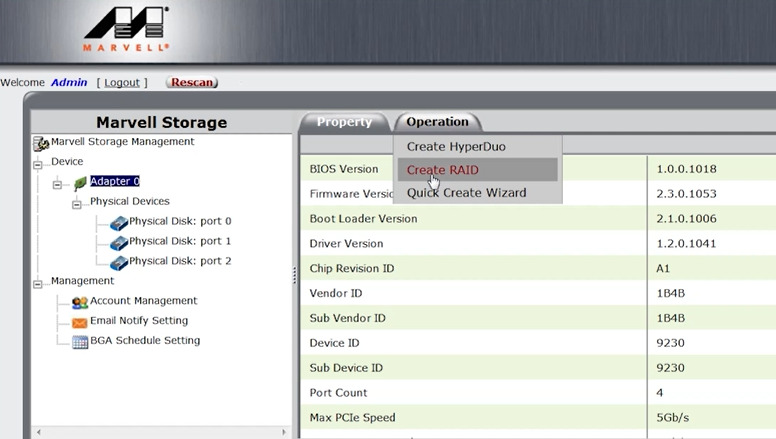
To assemble the array: select the controller, click on the left Operation – Create RAID.
Next, mark the required drives, choose the RAID type, and then click Next.
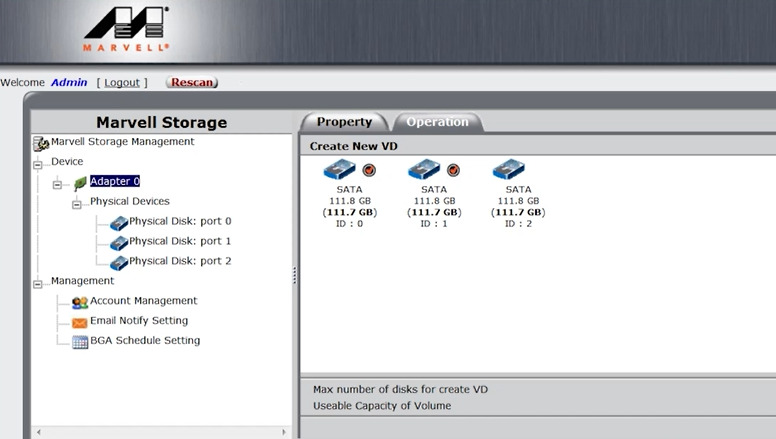
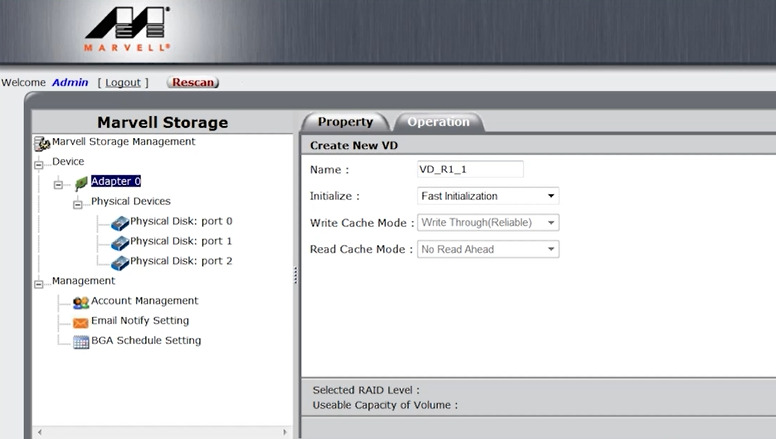
Assign a name and, if necessary, modify the parameters.
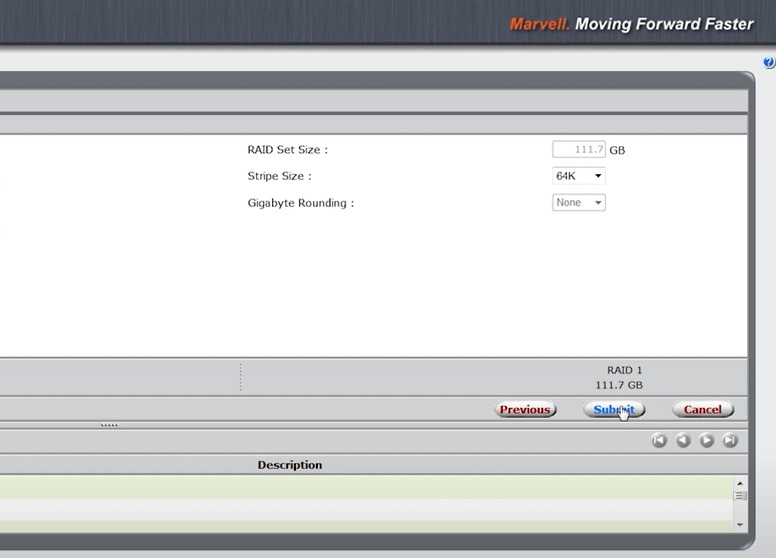
Then click Confirm and Ok to create the virtual disk.
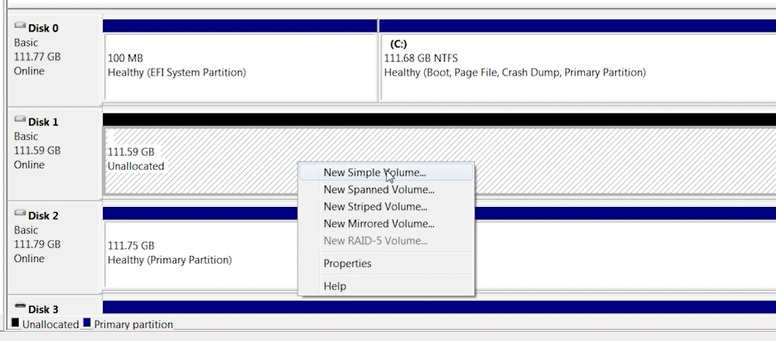
After the array initialization process, open Disk Management, partition the new volume and write data to it.


RAID 0 is created in a similar way. For this, also select the controller, click on the left Operation – Create RAID.
Select the drives, choose RAID 0, click Next.

Assign a name and parameters: Confirm – Ok. The virtual disk is ready for use.

So, we have two RAID arrays that store data. Consider the scenario of controller failure. How to retrieve information from the drives if access to the RAID array is lost?
How to recover data from an ST-Lab A-520 controller
There are several ways to retrieve information from drives after a controller failure.
Method 1: Replace the controller
If you can find an identical working ST-Lab A-520 controller, this is the simplest option.
Install the replacement controller and connect the drives in the same order.

In most cases the controller will accept the existing configuration (“foreign” configuration) and provide access to the data.
Important: do not use controllers of other models — this may cause incompatibility and data corruption.
Method 2: Recovery using Hetman RAID Recovery
If an identical controller cannot be found, install Hetman RAID Recovery. This software can emulate the controller behavior in software.
If you need to retrieve data from a non-functional RAID 1 that consisted of two drives, you do not necessarily need Hetman RAID Recovery; Hetman Partition Recovery is sufficient for this type because it is analyzed as a single disk and RAID assembly is not required.
To recover from RAID 0 you must use Hetman RAID Recovery, because in this case access to the information requires assembling the RAID from the drives. To do this:
Disconnect the drives from the faulty controller and connect them directly to the computer motherboard.
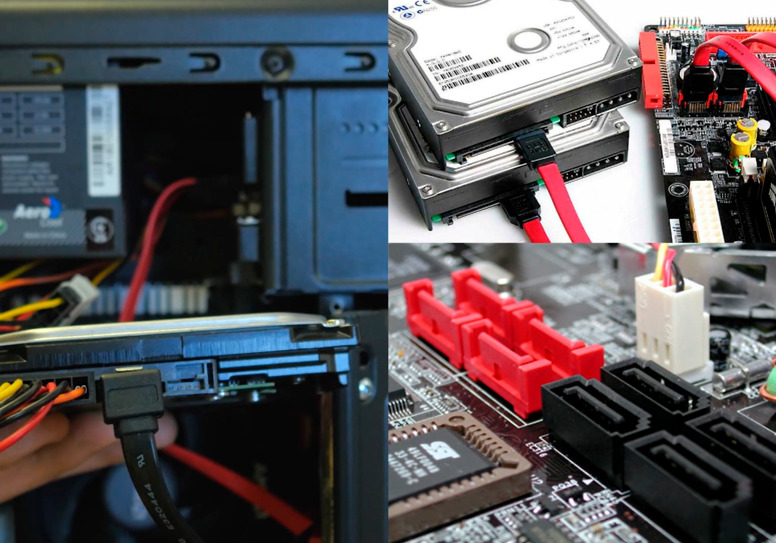
Important: Connect all drives from the array. Ensure the system sees them in Disk Management, but under no circumstances initialize or format them!
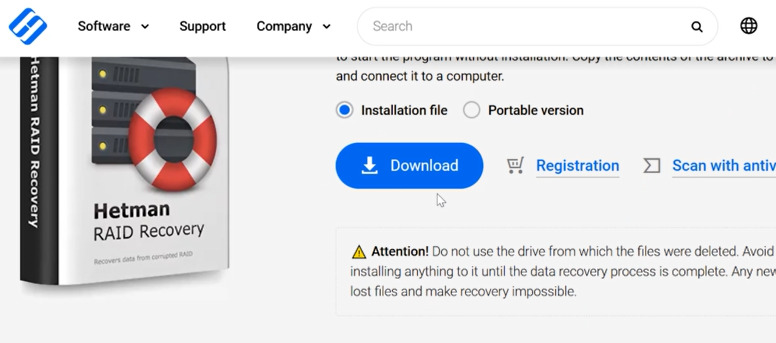
Download and install the software. It is available for Windows but supports recovery of images from Linux and macOS filesystems as well.
Tip: Install the program on a drive other than the one you need to recover.
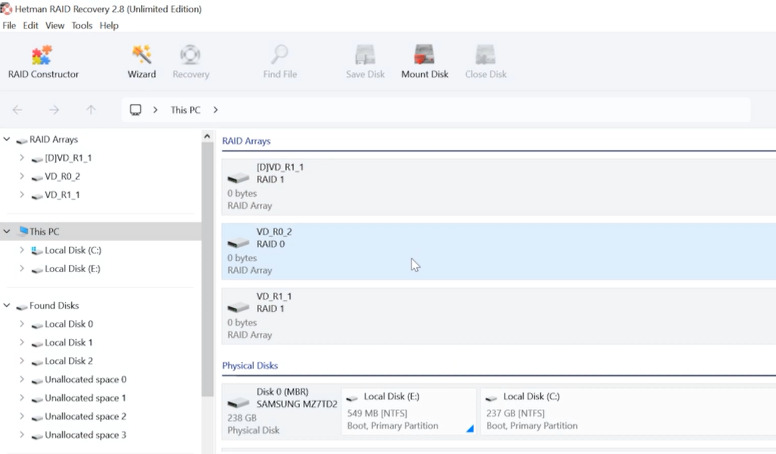
On startup the utility will automatically scan the drives and assemble a virtual RAID, determining all parameters (stripe order, array type).
- JMP instruction (3 bytes);
- Filesystem name – OEM Name (8 bytes);
- BIOS Parameter Block (BPB);
- Filesystem structures;
- And it always ends with the signature 55 AA (0x55AA).


If the program fails to assemble the array automatically, manual assembly is required.
If this is RAID 1, scan one of the drives that comprised the array. To do this, right-click the required drive and select Open.

If quick scan is not available, specify the file system and enable Deep Analysis.

To speed up this process you should assemble the RAID manually and specify the filesystem offset. We will examine how to do this below.
Open the folder where the files were stored and recover them. Select the required files and click Recover. Specify the destination path to save the files.

Regarding RAID 0, in my case it must be assembled manually because the program did not detect its parameters. The hardest part is determining the start of the filesystem on the disk; we will examine how to do this in detail now.
How to find the start of a GPT partition
Modern operating systems (Windows, macOS) use the GUID Partition Table (GPT) partitioning scheme by default. It has standard signatures that allow easy identification of partition start locations.
GUID Partition Table (GPT) — a modern disk partitioning standard included in the UEFI specification, which replaced the legacy MBR (Master Boot Record) scheme. GPT provides improved reliability, support for large disks and flexible partition management.

On this array an NTFS partition in a GUID (GPT) system was created. In this case a standard sequence of bytes is written to the disk.
The start of a GPT partition begins with the byte sequence 45 46 49 20 50 41 52 54 (textually — EFI PART). The previous sector typically ends with the byte sequence 55 AA.
A HEX editor built into the program will help locate it. Right-click the drive and select the HEX editor.

For convenience use the search. Click the search icon and enter the sequence 45 46 49 20 50 41 52 54 (or simply enter EFI PART), choose the search type — HEX or text — and click Find.

Finding this sequence on the disk indicates the start of the GPT partition. The sector ending with 55 AA will be the offset from which the partition’s useful data begins. For example, if the signature 45 46 49 20 50 41 52 54 (EFI PART) is found in sector 32769, the offset will be 32768 sectors.

This signature is standard for GPT partitions and will help determine the correct offset.
How to find the start of an MBR partition
Disks can also be partitioned using the MBR scheme.

MBR (Master Boot Record) — an older partitioning scheme. Unlike GPT, MBR partitions do not have a single fixed signature at the start of each partition. Instead, the first sector of each partition (Volume Boot Record, VBR) contains specific bytes that depend on the filesystem (NTFS, FAT32, etc.).
| GPT | MBR |
|---|---|
| Support for > 2 TB | Limit up to 2 TB |
| Up to 128 partitions | Up to 4 primary partitions |
| Backup table | None |
| Error checking | None |
| UEFI support | BIOS only |
In MBR, each partition on the disk starts not with a fixed signature as in GPT, but with the first sector (Boot Sector / Volume Boot Record, VBR). Its format depends on the filesystem — FAT32, NTFS, etc.
The first sector of the partition (VBR) is 512 bytes and contains:
Similarly, open the drive in the program’s HEX editor and search for signatures.
For NTFS we need to find the sequence – EB 52 90 4E 54 46 53 20 20 20.

EB 52 90 is the JMP instruction, 4E 54 46 53 20 20 20 is the filesystem name — NTFS.
The filesystem name always follows the JMP instruction.
Always ensure this sector ends with 55 AA.
For FAT32 the first bytes of the partition are: EB 58 90 4D 53 57 49 4E 34 2E 31. The filesystem name is MSWIN4.1.

For exFAT the first bytes of the partition are: EB 76 90 45 58 46 41 54 20 20 20. The filesystem name is EXFAT.

Manual RAID assembly in Hetman RAID Recovery
Now that we know the offset of the GPT partition start, we can assemble the RAID manually.
To do this, open the RAID constructor and choose – Create manually.

Here specify the RAID type, in my case — RAID 0.
Then — specify the block size (enter the parameters you set during creation). Typically block sizes are 64 KB or 128 KB.
Next, add the drives that comprised the array and specify their order.

And now the most important part: we need to specify the correct data offset. Select a drive and choose Change offset.
Enter the found offset — 32768, change the units to sectors – Ok. For the second drive enter the same offset.

Enable the option – Update automatically. If the parameters are correct, you will see the result at the bottom: the RAID array and its partitions.

Click – Add, after which it will appear in the program’s main window.
Automatic search for RAID configurations
If you do not know the RAID parameters, the program can sometimes detect them automatically. For example, if the block size is unknown, leave that option as Detect automatically and click – Next.
After that the program will scan the drives and show the detected configuration. You only need to select the appropriate configuration and click Add. The array will then appear in the program’s main window.

Scanning and data recovery
Now the disk array can be scanned and the required information recovered. Right-click the partition and select – Open.

Select the analysis type – Quick scan or Full analysis.
With quick scan the program will immediately display found files.

Select all files you need to recover and click Recover. Specify the destination path and click Recover.

If the program did not find the required files, run a Full analysis. To do this return to the main menu and right-click the drive: Analyze again – Full analysis. Specify the file system and click Next.

Full analysis will take longer because it uses a different search algorithm.
After completion, navigate to the folder where the required files were stored, select them and click Recover.
If your RAID consisted of many drives and you cannot connect them all simultaneously, the program provides a feature to create and mount disk images.

Using it you can create an image of a drive and then mount that image in the program. The program will then either assemble the RAID from the mounted images automatically or you will assemble it manually, after which you can extract the data.
RAID 1 recovery
You can assemble RAID 1 manually in the same way, which speeds up analysis.
Open the RAID constructor and choose Manual mode. Specify the RAID type, add the drives, set the offset found earlier by the described method, then click Add.

Now Quick Scan will be available during analysis, accelerating the disk scan. Then simply recover the required data.

Conclusion
Failure of the ST-Lab A-520 RAID controller does not necessarily mean irreversible data loss, even if the array is no longer detected by the system or the controller is completely failed. In most cases information can be recovered by connecting the drives to another computer, manually reconstructing RAID parameters and using specialized array recovery software.
Key factors for successful recovery are preserving the drive order, avoiding reinitialization of the array and minimizing writes to the media. The sooner correct actions are taken after failure, the higher the likelihood of full data recovery.
Using professional tools and understanding RAID principles makes it possible to regain access to information even in complex situations related to ST-Lab A-520 controller failure and helps avoid loss of critical data in the future.