How to recover SoftRAID data on macOS even if the RAID does not mount
-
Author:
Vladimir Artiukh

-
Editor:
Oleg Afonin



Read about how to recover data from a SoftRAID array on macOS in case of a failure, formatting error, file deletion, or failure of one or more disks.
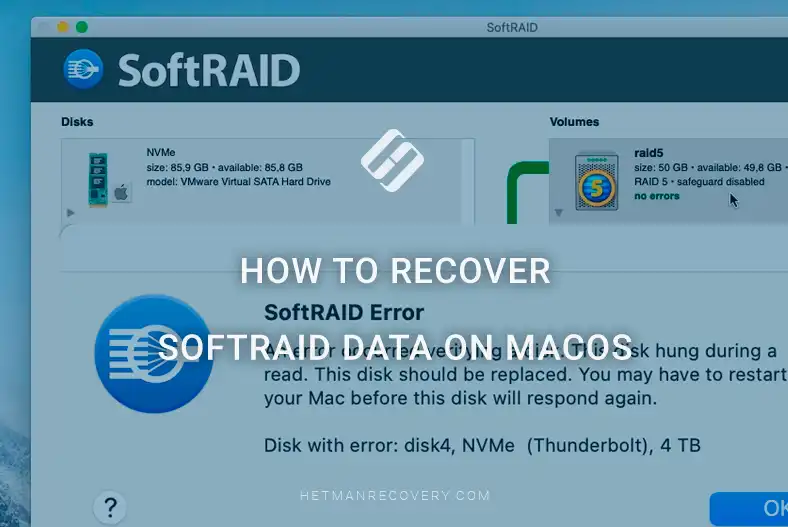
This article covers the following:
- in which cases data recovery from SoftRAID is possible;
- what must not be done to avoid making the situation worse;
- which tools and methods are best suited for RAID recovery on macOS;
- how to restore lost files step by step with minimal risk.
Read to the end to avoid common mistakes and maximize the chances of successful data recovery.
- What is SoftRAID
- How to install SoftRAID on macOS
- How to create a RAID array using SoftRAID
- How to recover data from a RAID array created with SoftRAID
- Conclusion
- Frequently Asked Questions
- Comments

How to Recover SoftRAID Data on macOS After Disk Failure
What is SoftRAID
SoftRAID is software that allows combining multiple physical disks into a single logical volume to improve performance or storage reliability. It is a software alternative to hardware RAID controllers.
SoftRAID is widely used on Mac to create RAID 0, RAID 1, RAID 4, RAID 5 and other configurations, but even such arrays are not immune to data loss. Improper shutdown, macOS updates, controller failures, or user errors can make a volume unavailable.
| Characteristic | Description |
|---|---|
| Platforms | macOS, Windows |
| Supported RAID levels | RAID 0, RAID 1, RAID 10, RAID 4, RAID 5 |
| Disk types | HDD, SSD, NVMe (via adapters), external USB/Thunderbolt drives |
| File systems | APFS, HFS+, exFAT; working with volumes of other file systems via the operating system |
| Disk health monitoring | Detailed S.M.A.R.T. monitoring in real time |
| Disk checking | Error checking, surface scan, built-in reliability tests |
| Failure protection | Disk failure prediction, user notifications, event log |
| Creating RAID without data loss | Available for some RAID levels |
| SSD optimization | Built-in TRIM tools (macOS) |
| Hot-swap support | Supported in RAID 1/4/5/10 arrays |
| Licenses | Lite, Standard, Pro – differ by available RAID levels and features |
| Useful tools | Logs, disk diagnostics, performance analytics, automatic notifications |
| Hardware support | Works with OWC Thunderbolt arrays and most external enclosures |
How to install SoftRAID on macOS
Installing SoftRAID on macOS is no different from installing any other application. Simply download the application from the official website and run the installer.
Then install the application by following the installation wizard instructions.

How to create a RAID array using SoftRAID
To create a RAID array using SoftRAID, connect the disks you plan to use to your computer.
To ensure the RAID array performs quickly, stably and with minimal risk of data loss, it is highly important to use disks of the same size, type and preferably the same model.
If the disks are different, then:
- performance decreases;
- stability is reduced;
- reliability is at risk;
- recovery after failure becomes more complicated.
Best practice: use identical disks in size, type, model and even production batch.
Remember that creating a RAID array will erase all data on the disks used to create it.
If the system prompts that the connected disks need to be initialized or formatted, this is not necessary. You will do that using the application during array creation.

Next, launch SoftRAID on your computer. When the application starts, you will see all disks connected to the computer in the Disks window.

Before creating the array, the disks that will be part of it must be immediately Certified.

And after that – Initialize.

Then open the Application Menu and choose: Volume – New.

Name the new volume – I will name it RAID5.
Select the disks on which to create the RAID: to do this, click the required disks while holding the Shift key.
Choose which RAID level to create. I select RAID5.

Specify the desired file system.
Specify the intended use for the created array.
And the security settings.
Set the size of the array to be created. You can set the maximum allowed Volume size or a smaller size.

Review the configured array settings once more and confirm creation.
Set the required block size. I leave the default suggested value, since the program recommends a block size for the selected array type.

When the program finishes creating the array, you will see a corresponding notification.
Go to the RAID Volumes menu and view the parameters of the newly created array.

Remember these parameters, or even take a screenshot of this application window. In case the array becomes non-functional, this information will be required to recover data from it.
Also, the array will appear as a separate disk and will be displayed accordingly in Finder and Disk Utility.

How to recover data from a RAID array created with SoftRAID
So, we have a software RAID array created with SoftRAID. There are some files on it. Imagine we deleted some files, or formatted the partition created with SoftRAID.

In such cases use Hetman RAID Recovery — a utility designed specifically for data recovery from RAID arrays.
Launch Hetman RAID Recovery and notice that on the main screen the program does not detect the RAID array created on these disks. It only sees the individual disks from which the array was built.

However, if you scan those disks with Hetman RAID Recovery, the program will see them as empty, or it will recover files partially or even corrupted.

You must recover data from the array itself — from the RAID5 array where the required files were stored.
To reconstruct it, launch the RAID constructor.

Recovering data from a SoftRAID disk array after deletion or formatting
Let’s try to recover our array in automatic mode.

Select the disks on which the array was created. The required disks can be identified by capacity or by name.

You can see disk names in Disk Utility by opening the Info for the required disk.
Next, wait while the program finds the RAID array. This may take some time.

The program found our array. Click the Add button.

Now our array appears among the other disks previously detected by the program. As we can see, this disk is divided into three parts. We are interested in the partition that matches the size of the previously created array and the corresponding file system.

Double-click this disk and start the scan.

As we can see, after the quick scan the program managed to recover all folders and files of the array: the folder structure is fully preserved and all files are in their places. Folders with files that were previously deleted are marked with a red cross.

Existing files and folders are also available and displayed in the preview window.

Recover them and save to a convenient location.

Data recovery if a SoftRAID disk array has failed
In particularly complex cases, Hetman RAID Recovery may not detect a damaged or destroyed array in Automatic mode. This may also occur if one or more disks of the array have failed.
In such cases you will not see the previously created array in Finder. macOS and SoftRAID itself will stop recognizing and showing it.

What to do in this case?
Return to the RAID constructor and choose the Manual mode function.

With this function, Hetman RAID Recovery allows specifying all array parameters manually to more accurately recover a non-functional array. These parameters should not be intimidating, since they are known — they were visible when creating the RAID in SoftRAID.
- RAID type: RAID5.
- Block order: Left synchronous.
- Block size: 16 KB.

Go to the disks: we previously identified which disks were part of the array. Add them to the selection by clicking the desired disk and pressing the blue arrow.

Disks have been added; now set their order correctly.
Disk order is an important parameter; do not neglect it.
Set them in the correct order: click a disk and move it by pressing the blue arrow.
Next, correctly specify the offset used when creating the array and the disk size in the array. How to determine these parameters? Hetman RAID Recovery shows them if you select the corresponding disk on the program’s main screen in the additional parameters menu.
We see that the array disks are divided into partitions. There is an unallocated area and a Local Disk. The Local Disk is the area where the array files are stored. Select it.
In the program menu at the bottom we see parameters of the selected partition. We are interested in: First sector and Sectors count. These are the required Offset and Disk size.

Therefore:
- In the Offset field enter the First sector.
- And in the Size field enter the Sectors count.
- All values are measured in Sectors.
Repeat for each disk.

After entering the specified parameters, click the Update button next to the ‘Resulting RAID array’ window. You will see that the program correctly identified the RAID to be recovered, its name and capacity.

Click the Add button.
The manually configured array appears among other disks in the program. Start a Quick scan.

As we can see, the program correctly displays all folders and files that were previously on the array, as well as those that had been deleted (marked with a red cross).

Select the required folders and files and recover them (save to a convenient location).
Similarly, using Hetman RAID Recovery, you can recover data from a SoftRAID disk array in the event of failure of one or more disks, or from a disk array created in the Windows operating system.
Conclusion
We reviewed the main methods of recovering data from a SoftRAID array on macOS and the typical causes that can make a RAID inaccessible. As you saw, even in the event of a failure, formatting error, or failure of one disk, the chances of successful recovery remain fairly high — provided the correct actions are taken.
Key points — do not reinitialize the array, do not write new data to the disks, and do not attempt to “repair” the RAID with standard macOS utilities. Instead, use specialized software or create disk images and work with those.
SoftRAID is a powerful solution, but it is not a substitute for proper backups. Therefore, after successful recovery be sure to arrange regular backups to avoid losing important data in the future.