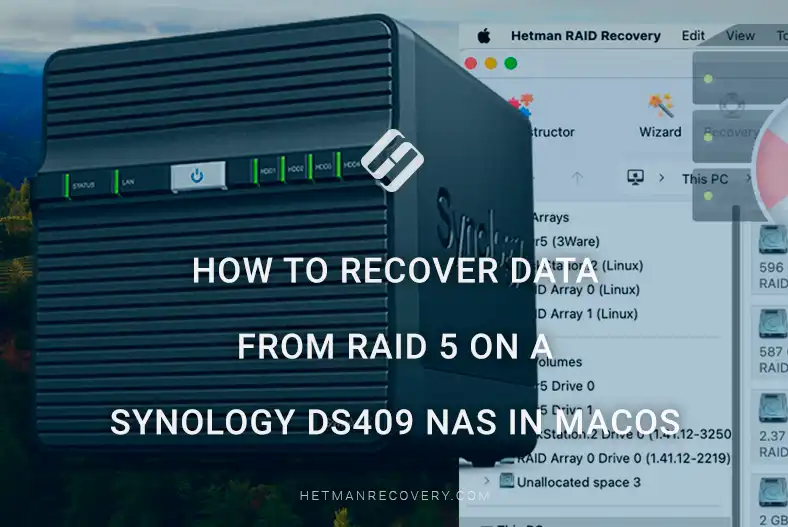
How to recover data from RAID 5 on a Synology DS409 NAS in macOS
-
Author:
Vladimir Artiukh

-
Editor:
Oleg Afonin



In this article we will review the process of recovering data from a RAID 5 array on a Synology DS409 NAS in a macOS Sonoma 14.5 environment. We will cover cases of logical damage, including accidental deletion of files or folders and formatting of volumes. You will learn how to act if the NAS or an individual drive fails, and how to access data if a RAID disk was lost and network shares no longer appear. We also demonstrate how to recover information after deleting a virtual LUN disk in DiskStation Manager.
- Causes of data loss on Synology DS409 NAS
- Synology DS409
- How to recover files from a LUN
- How to recover RAID 5 data on Synology DS409
- How to recover a deleted LUN
- Conclusion
- Frequently Asked Questions
- Comments
Causes of data loss on Synology DS409 NAS
Failure of one of the drives, file system corruption, an error during firmware update, improper device shutdown or failure of the NAS itself — any of these may cause a RAID 5 to stop mounting and make files inaccessible.
The situation can be especially complex for macOS users because the system’s standard tools do not support direct opening of Linux partitions, which are typically used in NAS devices.
In this article we will examine in detail how to recover data from RAID 5 on a Synology DS409 in macOS: how to correctly connect drives to the computer, which array parameters to consider, which applications can help reconstruct the RAID, and how to minimize the risk of permanent data loss.
The material will be useful both for IT specialists and for users who work with Synology network storages, configure RAID arrays, manage LUNs and network shares, and use disk resources to host virtual machines, server services and databases.

How to Recover Data from RAID 5 on Synology DS409 NAS in macOS
Synology DS409
Synology DS409 is a network-attached storage (NAS) device designed for organizing centralized data storage, shared access to documents and multimedia, and building reliable backup systems for critical information. The device supports up to four hard drives in RAID 0, 1, 5, 5+Spare, 6 and 10 configurations, allowing optimal combinations of performance, capacity and data protection.
Key characteristics of the DS409 include:
- a Gigabit Ethernet port for high-speed local network access;
- support for SMB/CIFS, AFP, NFS and FTP protocols for compatibility with different operating systems;
- and iSCSI features for connection to servers and virtual environments.
NAS management is performed via the convenient web interface DiskStation Manager (DSM 4.2), which allows administration of disks, users and services.
The device also supports automatic backup and data synchronization with remote servers, providing secure storage and access to information.
| Specification | Value |
|---|---|
| Device type | NAS (Network Attached Storage) |
| Model | Synology DiskStation DS409 |
| CPU | 1.2 GHz |
| RAM | 256 MB |
| Drive bays | 4 |
| Drive types | SATA/SATA II 3.5″ or 2.5″ |
| Max storage capacity | up to ~8 TB (4×2 TB) |
| Supported RAID levels | Basic, JBOD, RAID 0, 1, 5, 5+Spare, 6 |
| Network | 1 × Gigabit Ethernet (RJ-45) |
| Ports | 2 × USB 2.0, 1 × eSATA |
| Client OS support | Windows, macOS, Linux |
| Network protocols | CIFS, AFP, FTP, NFS, etc. |
| Dimensions (W×D×H) | 230 × 168 × 184 mm |
| Weight | 2.23 kg |
| Power and consumption | AC100-240 V, ~42.9 W |
| OS / Software | Synology DiskStation Manager (DSM) |
How to connect to DSM
To connect to a Synology DS409 from macOS, the computer and the NAS must be on the same local network.
To access the DiskStation Manager (DSM) web interface open any browser and enter the NAS IP address. On the login page enter the username and account password created on the NAS. After authorization the DSM web interface will open.

As an alternative for discovering the NAS on the network you can install the Synology Assistant utility on Mac. After installation run the application — it will automatically scan the local network and detect connected NAS devices.

If your device does not appear in the list, open the Preferences menu in the top-right corner of the main window and enable the option Allow compatibility with devices that do not support password encryption. This setting allows the utility to discover older NAS models that do not support password encryption.

After the scan completes select the required NAS from the list and click Connect.

The application will open the DiskStation Manager web interface where you can continue managing the storage, create or mount volumes, manage users and configure an iSCSI LUN for further data access.
How to recover files from a LUN
If you accidentally deleted files, directories or formatted a LUN, you can recover the data using Hetman Partition Recovery.
First, let’s review how to create and attach a virtual LUN disk.
How to create a LUN
To create a new virtual volume in DSM use the iSCSI LUN Creation Wizard.

After logging in open Storage Manager, go to the iSCSI LUN tab and click Create to create a new LUN. In the dialog select the iSCSI LUN (Regular Files) type.

Next:
- set the LUN name (Name);
- choose its location (Location);
- determine the allocation type — Thin or Thick provisioning;
- specify the required disk size;
- and map the LUN to a new or existing iSCSI Target in the Target Mapping section.

After confirming the parameters a new LUN will be created and available for use in macOS by connecting to the Target.

How to connect a LUN disk
After the LUN is successfully created in DSM it must be connected in macOS so it appears as a logical disk. This is done using various iSCSI clients. In this article we use the KernSafe iSCSI Initiator for connection.
On the main screen of the application click Discovery.

In the next window enter the NAS IP address into the empty field and leave the port at the default. Then click Add.

Then, on the main screen click Logon. In the next window click Logon again.

The next step is to initialize the virtual disk via Disk Utility. On the main screen of Disk Utility select the connected virtual disk on the left, then click Erase in the top-right area of the window.


In the dialog that opens specify the name for the LUN and choose the file system to use on this disk.

After this the LUN will be initialized and it will appear in Finder as a normal disk ready for use. You can copy test or production files to it to verify access and overall disk functionality.
How to scan a LUN disk with Hetman Partition Recovery
So, in case of accidental deletion or formatting of data on a LUN, full recovery can be performed using Hetman Partition Recovery. It allows scanning disks, detecting deleted or lost files and restoring them with maximum accuracy.
After launching the application your virtual disk will automatically appear on the main screen showing the file system, total size and available partitions.
To start recovery select the entire disk or a specific partition with the left mouse button and launch scanning by double-clicking or via the context menu by choosing Open.

If you need to recover deleted files or folders it is recommended to use the Quick Analysis mode. In this mode the application scans the file system at the metadata and directory level, detects elements deleted by the user, and evaluates their integrity.

After scanning completes a list of files and folders available for recovery appears with preview capability. The user can select individual files or directories to recover, after which the application restores the data to the chosen location while preserving folder structure and file attributes.

If the LUN was formatted or the data is severely damaged, use the Full Analysis mode. In this mode the application performs a deep bit-level scan of the disk, recovers all available data regardless of file system state, and returns the maximum possible amount of information.

After the scan completes the dialog will display data on the LUN available for recovery. Select the required files and folders and click the Recover button in the top-left of the main menu.

In the window that appears specify the destination to save recovered data on another disk to avoid overwriting existing files, and confirm the action by clicking Recover.
After the process completes click Finish. After that all data from the LUN will be available for use again.
How to recover RAID 5 data on Synology DS409
STEP 1. Drive connection and order
In case of hardware damage or firmware failure when it is not possible to connect to the Synology DS409 directly or via the web interface, you can use Hetman RAID Recovery to recover lost information.
Hetman RAID Recovery is a professional tool for recovering data from hardware and software RAID arrays that supports most common file systems and RAID levels. The program reads service information about the array configuration, analyzes the state of individual disks and allows reconstruction of the RAID structure and data access with maximum accuracy while preserving directory hierarchy and file integrity.
Before starting the recovery process ensure that the storage device where you plan to save data from the RAID array has sufficient free space to hold all information.
Be sure to record the exact order of disks in the RAID array before any actions. Each disk plays a specific role in data storage and parity calculation, so rearranging them can lead to file corruption, disruption of array structure and significantly complicate recovery. To avoid additional risks of data loss it is recommended to document the position of each disk and verify correct connections before starting the recovery procedure.

To do this connect the drives to the Mac, for example via a docking station.

If it is not possible to physically connect all drives, an alternative approach is to create an image of the unavailable drive and attach it for analysis and data recovery.
This method is described in detail in several videos on our YouTube channel.
STEP 2. Automatic detection of RAID parameters in Hetman RAID Recovery
Run Hetman RAID Recovery and the program will automatically detect all connected drives and analyze their state, attempting to reconstruct the RAID structure.
The main window will display found disks and reconstructed arrays available for further scanning and data recovery.

After the scan completes the dialog will show the contents of the RAID array available for recovery. Select the necessary files and folders and then click the Recover button at the top of the main menu.

In the next window specify the destination to save recovered data and confirm the action by clicking Recover.
After completing all recovery steps, data from the RAID array becomes available for further use.
STEP 3. Manual RAID 5 recovery mode in Hetman RAID Recovery
If the program could not automatically recognize the disk array, you can use the built-in RAID constructor in Hetman RAID Recovery to manually recreate the RAID configuration and gain access to the data.


To work in the RAID constructor you need to know the basic array parameters set during creation: RAID type, block order, block size and bytes per sector.
For RAID 5 the most common values are:
- block order – left synchronous;
- block size – 64 KB;
- bytes per sector – 512.

In the Available disks field select the disks of your RAID array and move them to the Selected disks field on the left, observing the correct disk order in the array.
If one of the drives cannot be physically connected you can use the Add empty disk function, which allows adding an empty disk to emulate the missing drive.

It is critically important to preserve the correct disk sequence in the RAID array, as its violation can lead to incorrect array reconstruction and make data recovery impossible.
After that click the Change disk offset and size icon and enter the Offset value – 9439232.
Before confirming make sure the measurement units are set to sectors. This action must be performed for all real disks except the simulated empty disk.

Then click Update at the bottom of the window to apply changes.
If the array parameters are entered correctly, at least one partition with the indicated file system will appear in the The resulting RAID array field. Check its contents to ensure the required folders are present.

Then click the Add button in the lower right corner to add the reconstructed RAID array to the main program screen for further scanning and data recovery.

How to recover a deleted LUN
STEP 1. Mounting the LUN in Hetman RAID Recovery
If a LUN was deleted or formatted in macOS and you need to restore the data, you can use Hetman RAID Recovery.
After the RAID array is correctly reconstructed in the RAID constructor, scanned and analysis results appear on the main screen, you need to find the directory where the LUN is stored.
The virtual disk is located in the system folder @iSCSITrg. It is displayed among the found data in the list of scanned partitions and the LUN file is located there, available for saving.

Click the Recovery button. In the window that opens click Next, choose the Save on hard disk option and specify the folder where the image will be saved.

After the process completes the image will be created and you can reconnect all drives for further work with the application.
Next, on the main application screen click the Mount disk button on the top panel.

In the new window select Raw disk images, click Next and specify the previously saved LUN file.

After this the file will be mounted as a disk image. You will be able to open it, run a scan and recover the required data, saving it to another disk.

STEP 2. Replacing the LUN in DSM
Here we consider the situation when a virtual LUN disk was deleted in DSM or became unavailable due to a software failure. We will show how to act when the LUN no longer appears in the system, but the RAID array has been successfully reconstructed and is available for analysis. In this case the recovered LUN file is used instead of the original LUN, allowing continued work with data without reconstructing the RAID array again.

Earlier we showed where the virtual disk file is stored and how to recover it to a computer. Next we will describe how to upload this file back to the NAS for further use and restore normal data operations.
After restoring NAS functionality or reinstalling and reconfiguring DSM, create a new LUN with the same parameters used previously. This is critical for correctly replacing the LUN file and accessing data without damaging its structure.

Next, upload the saved LUN file to any convenient folder created in DSM. This approach greatly simplifies transferring data into the new LUN. You can do this through the File Station section in the DSM web interface.
To do this, open File Station and select Upload. Then choose Upload with the Skip option. After that specify the LUN file to upload into the appropriate folder.

The upload progress is displayed in the top-right corner of the window where you can monitor the process until completion.
For subsequent actions you need to enable SSH access to the NAS. This setting is performed in the DSM web interface.
To do this go to Control Panel and open the Terminal section. In the Terminal service options block enable the Enable SSH service option by checking the corresponding box, then save the changes.

After enabling SSH you can connect to the NAS via a terminal.
DSM includes a built-in system root account that has full access rights to the file system and system directories of the NAS.
In DSM versions used on Synology DS409 the root account does not have a separate password. When connecting via SSH it uses the administrative user admin password. This provides the ability to perform administrative operations at the system level, including access to service directories, copying and replacing LUN files, without additional permission configuration.
After applying these settings the Terminal will be used to replace the LUN. Use it to connect to the NAS via SSH.
Open Terminal and connect to the NAS by entering the command ssh root@NAS-IP-address (for example root@192.168.0.202).
ssh root@NAS-IP-address
The system will then prompt for the root user password as described earlier.

After a successful connection enter the command ls / to view the root directory contents.
ls /

Next change to the volume created earlier in DSM using the command cd /volume1.
cd /volume1
To view its contents and confirm the presence of a directory for the LUN run ls /volume1.
ls /volume1
Then change to the directory cd /volume1/@iSCSITrg.
cd /volume1/@iSCSITrg
There you will see the newly created virtual LUN disk in DSM, which at this stage does not yet contain data. This file will be used for replacement and data restoration.

You can also go to the directory using commands cd /volume1/RAID5, then run ls to view the uploaded LUN file that will be used for copying into the new virtual disk.
cd /volume1/RAID5
ls
Using the command cp /volume1/RAID5/LUN_image/iSCSI_1_LUN-1_000 /volume1/@iSCSITrg/iSCSI_1_LUN-1_000 we copy the saved LUN file with data iSCSI_1_LUN-1_000 into the @iSCSITrg folder, replacing the newly created empty file iSCSI_1_LUN-1_000 in DSM via the Terminal.
cp /volume1/RAID5/LUN_image/iSCSI_1_LUN-1_000 /volume1/@iSCSITrg/iSCSI_1_LUN-1_000

Thus the LUN has been restored and can be mounted and connected to appear in Finder. All data inside the disk remains in place and is again available for operation as a normally connected disk. This allows verification of the recovered data, assessment of its structure and confirmation that important information has been fully preserved before further work.

Conclusion
Recovering data from RAID 5 on a Synology DS409 in a macOS environment is a feasible task even if the NAS no longer boots or the array is not recognized by the system. The main rule is to act carefully: do not reinitialize the drives, do not create a new RAID over the existing one, and do not write any data to the drives until the recovery process is complete.
Because Synology uses Linux partitions and a specific RAID storage structure, to correctly reconstruct the array in macOS you must connect all drives to the computer and use specialized software that supports automatic or manual analysis of RAID 5 parameters (disk order, block size, offset, parity algorithm). With correct configuration detection you can recover not only files but also the original folder structure.
To minimize risks in the future it is recommended to perform regular backups of important data, monitor drive health (SMART) and use additional protection mechanisms. RAID 5 increases fault tolerance but does not replace a full backup strategy.
By following the correct sequence of actions and using appropriate tools, in most cases you can successfully restore access to valuable information even after a serious NAS failure.