RAID Data Recovery After Failure of the InLine 76696C Controller
-
Author:
Vladimir Artiukh

-
Editor:
Oleg Afonin



In this article we will examine how to recover data from a RAID array of Level 1 (Mirror) or Level 0 (Stripe) when the InLine 76696C controller fails. You will learn how to extract files from the drives if access to the disk array is lost.
- Causes of failure of the InLine 76696C controller
- How RAID works and how to create an array on the InLine 76696C controller
- How to recover data from a damaged array
- Conclusion
- Questions and answers
- Comments
If, when powering on the server, it is silent or you see errors when attempting to access the disk array, your data is at risk. Below we will analyze several data loss scenarios: controller failure of the InLine 76696C or failure of the array drives.
![Top 6 Tools for Data Recovery From RAID 5, 6, Stripe, Mirror [BTRFS, EXT4]](/pic/youtube/youtube-1280.jpg)
Top 6 Tools for Data Recovery From RAID 5, 6, Stripe, Mirror [BTRFS, EXT4]
Causes of failure of the InLine 76696C controller
There can be several reasons for controller failure, but the most common are:
- overheating due to insufficient cooling;
- power surges in the mains;
- natural component wear over time;
- manufacturing defect.
| Cause of failure | Problem description | Consequences for the RAID |
|---|---|---|
| Controller overheating | Insufficient cooling, dust, poor chassis ventilation. | The controller freezes or fails completely; the RAID becomes inaccessible. |
| Power supply IC failure | Voltage surges, PSU voltage drops, component wear. | The controller stops supplying correct power to the SATA ports. |
| Firmware failure | Update error, microcode corruption, manufacturing defect. | RAID is not detected; array configuration becomes incorrect. |
| Physical damage to the PCB | Mechanical shocks, contact oxidation, solder joint damage. | Loss of connection to drives; unstable operation. |
| SATA port malfunction | Overloads, wear, contact damage. | One or more drives drop out of the array. |
| Controller cache memory failure | Chip degradation, overheating, defects. | Write errors; RAID structure corruption. |
| Electrostatic discharge (ESD) impact | Improper handling of equipment, lack of grounding. | The controller is no longer recognized by the system. |
| Component aging and wear | The device’s service life approaches its end. | Increased errors; unpredictable failures. |
Regardless of the cause of the controller failure, the result is the same – loss of access to files.
In this situation the main rule is not to panic and, more importantly, not to take hasty actions. To avoid permanent loss of data on the drives, it is strictly not recommended to:
- Attempt to initialize or recreate the array via BIOS or the controller utility. This will overwrite metadata and make recovery practically impossible.
- Connect the drives individually to other computers and attempt to read them. The operating system will prompt to initialize them, which will lead to data loss.

How RAID works and how to create an array on the InLine 76696C controller
A RAID array is not just a set of drives. The controller combines them into a single logical space, distributing data according to specific algorithms – striping. When the controller fails, that logic is lost and the operating system sees only separate, unpartitioned drives.
The process of creating a RAID on the InLine 76696C controller is as follows:
Install the InLine 76696C RAID controller into an available PCIe slot on your motherboard.
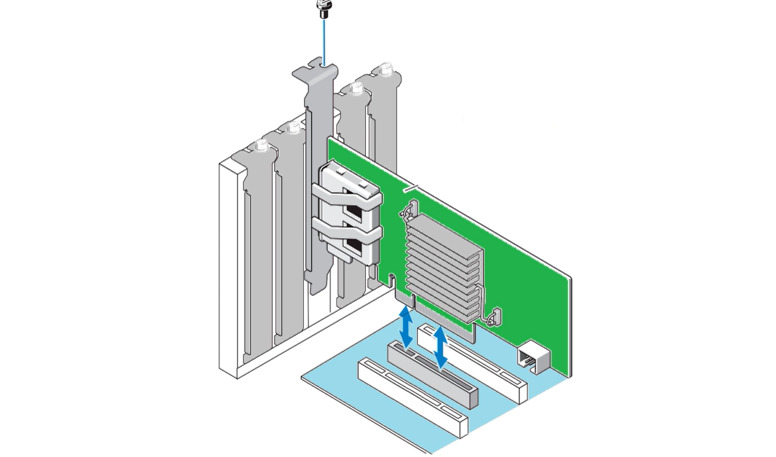
Connect the drives to the controller’s SATA ports.
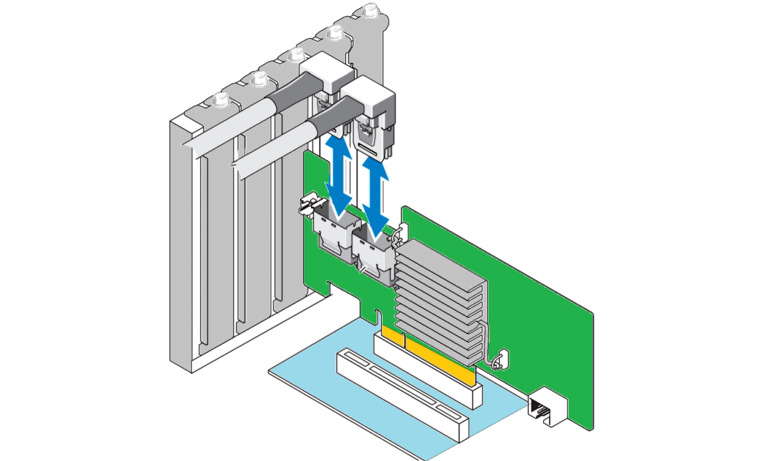
For correct RAID operation, use drives of the same model and capacity.
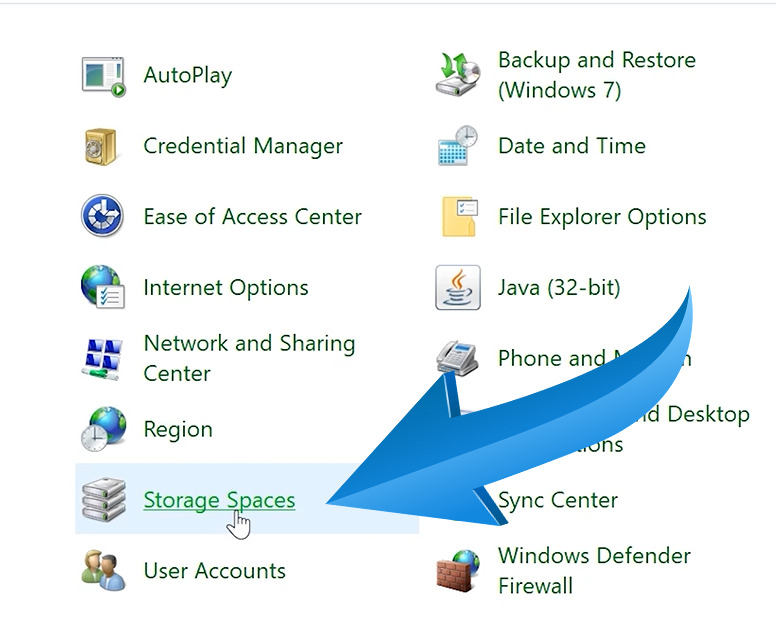
Power on the computer. To create a RAID with this controller in Windows, use the built-in utility – Storage Spaces. Open: Control Panel – Storage Spaces.
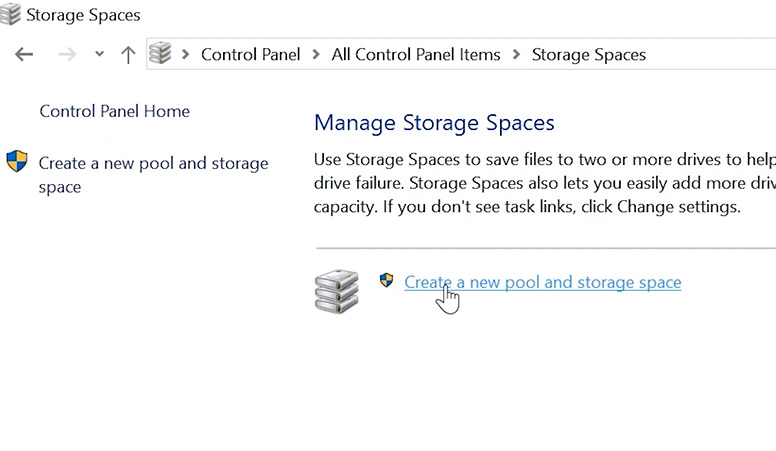
Select – Create a new pool.
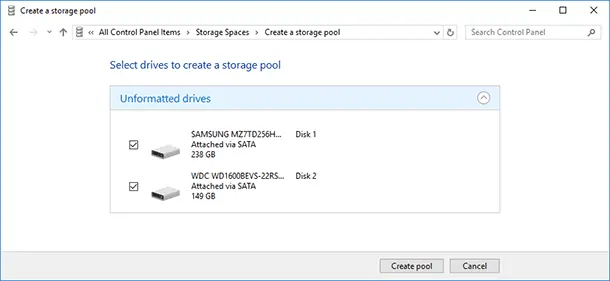
Select the drives that will form the array and click Create pool.
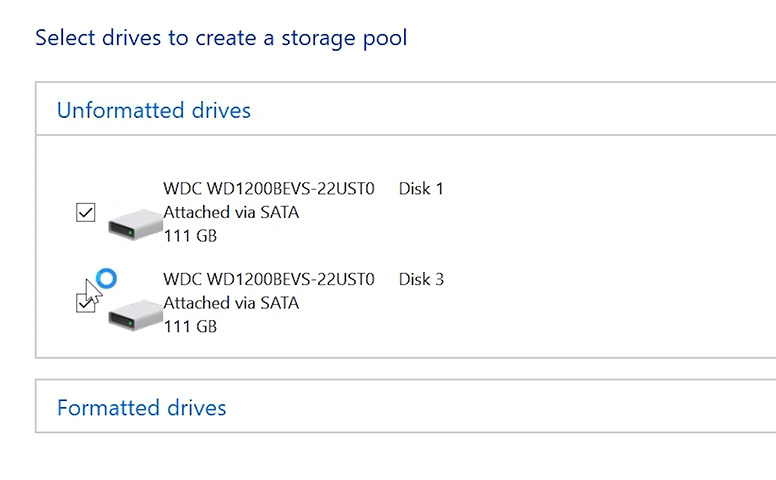
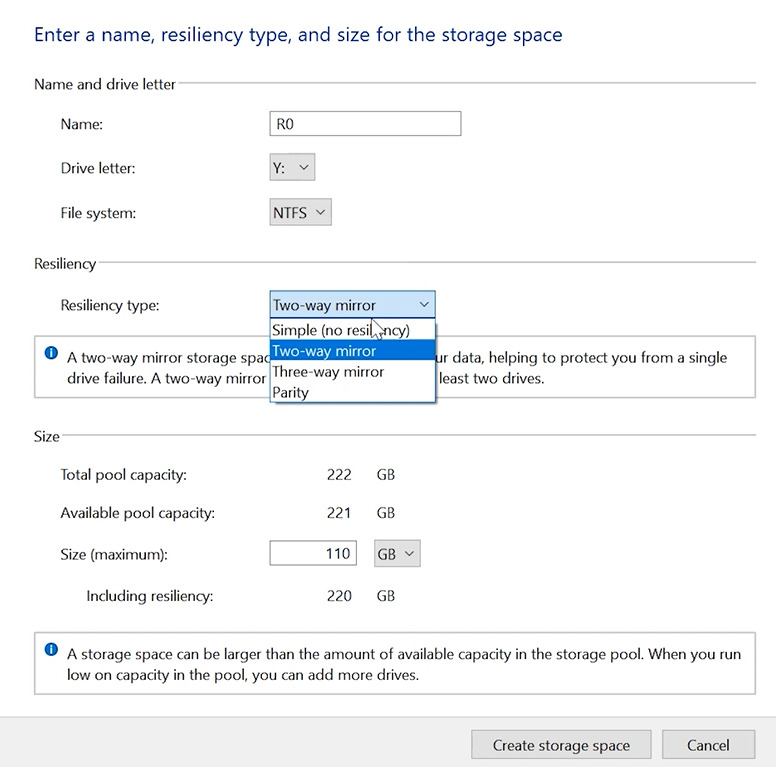
- Assign a name, specify a drive letter, and select the file system. As shown, only NTFS is available.
- Choose the resilience type: RAID 1 (mirroring) or RAID 0 (striping).
Then set the storage size and click – Create storage space.
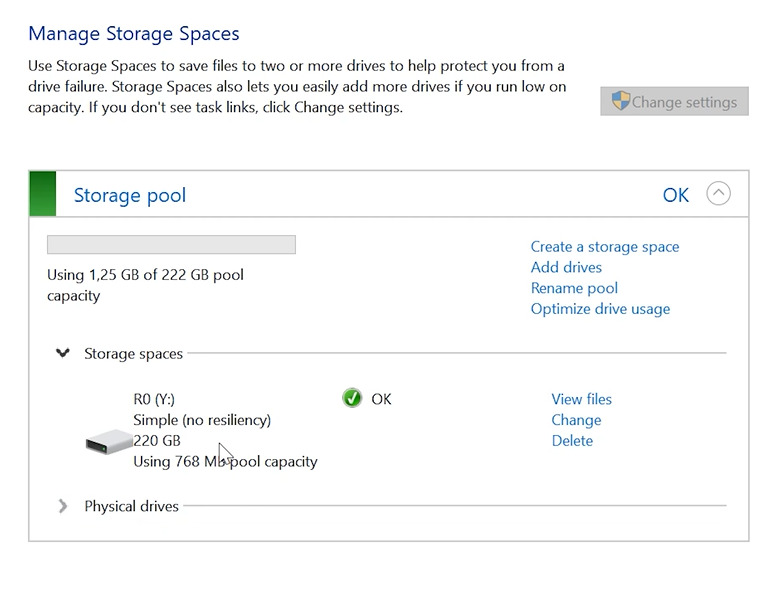
Now the disk array is available for use.


How to recover data from a damaged array
There are several recovery scenarios for drives when the controller fails:
- For the first scenario you will need an identical working controller to reconnect the drives.
- Or specialized software capable of emulating the RAID controller logic and assembling the array in software.
The first option is not always available, but the second can usually be found on the Internet.
Method 1. Controller replacement
If you can obtain an identical, working InLine 76696C controller, this is one of the simplest paths.
In that case, install the replacement controller and connect all drives in the same order as before. In most cases, the controller will automatically detect the previously created array and allow access to the data.

Be careful: do not use controllers of different models or manufacturers, as this can cause incompatibility and further data damage.
Method 2. Data recovery using Hetman RAID Recovery
If you cannot find an identical controller, use specialized RAID recovery software.
Hetman RAID Recovery is a powerful tool specifically designed to recover data from damaged RAID arrays. The program can automatically reconstruct a damaged array from the drives and allow you to recover files. It supports all popular file systems and RAID types.
To start recovery, disconnect all drives that were part of the RAID array from the faulty controller and connect them to a computer.
Connect all disks from the array, even if one of them was damaged (in RAID 5/6 scenarios). Also ensure the operating system detects them (you can use the Disk Management utility). Do not agree to initialize or format them, as this can irreversibly overwrite remaining information. They should appear as Unallocated or Unknown.

After that, download Hetman RAID Recovery. It is available for different operating systems, so you can recover your data on Linux or macOS as well.
Install the program on a different logical or physical disk than the ones you are recovering from to avoid overwriting valuable data.
After launch, the program will automatically begin scanning the connected drives. Its algorithms analyze metadata on each drive and in most cases can assemble a virtual RAID array automatically, determining its type, disk order, and stripe size. You will see it in the main window as a logical disk.

Start the analysis to search for files. Right-click the disk and select Open.

Then choose one of the analysis types: Quick Scan or Full Analysis.

For most simple data loss situations, such as controller failure, Quick Scan is sufficient and will take less time.
As you can see, the program instantly scanned the drives and displayed all files remaining on the disk. It also found previously deleted files, which are marked with a red cross.

The program can recover data in case of accidental deletion as well. A preview function is implemented to help find the required files. Mark everything you need to restore and click the Recover button.

Specify the path where to save the files and click Recover again. Always save recovered data to a different physical disk, not to the disks being recovered. After completion, all files will be located at the specified path.
If the program did not find information after a Quick Scan, run a Full Analysis. Return to the main menu, right-click the disk, select Analyze again, then Full Analysis. Specify the file system and click Next.

Full Analysis will take longer because the program uses a different search algorithm. After completion you will be able to recover your files.
How to assemble a damaged RAID manually
In some situations metadata may be overwritten and the program cannot determine the RAID parameters. In that case you can assemble it manually if you know the parameters.
In the RAID constructor you will need to specify the RAID type, stripe size, disk order, disk sequence, etc.

If the parameters are specified correctly, you will see your array and will then be able to analyze it and recover files.

Conclusion
Failure of the InLine 76696C controller does not imply final data loss, especially if the drives themselves remain functional. The RAID array still stores information, and with the correct approach the data can usually be recovered almost completely.
Key steps are careful removal of the drives, connecting them to a computer, and virtual reconstruction of the array using specialized software. Tools like Hetman RAID Recovery can automatically determine RAID parameters, assemble the array in software, and provide access to files even if the original controller has failed completely.
The main rules are to avoid writing to the drives, not to attempt to rebuild the array manually without sufficient knowledge, and not to use untrusted utilities. By following the verified methods described in this article, you significantly increase the chances of successful data recovery and minimize the risk of irreversible loss. If the controller is faulty but the drives are intact – the data can almost always be recovered.