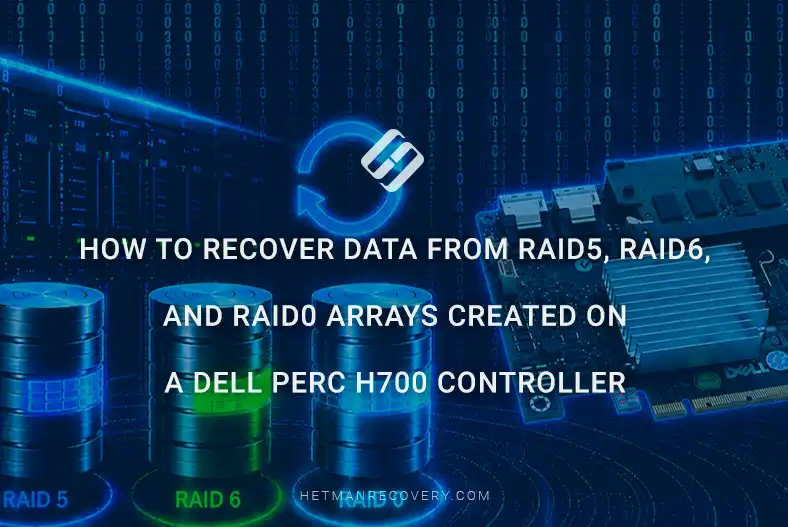
How to recover data from RAID5, RAID6, and RAID0 arrays created on a Dell PERC H700 controller
-
Author:
Vladimir Artiukh

-
Editor:
Oleg Afonin



In this article we examine data recovery from RAID 0, 5 and 6 created on a Dell PERC H700 controller on a PowerEdge R710 server. How to recover data from RAID arrays created on a Dell PERC H700 controller, what causes can lead to information loss, and which tools can help restore access to important files even in complex cases.
- Capabilities of the Dell PERC H700 controller
- STEP 1. File recovery from RAID
- STEP 2. Connecting disks
- STEP 3. Automatic RAID detection
- STEP 4. Manual RAID assembly
- Conclusion
- Frequently Asked Questions
- Comments
We will review three groups of scenarios:
- Logical errors: accidental deletion of files, formatting, or deletion of partitions on the array disks.
- Loss of RAID configuration: when the array disappears from the OS due to incorrect recreation or resetting settings in the controller menu.
- Hardware failures: controller or motherboard failure, simultaneous failure of multiple disks, failures during firmware update, failed RAID level migration or array expansion, as well as accidental overwrite of service metadata.
In the practical part you will learn how to diagnose array status, connect disks directly to a computer bypassing the controller, and determine key parameters — disk order, stripe unit size and offset — for manual RAID reconstruction using specialized software.
The described recovery methods and software are universal and can be applied not only in Windows environments, but also in Linux and macOS.

How to Recover Data from RAID 5, RAID 6, and RAID 0 Arrays Created on a Dell PERC H700 Controller
Capabilities of the Dell PERC H700 controller
Dell PERC H700 is an enterprise-class hardware RAID controller supporting SAS and SATA interfaces at speeds up to 6 Gbit/s.
The controller has 6 internal ports and supports connection of up to 32 drives when using an expander, and the maximum array capacity can reach 64 TB.
Cache capacity is 512 MB or 1 GB depending on the configuration, and cache preservation on power loss is provided by the BBU battery module.
The controller supports RAID levels 0, 1, 5, 6, 10, works with both HDDs and SSDs, is installed in a PCIe x8 slot and is compatible with Windows Server, Linux and VMware ESXi.
Key features include hot-swap drive replacement, background initialization, patrol reads and automatic array rebuild.

| Specification | Description |
|---|---|
| Controller model | Dell PERC H700 |
| Server interface | PCI Express 2.0 x8 |
| Supported disk interface | SAS 6 Gbit/s, SATA II 3 Gbit/s |
| Number of supported drives | Up to 32 physical drives |
| Supported RAID levels | RAID 0, 1, 5, 6, 10, 50, 60 |
| Cache size | 512 MB or 1 GB DDR2 |
| Cache protection | BBU (Battery Backup Unit) |
| Hot-swap support | Yes |
| Hot-spare support | Yes |
| RAID level migration | Yes |
| Online capacity expansion (OCE) | Yes |
| RAID reconfiguration (RLM) | Yes |
| Automatic array rebuild | Yes |
| SMART monitoring support | Yes |
| Maximum logical volume size | Over 64 TB |
| Supported operating systems | Windows Server, Linux, VMware ESXi |
| Management and monitoring | Dell OpenManage Server Administrator (OMSA) |
| Intended use | Dell PowerEdge 11th generation servers |
| Typical use cases | File servers, virtualization, databases, backup systems and network storage |
| Key advantages | High performance, RAID 6 support, cache protection, online array expansion capability |
STEP 1. File recovery from RAID
Let us outline the sequence of actions after accidental data deletion or RAID array formatting.
Most often users face data loss due to accidentally pressing Shift + Delete, emptying the Recycle Bin, or full formatting and deletion of partitions directly on the disks within the array.
For effective recovery of deleted information in such cases you can use the Hetman Partition Recovery application. This professional solution allows scanning the array, detecting lost files and restoring them with maximal accuracy while preserving folder structure.
As an example, we will consider the recovery process for a RAID 0 built from two disks on a Dell PERC H700 controller in a Windows 11 environment, taking into account that the recovery process for RAID 5 and RAID 6 arrays is performed in exactly the same way.
After launching the application, Hetman Partition Recovery will automatically analyze connected storage devices and display the RAID array on the main screen, showing its type, total capacity and file system.

If your goal is to restore deleted files, choose the Fast scan mode. In this mode the application quickly scans metadata and file system directories, detects lost items and evaluates their condition.

Upon completion you will see a list of all available files with the option to preview them to verify integrity. You only need to select the required items and click Recovery — the utility will then restore the data to the specified location, fully preserving the original folder structure and file attributes.

If the RAID array was formatted or partitions were deleted on the disks in the RAID array, use the Full scan mode. In this mode the application performs a deep bit-by-bit scan of the entire array surface, which allows finding and recovering the maximum possible amount of information even with partial destruction of the file system structure. This ensures recovery of all accessible data that was stored on the device prior to formatting, providing the highest recovery accuracy.

Before starting recovery, make sure the destination storage has sufficient capacity.
During a full analysis Hetman Partition Recovery may find a large number of files, including long-lost ones. It is recommended to use a separate external disk or another healthy array with sufficient capacity to avoid interrupting the process and to ensure correct saving of recovered data along with folder structure.

STEP 2. Connecting disks
For successful data recovery it is necessary to have a certain minimum number of healthy disks from the array. The number of available disks directly affects the possibility of reconstructing the array and the completeness of recovered information, so it is important to assess the condition of each drive before starting work:
- For RAID 0 all drives without exception are required, since data is striped evenly across all drives in blocks. The absence of even one disk makes recovery impossible because the array contains no redundancy to reconstruct lost data.
- For RAID 5 the minimal required number of drives for successful recovery is one less than the total number of devices in the array. This level preserves data integrity in the event of a single drive failure due to distributed parity. Although reconstruction is possible without one drive, having the full set of disks significantly increases chances of success and simplifies the process of automatic structure assembly.
- For RAID 6 at least two drives fewer than the total number of array members are required. Thanks to double-parity algorithms this level allows the system to remain operational even with simultaneous failure of two drives. This makes RAID 6 the most reliable solution among the considered options and creates the best conditions for data recovery after serious hardware failures.

After removing disks from the server they can be connected directly to the PC motherboard using standard SATA cables or by using an external dock. SAS drives require a compatible controller, as standard SATA ports do not support them.
Do not initialize or format them, even if the system prompts you to do so, to avoid damaging the RAID metadata. It is recommended to record the disk order beforehand for safe recovery.

If it is physically impossible to connect all drives, you can use an alternative method: create an image of one or more unavailable drives and mount them in the application. To do this, run the application, select the drive to image and click the Save disk button. In the dialog that appears, specify a convenient save location.

After creating the image, go to the main application window and click the Mount disk button at the top of the program. In the dialog that opens, select Raw disk images and specify the path to the created image.

After that the image will be mounted together with the other array disks, and you can continue data recovery in the normal mode.

STEP 3. Automatic RAID detection
Now, let us consider the sequence of actions in case of server failure or failure of its individual hardware components, such as the RAID controller or motherboard. These failures most often cause complete loss of access to array disks because the operating system stops seeing the logical volume. This category also includes cases when one or more disks have failed physically, or a critical failure occurred during a controller firmware update that led to deletion of the RAID configuration.
For effective information recovery in such complex situations you can use Hetman RAID Recovery. It is specifically designed for automatic reconstruction of damaged arrays and extraction of data even without the original controller. After launching, the application will automatically detect connected drives as parts of a RAID array and begin reconstruction without the need to perform any actions via Windows tools.
Let us proceed to a practical demonstration of the RAID 5 recovery process using an example of a three-disk array.
It is important to note that the procedure for RAID 0 and RAID 6 remains identical.
After launching Hetman RAID Recovery, the application will automatically analyze all connected storage devices and reconstruct the array, showing it on the Main screen with its type, total capacity and file system.

To start searching for data, select the recognized array and run the Fast scan mode. In this mode the utility instantly scans metadata and file system directories, finds lost items and evaluates their condition.

Upon completion of analysis a dialog will display the entire array contents available for recovery. You can use the preview function to verify the integrity of found files. To complete the process, select the required items and click the Recovery button at the top of the main menu.

In the dialog that opens specify a safe location to save the data on another healthy drive and confirm the action. The application will restore the information, fully preserving the original folder structure and file attributes.

After copying completes click Finish, and your data will become available for further work again.
If the program fails to automatically detect the file system on the RAID disk or Fast scan does not yield the desired result, use the Full scan mode in Hetman RAID Recovery. During setup you can select file systems that were used for a deeper scan.

STEP 4. Manual RAID assembly
If data was lost during migration or array expansion, deletion of configuration, or as a result of accidental overwrite of technical information by user error (for example, disk initialization), partition creation or OS installation on array disks — use the built-in RAID Constructor in Hetman RAID Recovery. This allows manual reconstruction of the array configuration to gain access to data even after erroneous disk initialization or a failed OS installation.

Consider a practical example of recovering a RAID 6 built on four disks where two drives failed simultaneously. The presence of double redundancy allows successful data recovery, however this process requires extremely accurate reproduction of the original array structure.
Note that for RAID 0 and RAID 5 the sequence of operations remains unchanged.
To work in RAID Constructor mode you need to know the main array parameters set during creation: RAID type, disk order, stripe unit size and sector size in bytes.
In the Dell PERC H700 controller typical values in most configurations are:
- disk order – Left Synchronous,
- stripe unit size – 64 KB,
- sector size – 512 bytes.

This controller model also allows selecting the following stripe unit sizes: 8 KB, 16 KB, 32 KB, 64 KB, 128 KB, 256 KB, 512 KB or 1 MB. At the same time these parameters may vary depending on specific array settings, so they should be verified or selected manually if necessary.
In the Available disks field select the array drives and move them to the Selected disks field, maintaining the correct order.
If one of the drives is physically unavailable, use the Add empty disk function to simulate the missing drive.

It is important to preserve the correct disk sequence, as its violation will prevent correct array reconstruction.
After configuration click Add to add the array to the program’s main page.

If some standard RAID parameters are unknown, they can be determined by trial using the options available in the program’s selection fields.
During this process use the result displayed in the formed array window as guidance. Correctly selected parameters typically lead to the appearance of partitions with a recognized file system and a readable directory structure. This is the primary indicator of correct RAID logic reconstruction and readiness of data for further analysis.
Additionally, you can use the Detect automatically function. In this mode the program iterates possible parameter combinations (disk order, stripe size, offset) that could theoretically correspond to the array. This allows determining the correct RAID structure even without exact original data.

Keep in mind that automatic detection usually requires more time compared to manual parameter entry, but it is indispensable when technical configuration information is completely lost.
After the reconstructed array appears in the device list you can proceed to scanning. If the issue was only a configuration failure, start with Fast scan. The program will analyze metadata and display the folder and file structure.

If necessary use the Preview function to view file contents. If the result of such scanning is unsatisfactory or the file system is severely damaged, choose Full scan.
After scanning select the directories and files you need to recover. Then click Recovery.

In the next dialog specify the path to save the recovered data and confirm the action by clicking Recovery again. After the operation completes the program will notify you about successful data recovery from your storage device.
Conclusion
The Dell PERC H700 controller provides high performance and reliability for RAID arrays, however even RAID 5, RAID 6 and RAID 0 configurations do not guarantee complete protection against data loss. Hardware failures, user errors, file system corruption or simultaneous failure of multiple drives can lead to loss of access to important information.
In most cases data can be successfully recovered if usage of the array is stopped in a timely manner and specialized software for RAID reconstruction is applied. Correct identification of array parameters and adherence to recovery recommendations significantly increase the chances of successful file restoration.
To minimize the risk of data loss in the future, it is recommended to regularly create backups and monitor the condition of drives and the RAID controller itself.