Data recovery from RAID 0, RAID 1, and RAID 5 on the Adaptec ASR-6405 controller in Ubuntu
-
Author:
Vladimir Artiukh

-
Editor:
Oleg Afonin



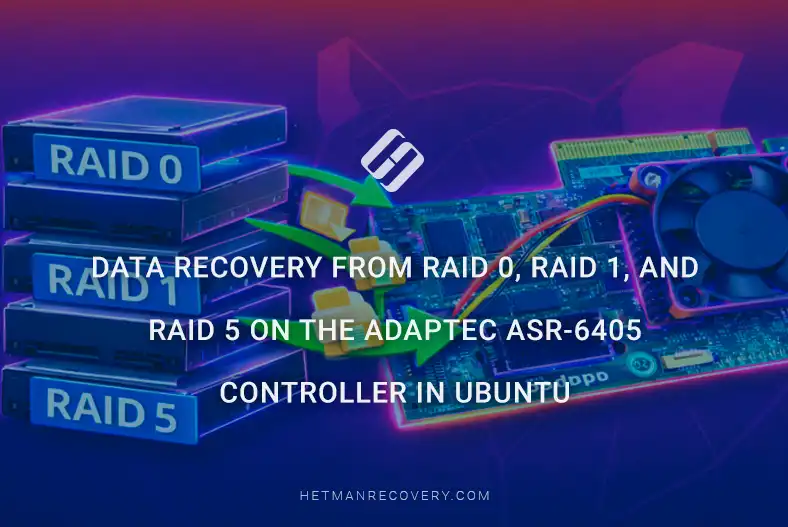
In this article we will examine how to recover data from a RAID 0, 1 or 5 array created on an Adaptec ASR-6405 controller on Linux. You will learn how to restore files deleted with Shift + Delete or after partition formatting. We will also review what to do if the controller fails, one of the array disks has failed, or the RAID configuration was accidentally changed.
- Capabilities of the Adaptec ASR-6405 controller
- Recovering deleted files and partitions created with Adaptec ASR-6405
- Data loss from a RAID array created with Adaptec ASR-6405
- Conclusion
- Frequently Asked Questions
- Comments
Hardware RAID controllers are widely used in servers and workstations to provide high performance and fault tolerance for storage systems. One popular model is the Adaptec ASR-6405 — a PCIe controller that supports RAID 0, 1, 5 and other RAID levels. However, even reliable hardware is not immune to failures: controller failure, configuration corruption, firmware errors, or failure of one or more drives can lead to loss of access to data.
The situation is complicated when the server runs Ubuntu, since standard Linux tools do not always automatically detect hardware RAID arrays after a critical failure. In such cases it is important to know how to correctly connect drives, preserve them in their original state, and perform a proper RAID reconstruction without risking data overwrite.
In this article we will review how to recover data from RAID 0, RAID 1 and RAID 5 arrays created on an Adaptec ASR-6405 controller in an Ubuntu environment: what steps to take after a failure, which array parameters must be considered, and which software tools can help restore access to files with minimal loss.

Data Recovery from RAID 0, 1, 5 on the Adaptec ASR-6405 Hardware Controller in Ubuntu
Capabilities of the Adaptec ASR-6405 controller
Adaptec ASR-6405 is a hardware RAID controller from the ASR series designed to work with SATA and SAS drives. It supports RAID 0, 1, 5, 10 and JBOD configurations, providing high performance and reliable data storage. The controller is equipped with its own processor and cache memory to accelerate read/write operations and allows monitoring of drive and array status via Adaptec utilities (ARCconf, Adaptec Storage Manager).
The ASR-6405 is well suited for servers and workstations requiring hardware RAID with the ability to recover data in the event of individual drive failures.
| Specification | Value |
|---|---|
| Device type | RAID controller for servers / workstations |
| Model | ASR-6405 |
| Connection interface | PCIe x8, PCI Express 2.0 |
| Drive interface | SAS / SATA 6 Gb/s |
| Internal ports | 1 × mini-SAS (SFF-8087) |
| Number of drives | 4 HDDs or SSDs (up to 256 with SAS expanders) |
| Cache memory | 512 MB DDR2 @ 667 MHz |
| Supported RAID levels | 0, 1, 1E, 5, 5EE, 6, 10, 50, 60, JBOD |
| OS support | Linux, Windows, VMware, FreeBSD, etc. |
| RAID processor | PMC-Sierra PM8013 Dual Core RAID on Chip (ROC) |
| Array expansion support | Online Capacity Expansion, RAID Level Migration, Hot plug, Hot spare |
| Form factor | Low-Profile (MD2) |
Recovering deleted files and partitions created with Adaptec ASR-6405
To recover data from a RAID array we use Hetman Partition Recovery, which can scan arrays, detect deleted or lost files and restore them with maximum accuracy.
After launching, the application will automatically display your RAID array on the Main screen with the file system (in this case RAID 5), total capacity and available partitions. To start recovery, select the entire array or a specific partition with the left mouse button and start scanning by double-clicking or via the context menu by selecting Open.

If you need to restore deleted files or folders, it is recommended to use the Fast Scan mode.

In Fast Scan mode Hetman Partition Recovery performs a comprehensive scan of the file system at the metadata and directory level, detects items deleted by the user, and assesses their integrity and condition.
After the scan completes, a list of files available for recovery is displayed with the ability to preview. The user can select individual files or folders for recovery, after which the application restores the data to the chosen location with maximum accuracy, preserving folder structure and file attributes.

If the RAID array was formatted or the data was severely damaged, use the Full Analysis mode.

During Full Analysis the program performs a deep bitwise scan of the array, recovers all available data regardless of the file system state, and provides the maximum possible data recovery.
After scanning completes, the next dialog will show the data on the RAID that is available for recovery. Select the required folders and files and click the Recovery button located in the upper-left part of the main menu.

In the window that opens, specify the location to save recovered data and click Recovery. After the process completes and the data is saved, click Finish.

After the recovery procedure finishes, all data from the RAID array will be available for use again.

Additionally, note that recovery from RAID 1 in the event of controller failure or deletion of the array configuration is possible even from a single drive, regardless of which drive was connected first in the array. Since RAID 1 uses full data mirroring, each drive contains a current copy of the data. The recovery process in this case is virtually identical to working with a fully functional RAID array or a single physical disk: the application correctly identifies the file system and directory structure and allows scanning and recovery by standard methods without requiring array reconstruction.
Data loss from a RAID array created with Adaptec ASR-6405
If the controller fails, access to the RAID disks becomes impossible without its recovery or replacement. Problems can arise due to physical drive failure, controller firmware failure, or corruption of the array configuration, which complicates data access.
In such cases, the Hetman RAID Recovery application is used to recover the RAID array.
Hetman RAID Recovery is a powerful tool for recovering data from hardware RAID that supports most common file systems and RAID types. It reads detailed information about the controller that created the array, analyzes drive conditions and allows reconstruction of the array structure and recovery of data with maximum accuracy while preserving the integrity of files and directories.
STEP 1. Recovery of RAID 5 and RAID 0 arrays
Before starting the recovery process, ensure that the target drive where you plan to save data from the RAID array has sufficient capacity to hold all information.
Be sure to record the exact order of disks in the RAID array before any actions. Each disk plays a specific role in storing data and computing parity, so rearranging them may cause file corruption, break the array structure and significantly complicate recovery.
To avoid unexpected losses, it is recommended to document the position of each drive in advance and verify connections before starting the recovery procedure.

After that, launch Hetman RAID Recovery, which provides direct access to drives and allows analysis of data independent of the controller.
STEP 2. Recovering data from a disk image
If physical connection of all drives is impossible, an alternative is to create an image of one or more unavailable drives and mount them for further analysis and recovery.
To create a disk image and integrate it with other connected drives, launch Hetman RAID Recovery, select the disk from which you need to create an image and click the Save Disk button.

In the window that opens, click Next, choose the Save to hard disk option and specify the folder to store the image.

After the procedure completes the image will be ready and you can connect all drives for further work with the application.
In the main window of Hetman RAID Recovery click the Mount disk button on the top panel. In the dialog that appears select Raw disk images, click Next and specify the previously created image.

After this the image will be mounted together with the other three disks of your RAID 5.
STEP 3. Using the RAID constructor
If the recovery software cannot automatically detect your disk array, you can use the built-in RAID constructor in Hetman RAID Recovery to manually reconstruct the array configuration.
To use this mode you need to know the typical parameters of the disk array, namely:
- RAID type,
- block order,
- block size,
- bytes per sector, as set in the RAID Configuration Utility when the array was created.
On this controller model the start of the file system coincides with the start of the disk, so determining an offset is not required.

STEP 4. Recovering RAID 5 using the RAID constructor
After launching the application select Raid Constructor from the top-left of the main menu.

In the next window select Manual mode and click Next.

On the settings page enter the known typical parameters for RAID 5: RAID type, Block Order, Block size and Bytes per sector.

In the Available disks field select the drives of your RAID array and move them to the Selected disks field on the left, preserving the correct order within the RAID.

After that click Update at the bottom of the window.

If it is not possible to physically connect all drives, you can use the Add empty disk function to add an empty disk to simulate a missing drive.

It is critically important to preserve the correct sequence of drives within the RAID array, since changing their order may result in incorrect assembly of the array and prevent data recovery.
If RAID 5 has lost one drive, recovery is still possible because this configuration uses distributed parity to protect data. The program can reconstruct the missing drive by calculating its contents based on information stored on the other drives. This allows recovery of the full data set even when one drive is temporarily absent, preserving file system integrity and the RAID directory structure.
If the array parameters are entered correctly, the The resulting RAID array field will show at least one partition with a detected file system. Check the partition to ensure the required folders are present.

Then click the Add button in the lower-right corner to add the RAID array to the main page of the application.
STEP 5. Automatic detection of RAID parameters
If some of the standard RAID parameters are unknown, they can be determined by trial using the available options in the corresponding selection fields in the application.
You can also rely on the result shown in the formed array window.
Correctly selected parameters typically result in partitions with a detected file system and a readable directory structure, indicating that the RAID logic has been reconstructed correctly and the data is ready for further analysis and recovery.
In addition, you can use the Detect automatically function, which makes the program iterate possible combinations of parameters that could correspond to the array.

The automatic RAID detection function allows determination of the correct RAID structure even without precise initial data, although automatic selection typically requires more time compared to manual configuration with known parameters.
The main screen of the application will now display your RAID ready for scanning. Double-click it or right-click and select Open.

In the next window select Fast Scan and click Next.
After the scan completes you can use the Preview function to view file contents in the right-hand pane.
Next, select the folders and files to recover and click Recovery in the upper corner of the main menu or via the right-click context menu.
Then specify the destination for the recovered data and click Recovery again. The program will then perform data recovery from your RAID.

Conclusion
Recovering data from RAID 0, 1 and 5 arrays created on a hardware Adaptec ASR-6405 controller in an Ubuntu environment is a realistic task even in cases of controller failure, array configuration corruption or failure of one or more drives. The key is to correctly determine the RAID type, array parameters (disk order, block/stripe size, striping algorithm) and choose a safe recovery method that avoids overwriting the original drives.
For RAID 0, accurate reconstruction of parameters is critical because there is no redundancy. In the case of RAID 1, recovery is usually simpler thanks to mirroring. RAID 5 allows recovery even after a single drive failure but requires correct handling of parity.
Experience shows that before any actions it is advisable to create bitwise copies of the drives and work with those copies. This minimizes the risk of permanent data loss. In complex cases it is reasonable to use specialized software for RAID analysis.
Thus, even in the event of serious hardware failures, a competent approach and adherence to a technical sequence of actions allow successful recovery of access to important files and minimize the consequences of a RAID array failure.