How to Recover Data from VeraCrypt Disks and Containers
-
Author:
Vladimir Artiukh

-
Editor:
Oleg Afonin



In this article, we will examine the features of working with VeraCrypt encrypted volumes and show methods for recovering information stored in file containers, protected partitions, and encrypted data media. We will explain how VeraCrypt containers, encrypted flash drives, and disks work, and clarify the purpose of the password, PIM, and keyfile used to access protected data.
VeraCrypt is a popular tool for encrypting disks, partitions, and individual containers that helps protect sensitive data from unauthorized access. However, encryption can significantly complicate data recovery in the event of accidental file deletion, file system damage, partition loss, or issues with the storage device itself.
If an encrypted disk or VeraCrypt container no longer opens, this does not necessarily mean that the data is permanently lost. In many cases, information can be recovered if the volume structure is identified correctly and further data overwriting is prevented.
In this article, we will look at how to recover data from VeraCrypt disks and containers, how to work with encrypted volumes, what to do if the file system is damaged or a partition is deleted, and what options Hetman Partition Recovery provides for finding and recovering files. We will also examine the specifics of working with VeraCrypt containers and cases where a password or encryption key is required to access the data.

How to Recover Data from VeraCrypt Encrypted Drives, Containers & Hidden Volumes
VeraCrypt
VeraCrypt Encryption Algorithms
When creating a container or encrypting a partition, VeraCrypt prompts you to choose an encryption algorithm. This can be AES, Serpent, Twofish, Camellia, Kuznyechik, or combinations of these algorithms.
For a typical user, this means only one thing: the data inside the container or partition will be protected by the selected encryption method.
| Encryption algorithm | Description | Features |
|---|---|---|
| AES | Advanced Encryption Standard — the primary and most widely used VeraCrypt algorithm | High performance and reliable encryption; efficiently uses AES-NI hardware acceleration |
| Serpent | A modern symmetric algorithm with a 128-, 192-, or 256-bit key | High cryptographic security, but typically slower than AES |
| Twofish | A symmetric block cipher with a key size of up to 256 bits | Provides a high level of protection and is one of VeraCrypt’s classic algorithms |
| AES-Twofish | Cascaded encryption using AES and Twofish | Data is encrypted sequentially by two algorithms |
| AES-Twofish-Serpent | A cascade of three encryption algorithms | Provides multi-layer encryption, but may reduce performance |
| Serpent-AES | A Serpent and AES cascade | Combines two algorithms to improve encryption resistance |
| Serpent-Twofish-AES | A cascade of three algorithms | One of the most complex encryption options available in VeraCrypt |
| Camellia | A symmetric block algorithm with a 128-, 192-, or 256-bit key | A modern cryptographic algorithm available in VeraCrypt |
| Camellia-Kuznyechik | Cascaded encryption using two algorithms | Combines Camellia and the Russian standard Kuznyechik |
| Kuznyechik | A block symmetric cipher with a 256-bit key | Used as a standalone algorithm or as part of a cascade |
| Cascades | Sequential use of two or three algorithms | Increases cryptanalysis complexity, but may reduce performance |
Hetman Partition Recovery supports all of the algorithms listed above.
Password, PIM, and Keyfile
In VeraCrypt, access to an encrypted container or partition can be protected by a password, PIM, and Keyfile. Our program allows you to unlock VeraCrypt encryption using either a password or a PIM and keyfile.
- The primary protection is the password. This is what must be entered when mounting the encrypted volume.
- PIM is an additional access parameter. If it was specified when the volume was created, it must be entered together with the password. Without the correct PIM, the encrypted partition will not open.
- Keyfile is a separate file that functions as an additional key. If it was used during unlocking, both the password and this file must be specified.

Standard and Hidden VeraCrypt Volumes
VeraCrypt allows you to encrypt an entire partition on a flash drive, external disk, or other storage device. All data on such a partition is stored in encrypted form. In addition to a standard encrypted partition, VeraCrypt can also create a hidden partition.
Its feature is that it is located inside a standard encrypted partition but is opened with a separate password. If you enter the password for the standard partition, only the main volume will be mounted. If you enter a different password for the hidden partition, VeraCrypt will open the hidden volume with separate files and data.
Externally, it is impossible to determine with certainty whether a standard volume also contains a hidden partition, so even after the main partition is opened, the hidden data remains inaccessible.
Hetman Partition Recovery supports data recovery from both standard and hidden VeraCrypt partitions.

How to Recover VeraCrypt Data
METHOD 1. Recovering Files from a VeraCrypt Container
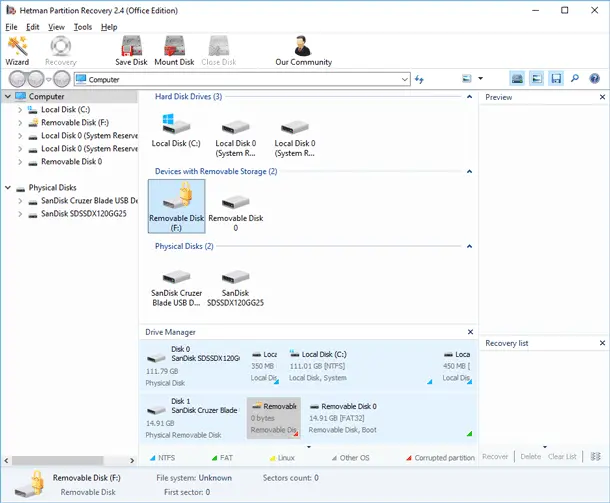
Open Hetman Partition Recovery and add the VeraCrypt container file. This can be a file with the .hc extension.

To find the container, go to the folder where it is stored. If the file is not displayed, enable the option to show all files. Then select the container and add it to the program as a RAW disk.

When the container appears in the disk list, right-click it and select Unlock VeraCrypt.

Enter the password. If PIM or Keyfile were used during creation, add them in the same window.

After unlocking, the program will open the container as a regular disk. Then start scanning. If the files were simply deleted, start with Quick Analysis. If the required data is not found or the container is damaged, perform Full Analysis.

After the scan is complete, review the found files. If a file opens in preview, it can be recovered. Select the required data and save it to a different disk or flash drive.

Do not save recovered files back to the same container to avoid overwriting or damaging other data.
METHOD 2. Recovering Files from an Encrypted Flash Drive
Now let us consider recovering data from a flash drive that contains both a standard and a hidden VeraCrypt partition.
Connect the flash drive to the computer and launch Hetman Partition Recovery. In the main window of the program, select not the entire physical device, but the encrypted partition from which you need to recover data.
Right-click it and select Unlock with VeraCrypt.

First, enter the password for the standard VeraCrypt volume. If PIM or Keyfile were used during encryption, specify them in the same window.

After successful unlocking, the program will open the volume as a separate logical disk. Select the unlocked volume and start the analysis.

If the files were simply deleted, start with Quick Analysis. If the required data is not found or the file system is damaged, perform Full Analysis.
After the scan is complete, the program will display the found files. Check them using preview, select the required items, and save them to another physical device.

To access the hidden volume and further recover data from it, you must use a different password. Return to the program’s main screen and unlock the VeraCrypt partition again, this time using the password for the hidden volume. The program will detect the hidden volume, correctly determine its size and file system. Start disk analysis and select the files you need to recover in the same way as in the previous step.
METHOD 3. Recovering Deleted VeraCrypt Encrypted Partitions
Now let us consider a more complex case. Suppose the partitions on the flash drive were deleted using the Diskpart Clean command. In such a situation, Windows may show the device as empty or unallocated. However, if the data has not been overwritten, recovery may still be possible.

Connect the flash drive to the computer and launch Hetman Partition Recovery, then select the physical device in the main window of the program. Since the partitions were deleted, they must first be reconstructed manually. To do this, right-click the flash drive and select Create virtual disk.

In the creation window, specify the partition boundaries. For example, the start can be set to sector 2048, as this is the typical starting offset for many modern devices. If the flash drive contained two or more encrypted partitions, each of them must be reconstructed separately by specifying the corresponding boundaries.

After creating the virtual partition, select it in the list, right-click it, and choose Unlock with VeraCrypt.

Then enter the required unlocking data: password, PIM, or Keyfile, if they were used. In our case, the flash drive contained a standard and a hidden VeraCrypt volume. They are opened with different passwords, so first enter the password for the standard partition.

If all parameters are correct, the program will unlock the volume, recognize the file system, and open access to its contents.

Important! For further scanning, you must select not the entire physical flash drive, but the unlocked partition from which you need to recover data. Only then will Quick or Full Analysis be available.
First, start Quick Analysis. If the required files are not found or the file system is damaged, use Full Analysis.
After the scan is complete, review the found folders, existing files, and deleted data through preview. Select the required files and save them to another physical device.

Then return to the disk list and repeat the procedure for the hidden volume. Select the created virtual partition again, click Unlock with VeraCrypt, but this time enter the password for the hidden partition.

After unlocking, the program will open the hidden volume. For scanning, again select this unlocked hidden partition, not the entire flash drive.

Then start the analysis, review the scan results, check the files through preview, and recover the required data to another disk.
Thus, even if the VeraCrypt encrypted partitions were deleted from the flash drive, they can be reconstructed manually, unlocked using the correct password, PIM, or Keyfile, and then the standard and hidden volumes can be scanned separately.
Conclusion
Data recovery from VeraCrypt disks and containers has its own specifics because of encryption. If an encrypted volume does not mount, the partition was accidentally deleted, or the file system was damaged, this does not always mean that the information is completely lost.
When working with encrypted data, it is important to have the correct password, and when Keyfiles are used, the corresponding key files as well. Without the required authentication data, decrypting the contents of the volume is practically impossible, as VeraCrypt uses strong cryptographic algorithms.
For recovery, specialized software can be used to analyze the disk structure, find lost partitions, and work with encrypted volumes. Hetman Partition Recovery allows you to unlock a VeraCrypt volume if you have the password, PIM, or Keyfile, and then perform Quick or Full Analysis and save the found files to another device.
If the data is highly valuable, it is recommended to create an image of the affected disk before starting recovery and perform all subsequent operations on that copy. This helps preserve the original device and reduces the risk of additional damage or data overwriting.