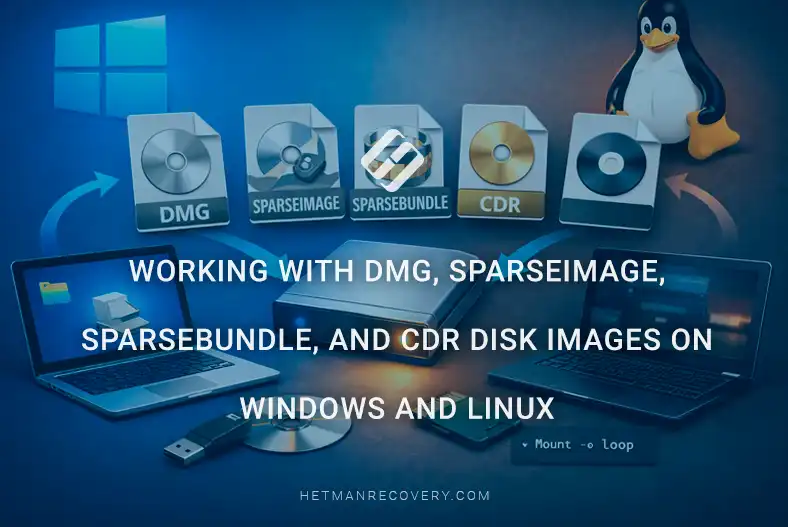
Working with DMG, SparseImage, SparseBundle, and CDR Disk Images on Windows and Linux
-
Author:
Vladimir Artiukh

-
Editor:
Oleg Afonin



In macOS, disk images in the .dmg, .sparseimage, .sparsebundle, and .cdr formats are often used for file storage, backup, and data transfer. However, when such files are opened on Windows or Linux, many users have questions: how these formats differ, how to open them correctly, which options to use for mounting, and how to access the files inside the image.
- Disk Images in macOS
- Features of DMG, SparseImage, SparseBundle, and CDR
- STEP 1. How do you create an image?
- STEP 2. How do you mount a disk image?
- STEP 3. Viewing the image contents
- Conclusion
- Frequently Asked Questions
- Comments
DMG, SparseImage, SparseBundle, and CDR disk images are widely used in the macOS ecosystem for data storage, backup creation, file transfer, and copying physical media. Such images can contain both regular files and folders, as well as entire file systems with important information.
When working in Windows or Linux, access to these formats can be more difficult because they are not always supported by standard system tools. In addition, individual image types have their own structure and data storage characteristics that must be taken into account when opening, mounting, or restoring them.
In this article, we will look at what the DMG, SparseImage, SparseBundle, and CDR formats are, how they differ, and how to work with them in Windows and Linux. We will also examine ways to access the data, extract files, and work with images when they are damaged or do not open with standard tools.

How to Open DMG, Sparseimage, Sparsebundle & CDR Images on Windows and Linux
Disk Images in macOS
Disk images in macOS are created using the built-in hdiutil utility, which is run through Terminal.
The most common formats are:
- .dmg – standard macOS disk image.
- .sparseimage – a dynamic image that grows as data is written.
- .sparsebundle – an image composed of separate band segments.
- .cdr – a CD or DVD image format.
| Characteristic | DMG | SparseImage | SparseBundle | CDR |
|---|---|---|---|---|
| Full name | Disk Image | Sparse Disk Image | Sparse Bundle Disk Image | CD/DVD-ROM Image |
| Primary purpose | Storage and distribution of disk images, applications, and backups | Creating a disk image with a variable size | Storing a disk image as a set of small files | Creating an optical disc image |
| Typical extension | .dmg | .sparseimage | .sparsebundle | .cdr |
| Origin | Primarily macOS | macOS | macOS | macOS / Unix-like systems |
| File size | Can be fixed or compressed | Grows as data is written | Grows as the image is filled | Usually matches the size of data on the optical disc |
| Structure | Single image file | Single image file | Directory containing a set of segments | Single image file |
| Encryption support | Yes, depending on the image type | Yes | Yes | Depends on the creation method |
| Compression | Supported for relevant DMG types | May be used depending on the configuration | May be used depending on the configuration | Usually not used |
| Resize capability | Possible for certain image types | Automatically expands as needed | Automatically expands as needed | Size is usually fixed |
| Backup suitability | High | Convenient for local use | High, especially for network backups | Suitable for archiving CD/DVD images |
| Time Machine compatibility | Can be used depending on the macOS version and scenario | Used in earlier versions of Time Machine | Widely used by Time Machine for network backups | Not a primary Time Machine format |
| Use in Windows | Requires specialized software | Limited support, specialized tools required | Requires specialized software | Supported by many programs for ISO/CD image handling |
| Use in Linux | Appropriate utilities or conversion required | Specialized tools required | Specialized tools required | Supported by many disk image applications |
| Mounting | Possible after installing the appropriate software | Possible if format support is available | Possible if format support is available | Possible as an optical disc image |
| Main advantage | Versatility and wide use in the Apple ecosystem | Storage savings due to dynamic size | Convenient incremental copying and working with large images | Simple format for copying CD/DVD media |
| Main drawback | Not all DMG types are equally well supported by third-party operating systems | Can be difficult to work with outside macOS | Consists of a large number of files, which complicates manual copying | Limited by the capabilities of optical media |
| Typical use cases | macOS application installation, backups, distribution packages | Virtual disks and local images | Time Machine backups and network storage | Archiving and copying CD/DVD media |
Features of DMG, SparseImage, SparseBundle, and CDR
The DMG format supports several compression types and image creation variants. The following main formats are used:
- UDRO – a read-only image without compression.
- UDRW – a writable image.
- UDZO – zlib compression.
- UDBZ – bzip2 compression.
- ULFO – LZFSE compression.
- ULMO – LZMA compression.
- UDCO – an older ADC compression type.
- UDTO – used to create CD or DVD images.
- UDSP – format for creating dynamic sparseimage images.
- UDSB – format for creating .sparsebundle images.

The most commonly used format is UDZO, because it allows the image size to be reduced without a significant loss in performance. Compressed images take up less space on disk, but may work slightly slower. Uncompressed images, by contrast, take up more space but provide faster access to data.
The .sparseimage and .sparsebundle formats are dynamic disk images that automatically expand as new data is added.
The .sparseimage format stores all data in a single file and allows more efficient use of free storage space.
The .sparsebundle format works similarly to .sparseimage, but stores data not in a single file, but as separate band segments. In other words, instead of one large file, a folder containing separate parts of the image is created. That is why .sparsebundle is often used for backups, data synchronization, network-based work, and in Time Machine.

The .cdr format is used to create CD and DVD images. Such images can be burned to disc or converted to the .iso format for further use in Windows and Linux.
STEP 1. How do you create an image?
Regardless of the image type, the creation process always starts in the same way. First, you need to determine the device number of the connected drive using the diskutil list command. In our case, it is /dev/disk3.
diskutil list

Before creating any image, the drive must be unmounted using the diskutil unmountDisk /dev/disk3 command, after which the image is created with the hdiutil create command.
diskutil unmountDisk /dev/disk3
hdiutil create

The same base command is used for all formats; only the image format parameter changes. For example, creating a classic uncompressed DMG image is performed with the command hdiutil create -srcdevice /dev/disk3 -format UDRO ~/Desktop/flash_drive.dmg.
hdiutil create -srcdevice /dev/disk3 -format UDRO ~/Desktop/flash_drive.dmg
STEP 2. How do you mount a disk image?
This is the stage where users most often get confused, because different image types must be mounted using different options.
First, let us look at the image mounting menu in Hetman Partition Recovery and determine which connection method is used for each format.
Images in the .dmg format must be mounted through the “DMG Image” option. After connection, such an image will appear in the disk list as a separate drive.

The .sparseimage file is mounted through the separate “Sparse Image” option. After opening, the image will also appear in the program as a separate disk.

The .sparsebundle format works differently because it is not a single file, but a folder containing band files. That is why it must be opened through the dedicated “Sparse Bundle” option.

When connecting, you must select the .sparsebundle folder itself, not the individual band files inside it.
STEP 3. Viewing the image contents
Finally, let us review all mounted images in the disk list of Hetman Partition Recovery.

As you can see, all formats are displayed successfully after mounting and are identified by the program as separate drives. This allows the user to work with such images in the same way as with a regular physical disk: open partitions, browse files, and access the data inside the image.
Now double-click any mounted image. After opening it, the program will display the partitions, folders, and files contained within the image.

The main point is that regardless of the image type, after correct mounting the user gets full access to their files and can work with them just as with a regular disk.
Now all that remains is to select the required files, click the “Recover” button, and save the data to another drive.

Important: do not save recovered files to the same storage device from which the data is being recovered.
Conclusion
DMG, SparseImage, SparseBundle, and CDR disk images are used for different tasks, but are most commonly found in the macOS ecosystem. DMG is the most versatile format for storing and distributing data, while SparseImage and SparseBundle are designed for variable-size images and backups. The CDR format is mainly used to create optical disc images.
When working with such images in Windows and Linux, it is important to consider that format support may differ from macOS. Not every image can be mounted directly with standard operating system tools, so specialized applications, command-line utilities, or prior conversion to a compatible format may be required.
If an image contains important data, it is recommended to create a backup copy before converting or restoring it and to work with the copy only. This is especially important for damaged DMG, SparseImage, or SparseBundle images, because careless operations may make further recovery more difficult.
Therefore, correct identification of the image type, understanding of its structure, and use of the appropriate tools make it possible to open, mount, convert, and recover DMG, SparseImage, SparseBundle, and CDR images in Windows and Linux more safely.