How to Recover Data from Encrypted DMG, Sparseimage, and Sparsebundle Images
-
Author:
Vladimir Artiukh

-
Editor:
Oleg Afonin



In macOS, DMG, Sparseimage, and Sparsebundle disk images are often used to protect personal files, backups, and work data. However, encryption does not protect information from accidental deletion, drive formatting, image corruption caused by a system crash, or a sudden computer shutdown. Data can also be lost due to a faulty HDD, SSD, USB drive, or memory card, as well as due to errors during file copying or transfer.
- Encrypted disk images in macOS
- How to recover data from DMG, Sparseimage, or Sparsebundle images
- Conclusion
- Frequently Asked Questions
- Comments
DMG, Sparseimage, and Sparsebundle disk images are widely used in macOS to store applications, backups, and important files. They can contain sensitive data and be protected by encryption, which provides an additional level of security. However, image corruption, accidental file deletion, file system errors, or storage device issues can result in loss of access to information.
Data recovery from encrypted images has its own specifics, since it is not enough simply to find deleted files — it is necessary to correctly identify the image structure, gain access to its encrypted contents, and preserve data integrity. This is especially true for Sparseimage and Sparsebundle formats, which consist of separate segments and may contain a large amount of information.
In this article, we will look at how to recover data from encrypted DMG, Sparseimage, and Sparsebundle images, which macOS tools can be used to check and mount them, and how to recover files using specialized data recovery software.

How to Recover Data from Encrypted DMG, Sparseimage & Sparsebundle Images
Encrypted disk images in macOS
macOS supports several encrypted disk image formats. The most common are DMG, Sparseimage, and Sparsebundle. They differ in how information is stored, their size, and their intended use.
DMG is the standard disk image format in macOS. It can contain individual files, folders, applications, or a complete copy of a disk. Such images are used for data archiving, backups, transferring information between devices, and software distribution. Mac users often download applications for Mac from the Internet in DMG format.

After opening, the image is mounted in Finder as a separate virtual disk, so its contents can be used almost the same way as on a regular flash drive or external storage device. Files can be viewed, copied, and launched without unpacking the entire image first. When you finish working with it, simply eject the DMG in Finder.
Thanks to its ease of use, compactness, and convenient data storage, this format has become one of the most common in macOS.

Sparseimage is a dynamic macOS disk image stored as a single file. Unlike a standard fixed-size DMG, it grows gradually as new files are added and occupies only the space that is actually used on the drive. For example, an image can be created with a maximum size of 20 GB, but if only 3 GB of data is stored inside, it will take up approximately that much space.
Sparseimage can be mounted in Finder as a regular disk, and files can be added, edited, and deleted. Because the entire image is stored in one file, it is convenient to copy it to a flash drive, external disk, or network storage.
Sparseimage is well suited for personal archives, backups, and storing data whose contents change regularly.

Sparsebundle is a dynamic macOS disk image that grows as data is added. Unlike Sparseimage, it is stored not as a single file, but as a package containing many small parts called bands. When the contents of the image change, the system updates only the parts affected by the changes. As a result, during backup or synchronization, there is no need to transfer the entire image every time. This saves time and reduces network load.
Sparsebundle can be mounted in Finder as a regular disk, and files can be added, edited, and deleted.
Sparsebundle is often used for backups, data storage on servers, and working with network storage where fast transfer of only changed fragments is important.

When creating an image, you can choose AES-128 or AES-256 encryption. Both algorithms provide reliable protection and are used in modern systems:
- AES-128 works slightly faster and is suitable for most everyday tasks.
- AES-256 uses a longer key and provides a higher level of protection. In both cases, access to the files is possible only after entering the correct password.

| Format | Description | Features | Importance for data recovery |
|---|---|---|---|
| DMG | A disk image widely used in macOS to store files, applications, and other data. | Can be encrypted and password-protected. Supports various compression types and file systems. | Damage to the image or its file system can make file access difficult. Recovering encrypted data requires the correct password or key. |
| Sparseimage | A sparse disk image whose size grows depending on the amount of written data. | Uses a block structure and occupies only as much space as is actually used. Can be encrypted. | Damage to individual blocks or to the image structure may result in loss of access to part or all of the data. |
| Sparsebundle | A sparse disk image consisting of a large number of small segment files (band files). | Changes are stored in separate segments, which makes the image convenient for network storage and backups. | Loss or damage of individual segments may affect the integrity of the image and file availability. For recovery, it is important to preserve the entire Sparsebundle structure. |
How to recover data from DMG, Sparseimage, or Sparsebundle images
STEP 1. How to find the password for a DMG, Sparseimage, or Sparsebundle image
When creating an encrypted image, macOS offers to save the password in Keychain. This is a protected system store where passwords for websites, applications, Wi-Fi networks, and access credentials for encrypted disks and images are stored.
If the password for a DMG, Sparseimage, or Sparsebundle image was added to Keychain, the system can automatically use it during the next mount. As a result, you do not need to enter the password each time.

Access to stored data is protected by the macOS account password or Touch ID.
To find the required entry, open Keychain Access. Press Command + Space, enter the application name in Spotlight, and launch it.
In the left part of the window, select the login keychain, go to the Passwords section, and enter the image name or part of it in the search field.

Then double-click the found entry, select the Show Password checkbox, and confirm the action with the Mac password or Touch ID. The saved password will appear in the corresponding field.

STEP 2. Opening and unlocking images
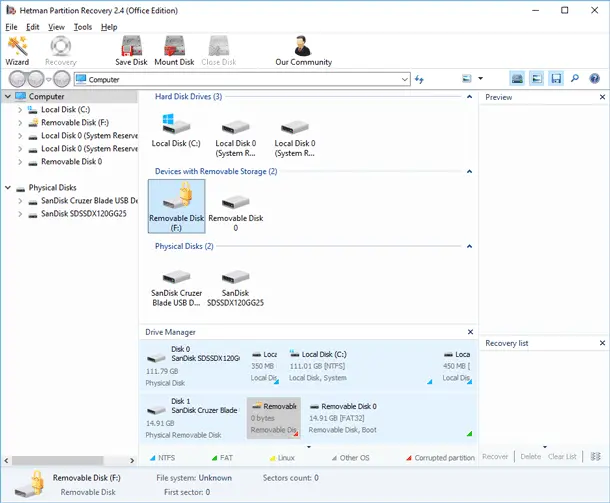
Now let us look at how to add and unlock encrypted DMG, Sparseimage, and Sparsebundle images in Hetman Partition Recovery.
First, mount the required image. At this stage, it is important to choose the correct format. For files with the .dmg extension, use the DMG Image option.

After mounting, the image will appear in the disk list as a separate drive.

The .sparsebundle format has a different structure. It is not a single file, but a folder that contains band files. Therefore, use the Sparse Bundle option and select the folder with the .sparsebundle extension itself, not the individual files inside it.


For the .sparseimage file, choose the Sparse Image option.

After that, it will also appear in the program as a separate disk.

After mounting, the program will detect that the image is encrypted. This information is shown on the right side of the window.

Double-click the image, enter the correct password, and wait for it to unlock.

STEP 3. Recovering data from images
After successful unlocking, the image is displayed in the program as a regular disk. You can open its structure, browse folders, and proceed with data analysis.

First, run Quick Analysis. It helps find files when the image structure is intact and the data was deleted without formatting or serious file system damage.
If Quick Analysis does not find the required files, run Full Analysis and specify the file system that was used in the image to store the data.

After the analysis is complete, review the found files, select the ones you want to recover, and click Recover.

To save the data, choose a different storage device. This helps prevent overwriting information that may still be available for recovery.

Conclusion
Data recovery from encrypted DMG, Sparseimage, and Sparsebundle images has its own specifics and depends not only on the condition of the image files themselves, but also on preserving the image structure and access to its encrypted contents. File deletion, file system damage, a macOS crash, or storage device failure can result in loss of access to important information even if the image itself remains available.
Before starting recovery, it is important to make sure that you have the correct password for the encrypted image. If it was saved in Keychain, you can try to find it using the Keychain Access system utility. Without a password or another required key, decrypting the contents of a protected image using standard data recovery tools is usually impossible.
For DMG, it is enough to work with the corresponding image file, while Sparseimage is also stored as a separate file. Sparsebundle has a different structure — it consists of a large number of separate segments, so for successful recovery it is important to preserve the entire image folder and not delete or modify its internal files.
If the image can be unlocked, specialized data recovery software such as Hetman Partition Recovery can help analyze its contents, find deleted or lost files, and recover them to another storage device. If Quick Analysis does not produce results, it is advisable to perform a Full Analysis, which may find data even in cases of significant file system damage.
The main rule is not to write new data to the drive from which the information was lost and not to modify the original image unless necessary. The fewer operations you perform on a damaged or deleted image, the higher the chances of preserving data that can still be recovered.