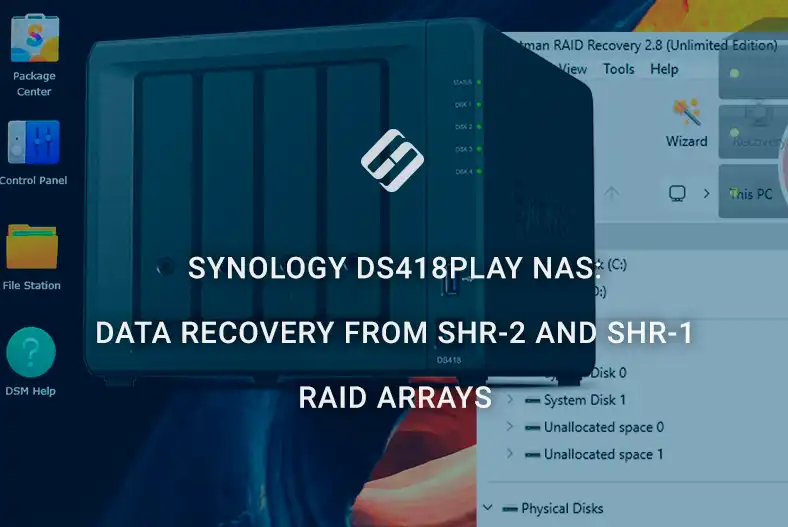
Synology DS418play NAS: data recovery from SHR-2 and SHR-1 RAID arrays
-
Author:
Vladimir Artiukh

-
Editor:
Oleg Afonin



Read about how to recover data from an SHR-2 or SHR array (Synology Hybrid RAID) on a Synology DS418play NAS in a Windows 11 environment. We will review different data loss scenarios: accidental deletion of files or folders, volume formatting, and corruption of the storage structure. You will learn how to act in case of NAS failure or failure of one or more drives, and how to access information if the RAID array becomes unavailable and network shares no longer appear. A separate scenario demonstrates recovering data from a virtual LUN created in DSM.
- Comparison of SHR-1 and SHR-2
- Synology DS418play NAS
- Data Recovery for Synology DS418play
- Conclusion
- Frequently Asked Questions
- Comments
Comparison of SHR-1 and SHR-2
One of the key advantages of Synology devices is the use of the proprietary Synology Hybrid RAID (SHR) technology, which allows efficient combination of drives of different capacities and provides an optimal balance between performance and fault tolerance. The SHR-1 and SHR-2 levels provide protection against failure of one or two drives respectively, significantly reducing the risk of data loss.
However, even when using reliable RAID configurations, situations can occur where data becomes inaccessible: controller failure, filesystem corruption, user errors, or simultaneous failure of multiple drives. In such cases, standard NAS tools may be insufficient and specialized recovery methods are required.
This article examines the main causes of data loss on the Synology DS418play, the operational specifics of SHR-1 and SHR-2 RAID arrays, and effective approaches to recover information using modern software and practical techniques.
| Characteristic | SHR-1 | SHR-2 |
|---|---|---|
| RAID type | Equivalent to RAID 5 (when using more than 3 drives) | Equivalent to RAID 6 (when using more than 4 drives) |
| Write speed | Higher | Lower (due to additional redundancy) |
| Recommended use | Home NAS, small business | Critical data, business |

Data Recovery from SHR-2 and SHR-1 RAID Arrays Created on Synology DS418play NAS
Synology DS418play NAS
The Synology DS418play network attached storage provides centralized data storage, shared access to documents and media, and allows organizing secure backups of important information.

The device supports up to four hard drives in SHR (Synology Hybrid RAID), SHR-2, and classic RAID 0, 1, 5, 6 and 10 configurations, allowing optimal combination of performance, storage capacity, and data protection.
Main features of the DS418play include:
- Two gigabit Ethernet ports for fast access on the local network.
- Support for SMB/CIFS, AFP, NFS and FTP protocols for compatibility with Windows, macOS and Linux.
- iSCSI capabilities for connection to servers and virtual environments.
- Hardware acceleration for video transcoding and media handling.
- Ability to perform centralized data backups via Synology services.
NAS management is performed through the intuitive web interface DiskStation Manager (DSM 7), which provides administration of disks, users and services. The device supports automatic backups and synchronization with remote servers, ensuring secure storage and access to information.

Step 1. Connecting to DSM
To connect to a Synology DS418play from Windows 11, the NAS and the computer must be on the same local network.
Download and install the Synology Assistant utility on your computer. After launching, the application will automatically scan the network and detect connected NAS devices.

If your device does not appear in the list, open the Preferences menu in the upper right corner and enable the Allow compatibility with devices that do not support password encryption option to discover NAS models that do not support password encryption.

After the scan completes, select the required NAS from the list and click Connect.

The application will open the DiskStation Manager web interface, where you can manage the storage, create or mount volumes, manage users, and configure iSCSI LUNs for further data operations.
If you already know the NAS IP address, you can connect directly via any browser by entering the address and authenticating with your account.
Step 2. Creating SHR-2
To create an SHR-2, open DSM and go to the Main Menu, then launch Storage Manager.

This section displays three main tabs: Overview, Storage and HDD/SSD, where you can view overall system status, pool and volume settings, and information about installed drives.
In the Overview section a schematic of the NAS with installed drives is shown. Here you can view their current status and get detailed information for each drive including model, capacity, health status and other technical parameters.

The HDD/SSD tab displays extended information about drives installed in the NAS. You can view their technical status, S.M.A.R.T. parameters, temperature and event log, and run diagnostic tests to check drive health.

Before creating SHR-2, you must create a Storage Pool. Open the Storage tab and click Create to start the Storage Creation Wizard. In the setup wizard click Start and choose the RAID type – SHR-2.

Next, mark the required disks in the Selected drives field and specify the capacity to be used for the storage in the Allocate volume capacity parameter.

After that choose the filesystem and confirm the settings by clicking Apply.
The system will start creating the Storage Pool and the volume. You can monitor the process in the main window of the Storage Manager.

Initialization and synchronization of the array may take several hours depending on the number and capacity of drives.
After the storage configuration completes, it can be used for data storage. You must create at least one shared folder. On the DSM main page open File Station.
If shared folders are not yet created, the system will notify you of their absence and offer to start the Shared Folder Creation Wizard.

In the first window specify the new directory name and click Next.

On the next step you can configure access permissions by specifying users or groups that will have access to the NAS and the created shared folder.

After completing the procedure and reopening File Station you will see the created shared folder in the list and can start writing data to it. To upload one or multiple files, click the Upload tab.

To copy an entire folder you can simply drag it from a Windows folder directly into the Shared folder.
Step 3. Creating a LUN
After successful creation of the network file storage, you can additionally create a LUN within the existing volume. In DSM 7 this is done via the SAN Manager section available in the Main Menu. This is where iSCSI LUNs are created and managed, connection targets configured, and block storage is managed.

To create a new LUN open SAN Manager in the Main Menu, go to the LUN tab and click Create.

Specify the LUN name, choose its location, set the size and the allocation type.

You can also configure permissions for hosts and initiators that will be allowed access to the LUN.

After confirming the settings the system will create the new LUN ready for use.
Target for the LUN is created automatically during this procedure.

Step 4. Connecting the LUN
After creating the LUN in DSM it must be connected in Windows 11 so it appears as a separate logical disk in the system. This is done using iSCSI clients.
In this case the connection will be performed using the built-in Windows tool – the iSCSI Initiator, which allows establishing a connection to an iSCSI Target and mounting the LUN for further data operations.
In Windows 11 open Search and type iSCSI Initiator, then launch the utility and pin it for quick access if needed.

After opening the application go to the Discovery tab and click Discover Portal.

In the window that appears enter the IP address of your NAS, leave the port as default and click OK to confirm.


After that open the Disk Management utility to initialize the virtual LUN disk and create a partition on it.
Once the LUN configuration is complete it will appear in Windows as a regular logical disk and you will be able to write data to it.

Data Recovery for Synology DS418play
Method 1. Data recovery in case of NAS failure
In case of hardware malfunction or firmware failure, if direct or web-interface access to the Synology DS418play is not available, you can use the Hetman RAID Recovery application to recover data.
This is a specialized solution for working with hardware and software RAID arrays that supports most common filesystems and RAID levels. The program analyzes array metadata, reads configuration parameters, assesses each drive’s condition and reconstructs the RAID structure. After that access to data is provided while preserving directory structure and file integrity, enabling accurate recovery.

Before starting recovery, ensure that the drive to which recovered data will be saved has sufficient free space to accommodate all recovered information.
Before any actions, be sure to record the exact sequence of drives in the RAID array. Each drive has its place in the storage structure and parity calculation, so changing the connection order can cause file corruption and array configuration damage, significantly complicating recovery.

To minimize the risk of data loss, it is recommended to document the location of each disk in advance and verify correct connections before starting the recovery procedure.
To do this, connect the drives to a computer via SATA ports or use a docking station or appropriate adapter.

If it is not possible to connect all drives physically, an alternative is to create a full image of an inaccessible drive and use it for analysis and recovery.
The following scenario considers the case where one drive in an SHR-2 array has failed.
Launch Hetman RAID Recovery. After launching, the program will automatically detect all connected drives, analyze their condition and attempt to reconstruct the RAID array configuration based on service information.
The main program window will display found drives and reconstructed arrays available for further scanning, structure analysis and data recovery.
Select your RAID array and start the Fast scan mode.


After the scan completes the program window will display the RAID array contents available for recovery. Mark the required files and folders and click the Recovery button at the top of the menu.

In the next step specify the destination for recovered data and confirm by clicking Recovery.
After completing all recovery steps, data from the RAID array will be available again for further use.

If recovery from SHR-1 is required, the same procedure should be followed.
Method 2. Recovering SHR-2 using RAID Constructor
If the program cannot automatically recognize the disk array, you can use the built-in RAID Constructor to manually reconstruct the SHR-2 configuration and gain access to data.
This scenario demonstrates the case when two drives in the array have failed, which complicates automatic structure detection. Using RAID Constructor allows manual reconstruction of the configuration and preparation of the array for scanning and recovery.
It should also be noted that recovering data from an SHR-configured RAID is possible in the event of a single physical drive failure. The architecture of such arrays provides fault tolerance with an allowable loss of one drive, enabling reconstruction of the structure and access to data provided the remaining drives are functional.
In this type of NAS, SHR-2 is built so that the start of the filesystem is offset relative to the physical drive start. In case of partial deletion of service information or metadata corruption, automatic detection of this offset may be impossible.
In such a situation the offset value must be specified manually during array reconstruction. If this is not done, the filesystem may appear incorrectly or remain inaccessible for analysis and recovery. An incorrectly specified Offset can also lead to incorrect directory structure or missing files.
To determine the correct offset value use a HEX editor. Analysis should be performed on the physical drive or partition that contains user data, not on the system partition. If the exact order of drives in the RAID array is unknown, the marker search and Offset determination procedure must be performed separately for each drive in the array. This will allow establishing the correct offset for each drive and subsequently correctly reconstructing the RAID configuration.
Open the HEX editor by right-clicking the required disk or using the Ctrl + H shortcut.

In the HEX editor window click the search icon and enter the search marker LABLEONE (for SHR and SHR-2 configurations) in the search field and click Find.


The LABLEONE value should be located at the start of the sector, indicating the start of the volume data area. The Offset parameter is determined as the sector number immediately preceding the sector with LABLEONE, and this preceding sector should be filled with zeros.


To work in RAID Constructor mode you need to know the basic parameters of the disk array:
- RAID type,
- block order,
- block size,
- bytes per sector that were specified when the array was created.
For SHR-2 the following values are commonly used:
- Block order – Left synchronous (P+Q),
- Block size – 64 KB,
- Bytes per sector – 512.
These parameters must be specified when manually reconstructing the array configuration in the RAID constructor.


After entering the required parameters, in the Available disks field select the disks that belong to your RAID array and move them to the Selected disks field, respecting the correct sequence of their placement in the array.
If the exact order of drives in the array is unknown, it can be determined by sequential trial. Change the order of drives in the Selected disks field by moving them up or down with the arrows and each time update the reconstruction result.

Double-click the required disk or click the Change disk offset/size icon.
In the opened window enter the determined offset value in the Offset field, change units from Bytes to Sectors and click OK. The program will automatically convert this value to bytes.

This parameter must be set for all real disks of the array, except for simulated empty drives.
If one or more drives cannot be connected physically, use the Add empty disk function to add an empty disk to emulate the missing drive.

It is important to preserve the exact order of disks in the array since its disruption may lead to incorrect RAID reconstruction and make data recovery impossible. Correct disk order ensures correct volume identification and the ability to scan and recover data.
After completion click the Add button in the lower right corner to move the reconstructed array to the main program window for further scanning and recovery.

Method 3. Recovering data from a LUN
If a LUN has been deleted and data needs to be recovered, you can also use Hetman RAID Recovery.

After SHR-2 is correctly reconstructed in the RAID Constructor, scanned and results appear in the program main screen, you need to find the directory where the LUN is stored.
The virtual disk is located in the system folder @iSCSITrg. This folder is shown among the found data in the list of scanned partitions and contains the LUN file which is available for saving and recovery.

To start recovering data from a LUN you must first save it as a separate file. Click Recovery and choose the Save on hard disk option, then specify the folder to save the image file.

After the process completes an exact copy of the LUN will be created as a separate disk image. This file allows further analysis and data recovery independently of the state of the original RAID array and without reconnecting physical drives.
Next, open the main program window and use the Mount disk function.
In the list of sources select Raw disk images, click Next and specify the saved LUN image file.

After mounting it will appear as a separate virtual disk. Scan it and recover required files, saving them to another storage medium.

Conclusion
Data recovery from a Synology DS418play NAS built on SHR-1 and SHR-2 arrays is an achievable task even in serious failure scenarios, but it requires a clear understanding of RAID structure and a careful approach.
SHR-1 provides a basic level of fault tolerance (equivalent to RAID 5), while SHR-2 (equivalent to RAID 6) can tolerate the failure of two drives simultaneously, which significantly increases the chances of successful recovery. At the same time, regardless of the array type, key factors remain: avoiding data overwrites, correctly determining RAID parameters, and using reliable tools for disk analysis.
In case of loss of access to the NAS it is important not to reinitialize the drives, not to create a new array, and, if possible, work only with copies of the drives. This will minimize risks and increase the probability of complete data recovery.
Therefore, with a competent approach and adherence to basic safety rules, even complex scenarios with damaged SHR arrays can result in successful data recovery.