How to recover data from Linux MD RAID 6 with LUKS encryption and fscrypt
-
Author:
Vladimir Artiukh

-
Editor:
Oleg Afonin



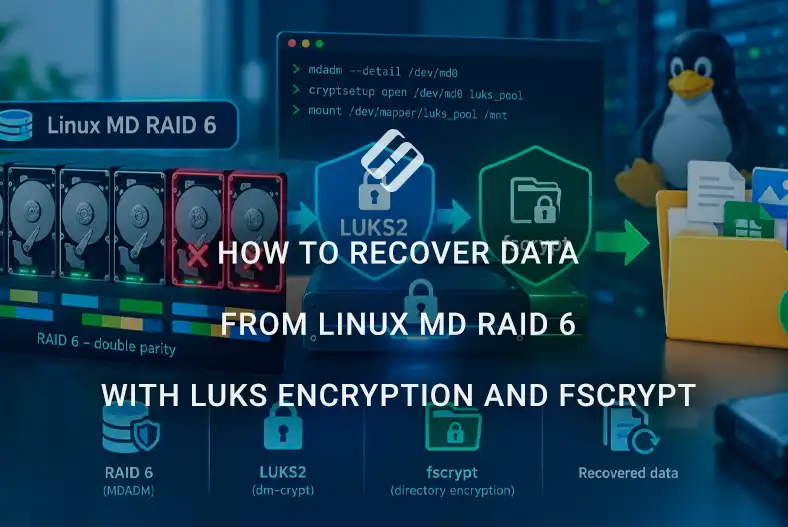
Recovering data from Linux MD RAID 6, additionally protected by LUKS and fscrypt encryption, is a complex multi-layer process in which it is important to correctly determine the state of the RAID array, the sequence of disk connection, and the encryption layers. An error at any stage, from incorrectly assembling the array to attempting to mount a damaged file system, can significantly complicate subsequent recovery. This article describes a safe approach to diagnosing and reconstructing RAID 6, opening the LUKS container, and further working with data protected by fscrypt.
- Configuring RAID, LUKS2, and fscrypt
- Connecting the RAID array disks
- How to recover data from Linux RAID 6
- Conclusion
- Frequently Asked Questions
- Comments
The specific nature of such a configuration is that data passes through several abstraction layers at once. First, physical disks are combined into a RAID 6 array by means of Linux MD; then the resulting array may contain an encrypted LUKS container; and inside the file system, individual directories or files may be additionally protected with fscrypt. Therefore, even fully functional disks and a correctly assembled RAID do not yet guarantee access to the required data.
During the recovery process, it is critical to follow the correct sequence of actions. Before any attempts to write to the drives, their condition should be assessed, the RAID array parameters should be identified, the metadata should be checked, and, if possible, bit-by-bit copies of the problematic disks should be created. Particularly dangerous are automatic array rebuilds, file system checks with error correction, or reinitialization of the LUKS container – these actions can change the structures required for further recovery.
Encryption adds another layer of complexity. For LUKS, access to the container header, key slots, and the corresponding passphrases or key files must be preserved. In the case of fscrypt, access to the file system alone may not be sufficient: decrypting specific directories requires the appropriate keys and encryption policy metadata. If even one of these elements is lost, recovery options may be significantly limited.
Next, we will examine the procedure for working with such a system: from diagnosing physical drives and manually assembling Linux MD RAID 6 in a mode that minimizes the risk of writing, to opening the LUKS container, checking the file system, and restoring access to data protected by fscrypt. The main principle at every stage is to preserve as much original information as possible first, and only then proceed with recovery attempts.

How to Recover Linux RAID 6 with LUKS2 & fscrypt | Deleted Files & Missing Drives
| Level / technology | Purpose | Main characteristic | What matters during recovery |
|---|---|---|---|
| Linux MD RAID 6 | Combines multiple disks into a fault-tolerant array | Uses double parity and tolerates the failure of up to two disks | It is important to correctly determine the disk order, array parameters, UUID, and metadata state; automatic rebuild should not be started without prior analysis |
| LUKS | Full-disk or block-level encryption | Encrypts the entire logical volume or container | Access requires a valid LUKS header and a passphrase or key; header damage can make data inaccessible even if the RAID is healthy |
| File system | Stores directories, files, and metadata | Located inside the unlocked LUKS container | It is preferable to work from a copy before repairing errors; automatic repair operations may change important structures |
| fscrypt | Encrypts individual directories or files | Operates at the file-system level and can protect only selected data | Appropriate keys, encryption policies, and metadata are required; unlocking LUKS does not automatically grant access to fscrypt-protected data |
| Keys and metadata | Provide access to encrypted information | Keys can be stored separately from the data itself | Loss of the password, keyfile, LUKS header backup, or fscrypt keys can critically limit recovery options |
| Layer sequence | Defines the order of access to the data | Typical scheme: disks → MD RAID 6 → LUKS → file system → fscrypt → files | Recovery should be performed in the same order, from the lower level to the higher level |
| Write risk | Affects the preservation of source data | Any rebuild, read-write mounting, or repair operation may change structures | It is preferable to create disk images first and work in read-only mode |
| Diagnostic complexity | Determines the number of potential failure points | The issue may be at the disk, RAID, LUKS, file system, or fscrypt level | The fault must be isolated step by step without mixing issues from different levels |
Configuring RAID, LUKS2, and fscrypt
For testing Hetman RAID Recovery we prepared a Dell PowerEdge R710 server with a PERC H700 RAID controller and Ubuntu Server 24.04 LTS installed.
From four 60 GB HDDs, we created a software Linux MD RAID 6 array with a total capacity of approximately 120 GB using mdadm. The chunk size was 512 KB (in Hetman RAID Recovery, this parameter is displayed as Block size).

An encrypted LUKS2 volume was configured on the array, and an EXT4 file system was created inside it. An additional folder on this partition was encrypted with fscrypt using its own passphrase.

After preparing the storage, test files were written, and then some regular data were deleted from EXT4 and some files from the directory protected by fscrypt.
Connecting the RAID array disks
METHOD 1. Connecting physical disks.
The RAID array disks can be connected via:
- SATA;
- SAS;
- Fibre Channel;
- HBA;
- RAID controller.
However, it is important that the controller provides the program with access to each physical disk separately.
You can also use:
- USB adapters;
- Docking stations;
- External enclosures.
For long-term analysis, it is better to use a direct connection via SATA, SAS, HBA, or the appropriate controller – it is usually faster and more stable.

Connecting all array disks is not always necessary. Hetman RAID Recovery will take missing disks into account and will be able to reconstruct their data if the RAID level allows it and the remaining healthy drives are sufficient to restore the array. For example, RAID 5 allows one missing disk, and RAID 6 allows two.
After the disks are connected, Windows may prompt you to initialize or format them. Do not agree – close this message to avoid changing the RAID data and service information.
METHOD 2. Working with disk images
Working with images is useful if there are not enough ports to connect all disks at the same time, or if the drives have poor SMART indicators, read errors, or unstable operation.
To create an image in Hetman RAID Recovery, select the required physical disk in the main program window and click Save Disk.

In the save wizard, choose to create an image of the entire disk, specify the folder and file name, and then start copying.
It is preferable to save the image to another healthy drive with sufficient free space.
For further work, click Mount Disk – RAW Disk Images. Select the created image files and add them to the program.

After that, Hetman RAID Recovery will work with them as with ordinary physical disks and will be able to use them for automatic or manual RAID reconstruction.

METHOD 3. Connecting disks via SSH
If the Linux server remains accessible over the network, the disks can be added remotely via Tools – Connect via SSH.

Specify the server address, port, and authentication data, then select the required physical disks or volumes. They will be added to Hetman RAID Recovery and will become available for analysis and RAID reconstruction without a physical connection to the computer.

How to recover data from Linux RAID 6
STEP 1. Automatic RAID array detection
After launching Hetman RAID Recovery, the program automatically analyzes the available drives and searches for signs of RAID arrays on them. If the required disks are already connected to the computer, the found array is displayed in the RAID Arrays section immediately after startup.
If the disks are added later – connected physically, mounted from images, or added via SSH – the program reanalyzes the available RAID members and, if enough information is available, automatically reconstructs the array.

For the detected RAID, Hetman RAID Recovery displays its main parameters:
- array type and capacity;
- sector and block size;
- data layout scheme;
- RAID status;
- list of member disks, their order, and offsets.

In our case, the program automatically detected a Linux MD RAID 6 of approximately 118 GB and displayed it as ready for further analysis. We will review the detailed array parameters later during manual reconstruction.
If some disks are missing, the program shows them as Empty disk and determines whether the available drives are sufficient for reconstruction. In our test, even with two of the four RAID 6 disks missing, the array has the status Recoverable and remains available for data analysis and recovery.
STEP 2. RAID analysis and data decryption
To begin searching for data, double-click the found RAID array or partition. If Hetman RAID Recovery determines that the volume is encrypted with LUKS, the program will immediately prompt you to enter a password or specify a key file.

To decrypt it, a valid password or key is required, as well as intact LUKS service data.
After unlocking LUKS, select the analysis type. First, you can run a Fast Scan – this is often sufficient if the partition structure and file system were not damaged and you only need to find recently deleted files.

If any destructive operations were performed on the disk – deletion or creation of partitions, formatting, file system changes, damage to the partition table, or other operations that could alter the data structure – it is recommended to use Full Analysis. During full analysis, specify the file system used on the array. In our case, this is Ext2/3/4.
If, during analysis, the program detects data encrypted with fscrypt, it will prompt you to enter the corresponding passphrase. After decryption, you can proceed to search for both existing and deleted files.

STEP 3. Viewing and saving recovered files
After the analysis is complete, review the found files. Use thumbnail mode, preview, as well as search and filters to quickly find the required data and check its contents.
The program marks deleted files with a red cross. Select the files and folders you want to save, and click Recovery.

Do not save recovered data to disks that are members of the RAID array. Writing to them may overwrite information that has not yet been recovered. Use a separate physical drive for saving.
In the wizard, specify the destination and start saving the files.
STEP 4. Manual RAID reconstruction
Automatic RAID detection may be impossible if the service information about the array is damaged, overwritten, missing, or inconsistent across disks.
This may happen after operations directly on the member disks that could have damaged or overwritten the RAID metadata:
- initializing disks in Windows;
- running mdadm –zero-superblock;
- creating a new RAID on top of an old one;
- changing the partition table;
- partial overwriting of drives;
- or a failed rebuild.

Manual reconstruction may also be required if some disks are missing or damaged, if metadata from different RAID arrays remains on the drives, if the disk order or offsets were changed, or if an image of one of the drives was created incompletely.
If Hetman RAID Recovery could not automatically determine the array configuration, it can be reconstructed manually using RAID Constructor.
Open RAID Constructor, select Manual mode, and specify the known array parameters.

For the Linux MD RAID 6 created by mdadm in our test with the standard layout, RAID Constructor uses the Left Synchronous P+Q scheme. In our case, the block size was 512 KB.

For most drives, use 512 bytes in the Bytes per sector field. If the disk uses a logical sector size of 4K, choose 4096 bytes.
For standard Linux MD RAID, leave the Byte order parameter set to Standard unless the array was created with other specific settings.
Next, set the correct drive sequence and specify the data offset – Offset – for each drive. In our test, it was 34,603,008 bytes for each disk.

If one or more drives are unavailable, add an Empty disk instead.
After the configuration is assembled, add the reconstructed RAID to the main program window by clicking Add.

After that, you can work with it in the same way as with an automatically detected array: unlock LUKS, analyze the file system, and recover the required files.

STEP 5. How to determine unknown array parameters
If some RAID parameters are unknown, they can be determined from the structure of the data stored on the array. In our case, we know that Linux MD RAID 6 was used, and directly on it there was an encrypted LUKS2 volume.

Let us begin by determining the data offset – Offset. Open each disk of the array in HEX Editor, start a search by HEX value, and enter the LUKS signature: 4C 55 4B 53 BA BE. In the search settings, set the direction to Down, the position to Begin of sector, and start the search.

In our test array, the LUKS signature was found at address 34,603,008 bytes from the beginning of the disk. This is the value we use as the Offset for all disks in our array.

The disk on which the signature was found contains the start of the LUKS logical volume. This makes it possible to determine the data offset and obtain a reference disk, but the signature itself does not show the full sequence of all drives. Therefore, if the disk order is unknown, leave it for automatic detection using Detect the disk order automatically.

Next, set the RAID parameters that are already known. If the array was created with mdadm using the default settings, the typical scheme for RAID 5 is Left Synchronous, and for RAID 6 it is Left Synchronous P+Q. In our case, the block size is 512 KB. If this parameter was changed during RAID creation, it may have another value, for example 64, 128, 256 KB, or 1 MB.
For parameters that could be determined, specify exact values. Leave Detect automatically only for unknown parameters. This significantly reduces the number of possible configurations and speeds up the search.
Then click Next and wait for the validation of the variants to complete.
During the search, Hetman RAID Recovery shows progress, elapsed time, and the number of found configurations. After the search is complete, select the most suitable configuration and add the reconstructed RAID to the main program window.
The correctness of the parameters can be verified by the structure of the resulting data. In our case, Hetman RAID Recovery should detect a LUKS2 volume of the expected size. If it unlocks successfully with the correct password and the EXT4 file system is identified inside, the RAID configuration has been selected correctly.

Conclusion
Hetman RAID Recovery automatically detected the test Linux MD RAID 6, unlocked LUKS2 using the known password, and during Fast Scan found both existing and deleted files. After entering the fscrypt passphrase, the program also gained access to existing and deleted files in the additionally encrypted directory.
If there is insufficient RAID metadata, the array can be reconstructed manually in RAID Constructor using known parameters, or you can use automatic selection of unknown values. Searching for the LUKS2 signature in HEX Editor helps determine the data offset, and the correctness of the configuration can be verified by successfully unlocking LUKS and detecting the EXT4 file system.