
For ZFS or Btrfs configurations spanning multiple physical disks, such as mirrors, RAIDZ, multi-device pools, or Btrfs RAID profiles, use RAID Recovery™. It can reconstruct multi-disk storage before analyzing the file system and recovering data.
Data Recovery Software for Hard Drives, SSDs, USB Drives, Memory Cards & VM Virtual Disks
Recover files after deletion, formatting, partition loss, file system corruption, or other logical data loss from physical drives, memory cards, virtual machine disks, disk images, and encrypted storage on Windows, Linux, and macOS.
Hetman Partition Recovery™ 5.5
Combines advanced file system analysis with content-aware search to recover data when files are deleted, partitions are lost or formatted, or file system structures are damaged. Whenever sufficient metadata remains, the software reconstructs the original file names, folder structure, paths, dates, and other available attributes, while also detecting existing and previously created volumes.
Storage is analyzed in read-only mode to avoid modifying the source. The software can be downloaded and tested for free: scan the affected storage, browse the results, and preview recoverable files before purchasing a license to evaluate their condition and recovery quality. Built-in disk imaging and saved scan results provide additional options for working with large, damaged, or unstable storage devices.
Watch the step-by-step video tutorial to see the complete recovery workflow in practice — from selecting a storage device and running a scan to reviewing the results and saving recovered files. The guide shows how to navigate the recovery process and choose the appropriate scan and recovery options for your situation.
Recover data in common logical data loss situations — from accidental deletion and partition changes to file system damage, operating system failures, disk read errors, virtual machines, and encrypted storage.

Restore files and folders deleted by mistake, including data removed through the Recycle Bin or Trash, emptied from them, or deleted directly by file managers, applications, terminal commands, or other tools. Recovery is possible as long as the deleted data has not been overwritten.

Recover files after formatting, partition deletion, disk initialization, repartitioning, resizing, merging, or other changes to the partition layout. The software can locate previous volumes and reconstruct their file and folder structure even when the original partitions are no longer available to the operating system.

Access recoverable files when a volume becomes RAW, corrupted, unreadable, or inaccessible, or when the operating system reports that it must be formatted before use. Advanced file system analysis can locate data even when important system structures are damaged or missing.

Recover files when Windows, macOS, or Linux no longer boots, an operating system update or reset fails, or data becomes unavailable after reinstallation. Previous volumes and file structures can be analyzed even when the original operating system can no longer access them normally.

Recover accessible data from storage devices affected by bad sectors, I/O errors, unstable reads, or partially unreadable areas, provided the device is still detected and can be read at least partially. Disk imaging can also be used to reduce repeated access to problematic storage during further analysis.

Restore files that disappeared or became inaccessible after running repair tools such as CHKDSK in Windows, Disk Utility First Aid in macOS, fsck in Linux, or similar file system utilities. Recovery analysis can locate data that is no longer referenced correctly after damaged structures have been repaired or modified.

Recover files deleted, damaged, or made inaccessible by malware, application failures, software bugs, interrupted operations, or incorrect system actions. The software analyzes the underlying storage rather than relying only on the file and folder information currently visible to the operating system.

Recover files from Virtual Machine disks and snapshots when a virtual machine is deleted, damaged, reformatted, cannot boot, or can no longer access its virtual storage. The virtual disk can be analyzed directly without requiring the original guest operating system to start.

Recover data from supported encrypted volumes and encrypted file systems after deletion, formatting, partition loss, or file system damage. When the required password, recovery key, or other valid credentials are available, the decrypted storage can be analyzed for recoverable files and folders.
Explore the supported file types, storage devices, file systems, and recovery technologies — from everyday HDD, SSD, USB, and memory card recovery to disk imaging, remote storage, virtual machines, snapshots, and encrypted data.
Recover documents, photos, RAW images, videos, audio files, spreadsheets, presentations, archives, databases, and many other file types. When file system metadata is still available, Partition Recovery™ reconstructs files together with their original names, folders, dates, and other available attributes.
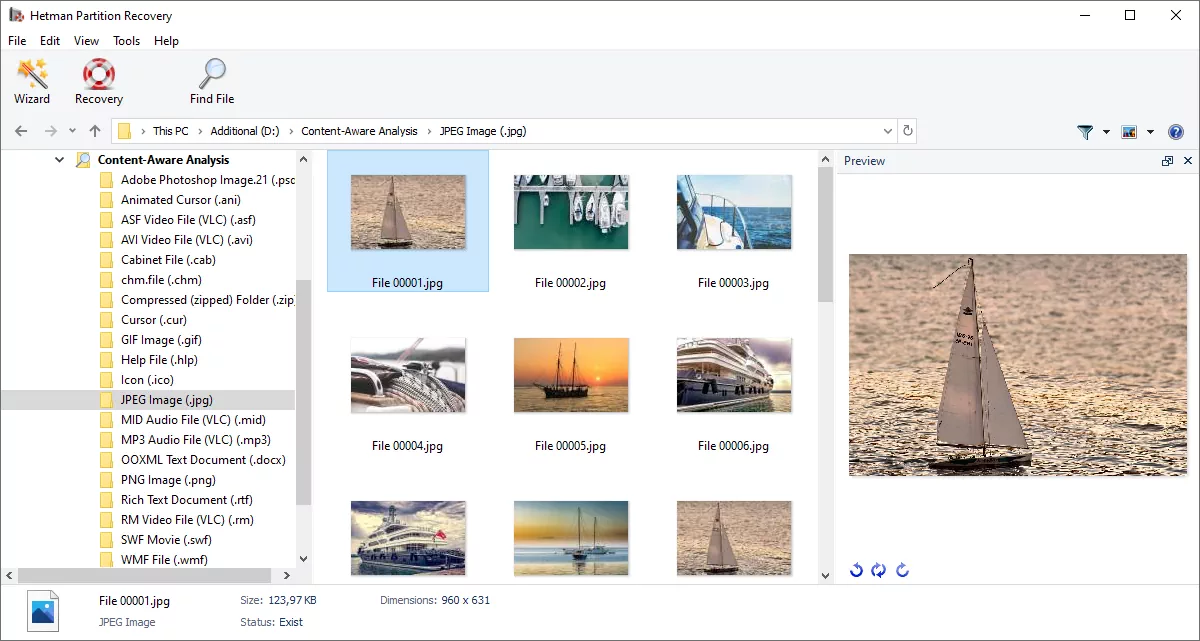
If file system records are damaged or missing, content-aware signature search scans the storage directly for known file structures. This makes it possible to locate supported file formats even after formatting, partition loss, or severe file system corruption, when the original directory information can no longer be used.
*.docx
*.rtf
*.pdf
*.jpeg
*.psd
*.png
*.xls
*.zip
*.avi
more...
Recover data from internal and external HDDs, SSDs, and SSHDs, including desktop, laptop, and removable storage connected directly or through USB enclosures and adapters. Partition Recovery™ works with storage of different capacities and interfaces as long as the device is detected and can be read by the operating system.

The software supports USB flash drives, SD/SDHC/SDXC and microSD cards, CompactFlash, Memory Stick, and other removable media commonly used in cameras, recorders, computers, and portable devices. It can analyze both healthy storage and devices affected by logical damage or read errors.
Specialized storage is supported as well, including disks removed from compatible DVR and NVR video surveillance systems, such as Hikvision recorders. Their proprietary file systems and recorded video data can be analyzed directly when the source disk is available for reading.
HDD, SSD
& SSHD Drives
& SSHD Drives
External
USB disk
USB disk
USB
flash drive
flash drive
SD, microSD
& Other Cards
& Other Cards
Virtual Machine
Disk Images
Disk Images
BitLocker, LUKS & VeraCrypt Volumes
Encrypted APFS, HFS+, EXT4 Volumes
EnCase/EWF, AFF & AFF4 Forensic Images
Apple Sparseimage, DMG & Sparsebundle
Partition Recovery™ supports file systems used across major desktop and server platforms, including NTFS, ReFS, FAT and exFAT for Windows storage, APFS and HFS+ for macOS, and Ext2/Ext3/Ext4, XFS, ReiserFS, Btrfs, ZFS and UFS used by Linux, Unix, and other systems.
The software also works with specialized storage environments, including VMFS5 and VMFS6 datastores used by VMware ESXi and HikvisionFS used by Hikvision DVR and NVR video surveillance systems. This allows data to be recovered directly from supported virtual machine storage and surveillance recorder disks when the underlying storage is available for reading.
Advanced file system support includes recovery of compressed, compact, and sparse files, as well as data stored in APFS, Btrfs, and ZFS file system snapshots. This allows the software to correctly process advanced storage structures and recover data preserved in previous file system states where supported.
Partition Recovery™ provides two analysis methods. Use Fast Scan for intact and readable file systems, or Full Analysis when the storage has been formatted, repartitioned, damaged, or become RAW or inaccessible.
Fast Scan
Fast Scan examines the current storage layout and available file-system metadata without scanning every sector. It reads file tables, directories, allocation information, and other available records to locate existing and deleted files.
Because it relies on structures that are still present and readable, Fast Scan is usually much faster and is the preferred first method for recently deleted files and folders.
Full Analysis
Full Analysis adds a sector-by-sector search for lost partitions, file-system structures, file tables, journals, backup metadata, redundant structures, and previous metadata states. This allows the software to recover structural information that may remain after formatting, partition loss, or file-system damage.
When sufficient metadata is found, Partition Recovery™ reconstructs the available partitions, folders, files, original names, paths, timestamps, and other relationships instead of presenting the recovered data as a flat list.
Content-aware analysis. During Full Analysis, you can additionally enable content-aware analysis to search the entire selected area for supported files by their internal content signatures. This method works independently of file-system metadata and is useful when the original file-system records have been severely damaged or lost. Files found only by content signatures may not retain their original file names, folder paths, timestamps, or other metadata.
Partition Recovery™ provides an Explorer-style workspace that shows physical disks, partitions, detected volumes, unallocated space, and mounted storage in one place. Detailed information about the selected disk or volume includes its file system, capacity, partition layout, physical device, and other available properties.
Built-in diagnostic tools provide additional information about the computer and connected storage, including operating system and hardware details, disk model, serial number, firmware, capacity, partition table, S.M.A.R.T. attributes, temperature, and drive health. This helps evaluate the source device before starting recovery and identify storage that may require more careful handling.
For faster navigation, the software provides direct access to common user locations such as Desktop, Documents, Downloads, Pictures, Music, and Videos, where available. You can also browse the original folder hierarchy, detected volumes, found partitions, and physical disks without switching between separate tools.
Large recovery results can be narrowed using filters for existing and deleted files, sorting, and file search. A visual thumbnail view makes it easy to identify photos, documents, videos, and other supported content without opening every file individually.
Together, filtering, search, thumbnail view, full preview, and detailed file information make it possible to evaluate recovery results before saving any data. You can quickly identify the files you need, verify that their contents open correctly, and assess the quality and completeness of recoverable files before proceeding with recovery.

The built-in HEX Editor provides direct low-level access to physical disks, partitions, file system structures, and individual files. It can be opened at different levels of the storage hierarchy, while contextual navigation automatically exposes the structures relevant to the selected disk, volume, or file.
Physical Disk Analysis
When opened for a physical disk, the HEX Editor displays raw sector data together with disk model, serial number, capacity, sector geometry, partition table, and detected partitions. The partition list provides quick navigation to the corresponding locations on the disk for direct examination of their raw structures.
Partition & File System Structures
For a selected volume, the editor identifies important file system structures and their physical locations. For example, on NTFS volumes you can navigate directly to the boot sector, MFT, and individual MFT fragments by selecting them in the structure panel instead of calculating offsets manually.
File & Fragment Analysis
When opened for an individual file, the HEX Editor shows its metadata, attributes, size, timestamps, and physical fragments on disk. Each fragment can be expanded into its underlying sectors, allowing you to move directly between the logical file and the physical locations where its data is stored.
Advanced navigation tools make it possible to search for text or HEX values, control search direction and position within sectors, and jump directly to a specified byte, sector, line, absolute offset, or relative offset. This makes the editor useful for detailed file system analysis, locating signatures and metadata, and verifying the exact physical placement of recoverable data.
Data recovery should avoid any unnecessary changes to the source storage. Partition Recovery™ uses read-only, low-level access during analysis, preventing the software from writing recovered data, metadata, or temporary information back to the disk being examined.
Read-Only Storage Analysis
The source device is analyzed without modifying its partitions, file systems, files, or folders. This is especially important when working with corrupted, unstable, or partially readable storage, where additional write operations could overwrite deleted data or further damage recoverable file system structures.
Create a Disk Image Before Recovery
The software can create a sector-by-sector image of an entire physical disk or selected storage and use that image as the source for further analysis. This allows recovery work to continue without repeatedly accessing the original device and provides a safer workflow for disks affected by read errors, bad sectors, or unstable operation.
Scanning high-capacity or damaged storage can take considerable time. Partition Recovery™ allows you to save completed analysis results and reopen them later, so you can continue reviewing and recovering files without scanning the source device again.
Continue Recovery Without Rescanning
Saved scan results preserve information about detected partitions, reconstructed file systems, folders, files, and recovery analysis. You can close the program, reload the saved results later, and continue browsing, searching, previewing, and selecting files from the point where you stopped.
Reduce Repeated Access to the Source
Avoiding repeated scans is particularly useful for large, unstable, or partially readable drives. Once the analysis has been completed and saved, you can return to the recovery results without performing the same lengthy scan again or unnecessarily accessing the original storage.

Partition Recovery™ can analyze data not only from directly connected storage, but also from disk images, forensic images, Apple disk images, and remote block devices over SSH. Mounted sources are processed like regular disks, allowing you to scan their partitions and file systems, browse recovered folders, preview files, and save the required data.
Disk & Apple Images
Open and analyze common disk image formats such as RAW, IMG, ISO and Apple storage images including DMG, CDR, SparseImage, and SparseBundle. This allows recovery to be performed from a previously created copy instead of accessing the original storage device.
Forensic Disk Images
The software can work with professional forensic image formats including EnCase/EWF images and AFF/AFF4 containers. These sources can be mounted and examined at the partition and file-system level, making them suitable for technical investigations and recovery from previously acquired storage images.
Remote Storage over SSH
Connect to supported remote systems over SSH and access available physical or block storage without removing the drive from the original computer or server. This is useful for recovering data from remote Linux systems and VMware ESXi hosts, where disks or VMFS storage can be analyzed directly over the network.
Partition Recovery™ can open and analyze virtual machine disks and snapshot chains without requiring the original virtual machine to start. Virtual storage is mounted as a regular disk, allowing the software to detect partitions and file systems, reconstruct folders, search for deleted data, and recover files directly from the virtual disk.
VMware, Hyper-V & VirtualBox
Recover data from virtual disks used by popular virtualization platforms, including VMDK for VMware, VHD/VHDX for Microsoft Hyper-V, and VDI for Oracle VirtualBox. The virtual disk can be analyzed even when the guest operating system is damaged, the VM no longer boots, or files inside it have been deleted.
KVM, QEMU, Proxmox & Parallels
The software also supports virtual storage used by KVM/QEMU and Proxmox, including QCOW, QCOW2, RAW, IMG, QED, and COW, as well as HDD and HDS virtual disks used by Parallels. File systems inside these images are processed in the same way as storage on a physical disk.
Virtual Machine Snapshots
Analyze supported virtual machine snapshots and differencing disks, including VMware snapshot chains, Hyper-V AVHD/AVHDX disks, and supported QCOW/QCOW2 snapshot configurations. The software follows the relationship between the base virtual disk and its changes, allowing data to be recovered from the relevant VM state.

Partition Recovery™ can recover data from encrypted volumes, encrypted file systems, individual encrypted files, and supported encrypted disk images. When the required password, recovery key, or other valid credentials are available, the storage can be unlocked and analyzed using the same recovery methods as an unencrypted disk.
Encrypted Disks & Volumes
Recover data from storage protected with technologies such as BitLocker, LUKS, VeraCrypt, FileVault, and encrypted APFS volumes. After unlocking the storage, the software can analyze existing and deleted partitions, damaged file systems, folders, and recoverable files.
Encrypted Files & Folders
Support for file-level encryption includes technologies such as Windows EFS and Linux fscrypt. When the required encryption information is available, the software can process protected files together with the underlying file system metadata and recovery results.
Recovery After Data Loss
Encrypted storage can be analyzed after file deletion, formatting, partition loss, or file system corruption. Recovery works with the decrypted storage structure, allowing the software to reconstruct folders and locate recoverable files that are no longer accessible through the operating system.
Recovery from encrypted storage requires the correct password, recovery key, encryption key, or other valid credentials. Partition Recovery™ is designed to recover data from accessible encrypted storage, not to bypass or crack encryption.
Partition Recovery™ runs on Windows, Linux, and macOS and requires low-level access to storage devices for physical disk, partition, and file system analysis. For data recovery, the most important requirements are sufficient system privileges and enough free storage space to safely save the recovered files.
Windows, Linux & macOS
The software can be used on Windows, Linux, and macOS to analyze supported physical disks, partitions, disk images, virtual disks, and file systems. Recovery does not depend on the operating system originally used on the affected storage — supported file systems from other platforms can also be analyzed.
Administrative & Root Access
Low-level access to physical disks requires administrator or root privileges, depending on the operating system. These permissions allow the software to read physical storage, partition tables, file system structures, and other system-level disk information that is not available to standard user accounts.
When analyzing remote storage over SSH, the remote account must also have sufficient privileges to read the required physical or block devices, typically root-level access.
Free Space for Recovered Data
Recovery requires a separate destination with enough free space to store all selected files. For large recovery cases, using a high-capacity HDD, SSD, or other storage device is recommended.
Partition Recovery™ can save recovered files to local disks, network locations via FTP, NAS devices, USB enclosures, USB flash drives, and memory cards. This makes it possible to choose a destination with sufficient capacity without writing recovered data back to the affected storage.
The required destination space can be greater than the amount of data previously occupied on the source, because recovery results may include existing and deleted files, multiple recoverable versions, reconstructed files, and data extracted during different analysis methods.
Do not save recovered files back to the source storage. Writing new data to the affected disk can overwrite deleted files or file system structures that may still be recoverable. Save recovered data to a different physical disk, network location, or other storage device whenever possible.

-
What is the difference between Partition Recovery™ and RAID Recovery™?
Partition Recovery™ is designed to recover data from individual physical disks, partitions, disk images, virtual disks, and other storage sources that can be accessed as a readable block device.
This also includes servers and storage systems where the underlying RAID is healthy and already assembled by the operating system, RAID controller, NAS, or storage appliance. If the server can be accessed over SSH and provides access to the assembled RAID volume or its block device, Partition Recovery™ can analyze that logical storage directly without reconstructing the RAID configuration.
The software can also be used when a server, NAS, SAN, or other storage system exposes its storage as a block device over iSCSI. Once the iSCSI target is connected and appears to the operating system as an accessible disk or volume, it can be analyzed in the same way as locally connected storage.
Use RAID Recovery™ when the RAID itself is damaged or unavailable and the storage must first be reconstructed from multiple physical member disks. RAID Recovery can determine parameters such as disk order, stripe size, offsets, parity layout, and missing members before rebuilding the logical storage for file recovery.
-
Should I run CHKDSK, fsck, Disk Utility First Aid, or format the drive before recovery?
No. If the lost data is important, avoid formatting the storage or running file system repair utilities before attempting recovery.
Tools such as CHKDSK, fsck, and Disk Utility First Aid can modify damaged file system structures while repairing them. This may overwrite or change metadata that could otherwise help recover files. Analyze the storage or create a disk image first, recover the required data, and only then attempt file system repair.
-
Can deleted files be recovered from an SSD with TRIM enabled?
It depends on whether the deleted data is still physically available. TRIM allows an SSD to mark unused blocks for internal cleanup. Once the original contents of those blocks have been discarded and are no longer readable, recovery software cannot reconstruct the deleted data from them.
Stop using the SSD as soon as possible after data loss. Recovery may still be possible when the relevant data has not been discarded or when the problem involves partition loss, file system corruption, damaged metadata, or other information that remains readable.
-
Can Partition Recovery restore the original file names and folder structure?
Yes, when sufficient file system metadata is still available. Partition Recovery™ analyzes file system records, backup metadata, journals, and other available structures to reconstruct original file names, folders, paths, dates, and other attributes.
If this metadata has been damaged or overwritten, content-aware signature search can still locate supported file types by analyzing their internal structures. In such cases, however, the original file names and folder hierarchy may no longer be available.
-
Can I recover data from a disk created on a different operating system?
Yes. The operating system used to run Partition Recovery™ does not have to match the system originally used with the affected storage.
The software runs on Windows, Linux, and macOS and supports file systems from multiple platforms, including NTFS, ReFS, FAT/exFAT, APFS, HFS+, Ext2/Ext3/Ext4, XFS, ReiserFS, Btrfs, ZFS, UFS, VMFS5/VMFS6, HikvisionFS, and other supported file systems.
-
Can data be recovered from a physically damaged hard drive?
Partition Recovery™ can work with a drive that is still detected and at least partially readable, including storage affected by bad sectors, I/O errors, or unstable reads. In such cases, creating a disk image first can reduce repeated access to the problematic device.
If the drive is not detected, does not spin, makes abnormal mechanical noises, or has electronic or mechanical damage that prevents sector-level access, software recovery is not appropriate. Such devices should be handled by a professional data recovery laboratory.